
Asset Page
Every asset StyxView monitors for your organisation has a page of its own. It brings together what discovery found about the asset, what you have recorded about it, and its findings.
Opening an Asset
Section titled “Opening an Asset”Select an asset on the "Asset Inventory" tab of "Monitored Assets". See Asset Inventory. The same page opens when you select:
- A row on the "Hosts", "Domains", "IP Addresses", "TLS/SSL Certificates", or "Social Media" tab of "Monitored Assets".
- A pill in a "Findings" column on "Monitored Assets". The page then opens with those findings listed.
- An asset pill on a finding's page. See Assets Card.
Select the back arrow at the top left to return to where you came from.
Header
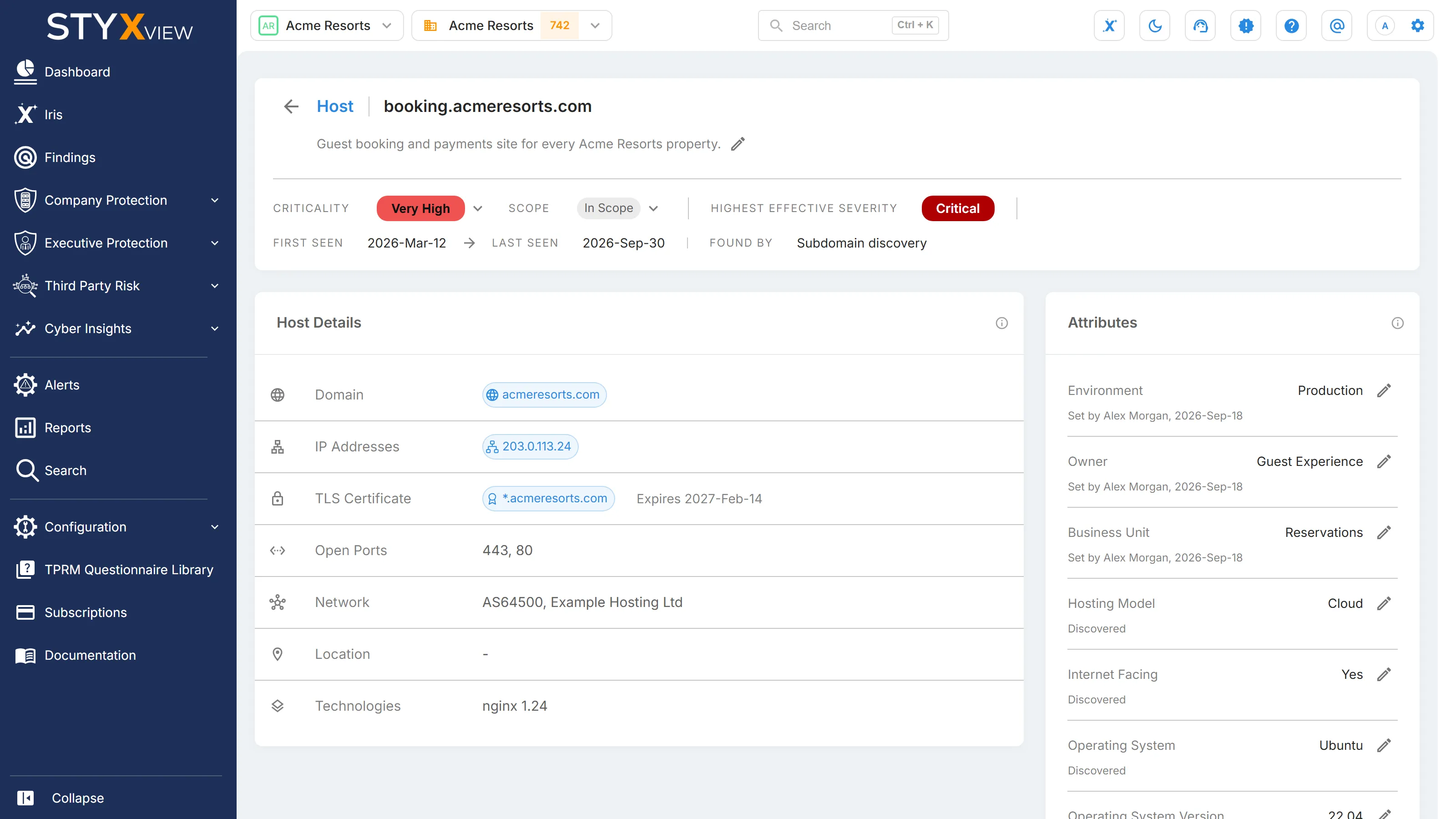
Section titled “Header”The header names the asset's type, such as "Host" or "Owned Domain", and the asset itself, with an icon to copy it. Below them is the asset's description, when one is recorded. Then:
- "Criticality": how important the asset is to your business, from "Very Low" to "Very High". An asset with no criticality of its own shows the band it takes by default, with an icon beside it whose tooltip reads "Project default".
- "Scope": "In Scope" or "Out of Scope". A finding whose every asset is out of scope is suppressed. See Suppressed Findings.
- "Highest Effective Severity": the most serious effective severity among the asset's open findings that are not suppressed. When there is none, it reads "No open findings" for an asset in scope, and "None" for an asset out of scope.
- "First Seen" and "Last Seen": when discovery first and last found the asset. A last seen date that stops advancing means the asset is no longer being found. Its record stays, along with its findings.
- "Found By": where the asset was first recorded, such as "Subdomain discovery", "Host resolution", "Owned domains", "Certificate scanning", "Website inventory", "SaaS inventory", "Mobile app monitoring", or "Social media monitoring", or "Registered by hand". It does not change how the asset is monitored or how its findings are scored.
Details
Section titled “Details”Hosts, subdomains, IP addresses, domains, TLS certificates, and social media accounts have a card with what the most recent scan found:
| Card | What it shows |
|---|---|
| Host Details | "Domain", "IP Addresses", "TLS Certificate" with its expiry date, "Open Ports", "Network", "Location", and "Technologies". |
| IP Address Details | "Hosts", "TLS Certificate", "Open Ports", "Network", "Location", and "Reverse DNS". |
| Domain Details | "Registrar", "Date Created", "Expiration Date", "Name Servers", "MX Records", "SPF Records", "DKIM Selectors", "DMARC Records", and "Subdomains". |
| Certificate Details | "Presented By", "Valid" with the days left before the certificate expires, "Alternative Names", "Issuer", "Key and Signature", and "Serial Number". |
| Account Details | "Network Name", "Username/ID", "URL", and "MFA Enabled". |
Related assets show as pills, each with the icon of its tab on "Monitored Assets": a host's domain, IP addresses, and certificate; an IP address's hosts and certificate; a domain's subdomains; and the hosts that present a certificate. Select a pill to open that asset's page. A domain lists its first 20 subdomains, and says how many more it has.
Attributes
Section titled “Attributes”The "Attributes" card lists the properties recorded for the asset. Under each value, it says where the value came from: "Discovered", or "Set by" with the user who set it and when. Only attributes with a value are listed.
| Attribute | Values |
|---|---|
| Environment | "Production", "Staging", "Development", "Test", or "Unknown". |
| Owner | Free text, up to 255 characters. |
| Business Unit | Free text, up to 255 characters. |
| Hosting Model | "On Premises", "Cloud", "Third Party Hosted", or "Unknown". |
| Internet Facing | "Yes" or "No". |
| Operating System | Free text, up to 128 characters. |
| Operating System Version | Free text, up to 64 characters. |
| Lifecycle Status | "Active", "Decommissioning", "Decommissioned", or "Unknown". |
| Data Classification | "Public", "Internal", "Confidential", "Restricted", or "Unknown". |
| Physical Location | Free text, up to 255 characters. |
Attributes describe the asset. They do not change how its findings are scored.
The "Tags" card lists the asset's tags. A tag from your tag library is filled. A tag added on this asset alone is outlined, and its tooltip reads "Added on this asset, not from the tag library", until an Admin adds the same name to the library. Tags group related assets. They do not change how findings are scored. The tag library is described in Asset Tags.
Findings
Section titled “Findings”The "Findings" card lists the findings linked to the asset, with the same columns and filters as the Findings page, and opens on the findings in an open status. Above the list, "All" and a tab for each finding type among the asset's open findings narrow it to one type.
Opened from a pill in a "Findings" column, the list is filtered to that effective severity, and leaves out suppressed findings, as the pill's count does. Clear those filters to see the rest.
Editing an Asset
Section titled “Editing an Asset”Users with the Admin or Analyst role can change an asset from its page. Users with the Viewer role see the same page without these controls.
- Criticality: select the value and choose a band. Under each band, the menu says what the severity matrix does to findings on this asset, such as "Raises findings here" or "Findings keep their severity". Choose the last option, for example "Project default (Medium)", to remove the asset's own band, so that it takes its criticality by default again.
- Scope: select the value and choose "In Scope" or "Out of Scope".
- Description: select "Add a description", or the "Edit description" icon beside the description, write what the asset is in your own words, and select "Save". A description can be up to 1,024 characters. To remove it, clear the text and select "Save".
- Tags: in "Add a tag", choose a tag from your library or type a new name, and select "Add". A tag name can be up to 100 characters. A tag an Admin has retired cannot be added here, until an Admin adds its name to the tag library again. To take a tag off the asset, select the delete icon on it.
- Attributes: select the edit icon beside an attribute to change it, or "Add attribute" to set one that has no value yet, then select "Save". To remove a text attribute, clear it and select "Save".
A change to criticality or scope re-scores the asset's findings in the background, which can take a few minutes. See How Effective Severity Is Worked Out.
Shared with Policies
Section titled “Shared with Policies”For domains, hosts, dedicated IP addresses, social media accounts, and mobile apps, the asset page and your Company Protection policy hold the same criticality and description. A change made on the asset page shows in the policy under "Configuration" > "Policies". Choosing the default criticality on the asset page writes the band the asset now takes into the policy. See Policies.
Each Account Keeps Its Own Values
Section titled “Each Account Keeps Its Own Values”Criticality, scope, description, tags, and attributes belong to the account you are viewing. The same asset in another of your accounts keeps its own.