
Surface Web Exposure
Documents
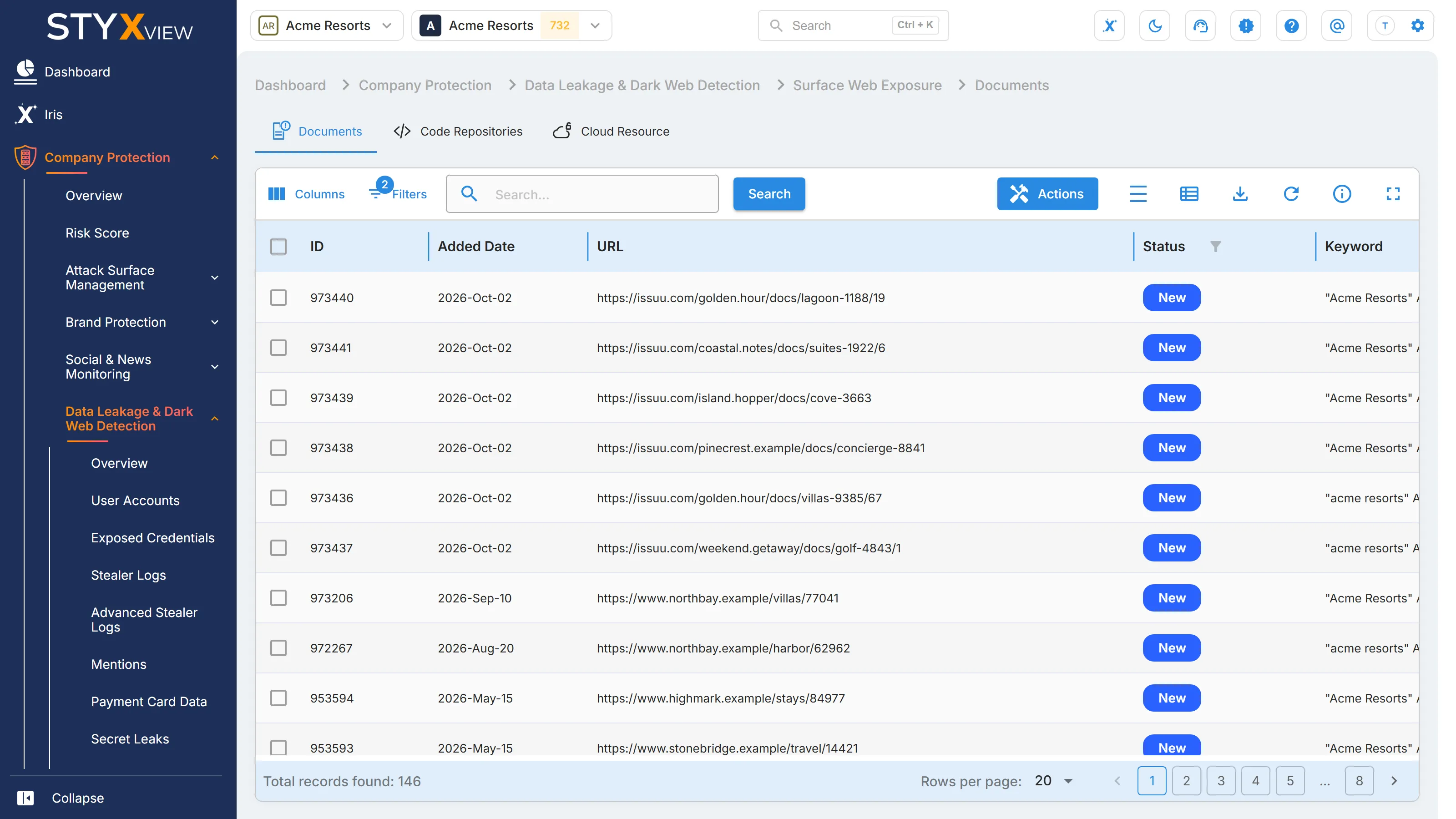
Section titled “Documents”The "Documents" tab of Surface Web Exposure lists documents that anyone can open on the public web, such as files on document-sharing sites, that match one of your monitored keywords. Each row is a finding of the type "Exposed Surface Web Document". Check each document for internal or confidential content and have it taken down or restricted where needed.
Where to find it
Section titled “Where to find it”Select "Company Protection" > "Data Leakage & Dark Web Detection" > "Surface Web Exposure". The "Documents" tab opens first, beside Code Repositories and Cloud Resource. The "Exposed Documents" card on the overview also opens it.
Columns
Section titled “Columns”| Column | What it shows |
|---|---|
| "ID" | The finding ID. |
| "Added Date" | When StyxView found the document. |
| "URL" | The document's address. Copy it or open it from the cell. |
| "Status" | The finding status. See Finding statuses. |
| "Keyword" | Your monitored keyword that the document matched. |
| "Assigned User" | The user the finding is assigned to. |
| "Latest Comment" | The most recent comment on the finding. |
The list opens filtered to open finding statuses.
Working with findings
Section titled “Working with findings”Select one or more rows, then select "Actions" for "Update Status", "Assign To", "Comment", or "Mark as False Positive". See Finding statuses and User Actions.
Select a row to open the finding's page, which shows "Date Discovered", "Source Name", "Type", "Keyword", and "Source". To export the list, select the export icon, then "Download as CSV" or "Download as Excel".
Code Repositories
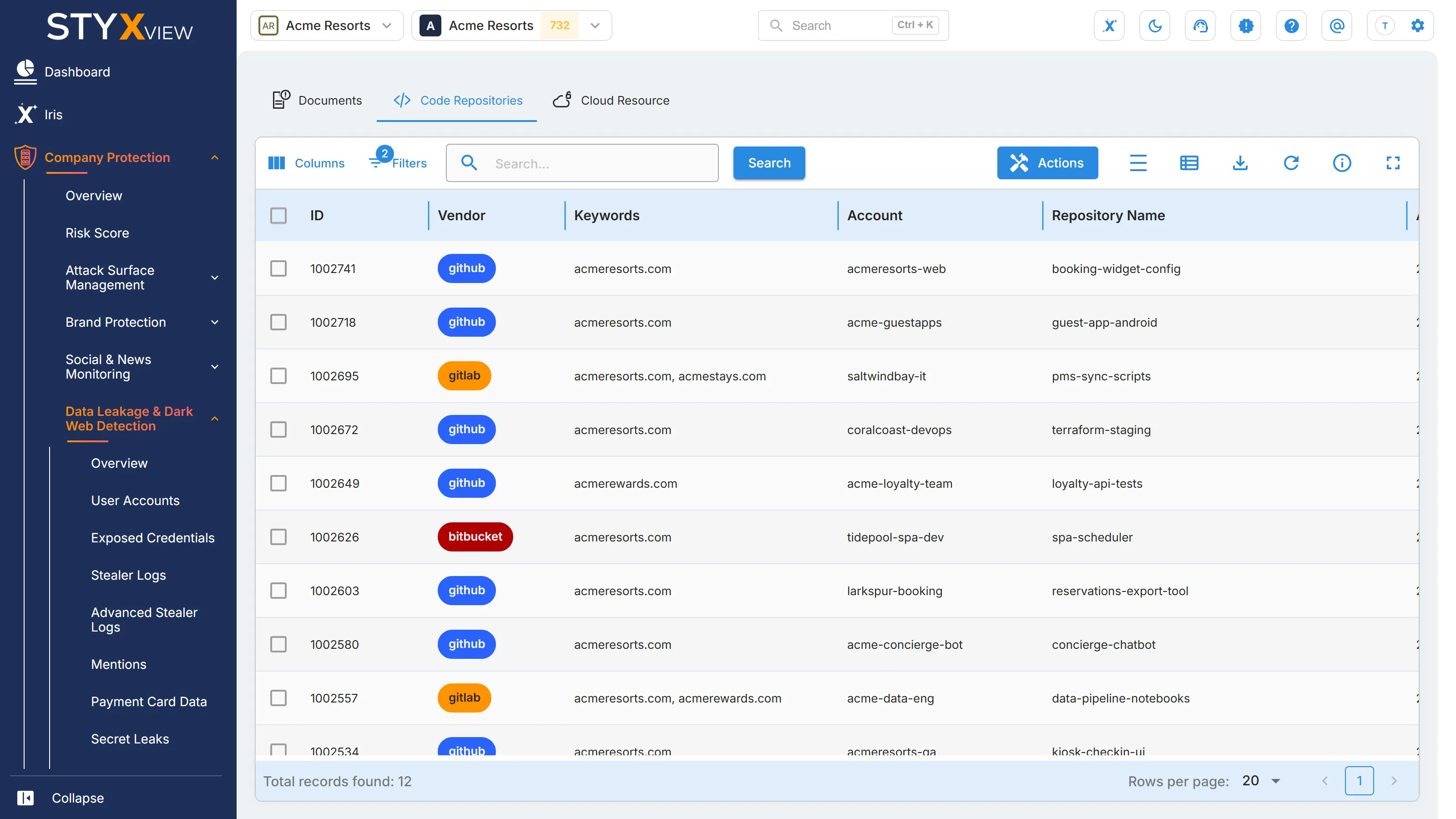
Section titled “Code Repositories”The "Code Repositories" tab of Surface Web Exposure lists public code repositories that contain one of your monitored keywords, for example your domain in source code, commits, or issues. Each row is a finding of the type "Exposed Code Repository". Check each repository for leaked code, configuration, or credentials.
Where to find it
Section titled “Where to find it”Select "Company Protection" > "Data Leakage & Dark Web Detection" > "Surface Web Exposure", then the "Code Repositories" tab. The "Exposed Code Repository" card on the overview also opens it.
Columns
Section titled “Columns”| Column | What it shows |
|---|---|
| "ID" | The finding ID. |
| "Vendor" | The platform that hosts the repository, such as GitHub or GitLab. |
| "Keywords" | Your monitored keywords found in the repository. |
| "Account" | The user or organisation that owns the repository. |
| "Repository Name" | The repository's name. |
| "Added Date" | When StyxView found the exposure. |
| "Category" | Where in the repository the keywords were found: code, commits, issues, pull requests, files, or the repository itself. |
| "URL" | Links to the content that matched. |
| "Status" | The finding status. See Finding statuses. |
| "Assigned User" | The user the finding is assigned to. |
| "Latest Comment" | The most recent comment on the finding. |
"Vendor", "Category", and "Keywords" filter by a list of values. The list opens filtered to open finding statuses.
Working with findings
Section titled “Working with findings”Select one or more rows, then select "Actions" for "Update Status", "Assign To", "Comment", or "Mark as False Positive". See Finding statuses and User Actions.
Select a row to open the finding's page, which shows the "Vendor", the "Account", and each matching repository with its "Keyword", "Category", "URL", and "Added Date". To export the list, select the export icon, then "Download as CSV" or "Download as Excel".
Cloud Resource
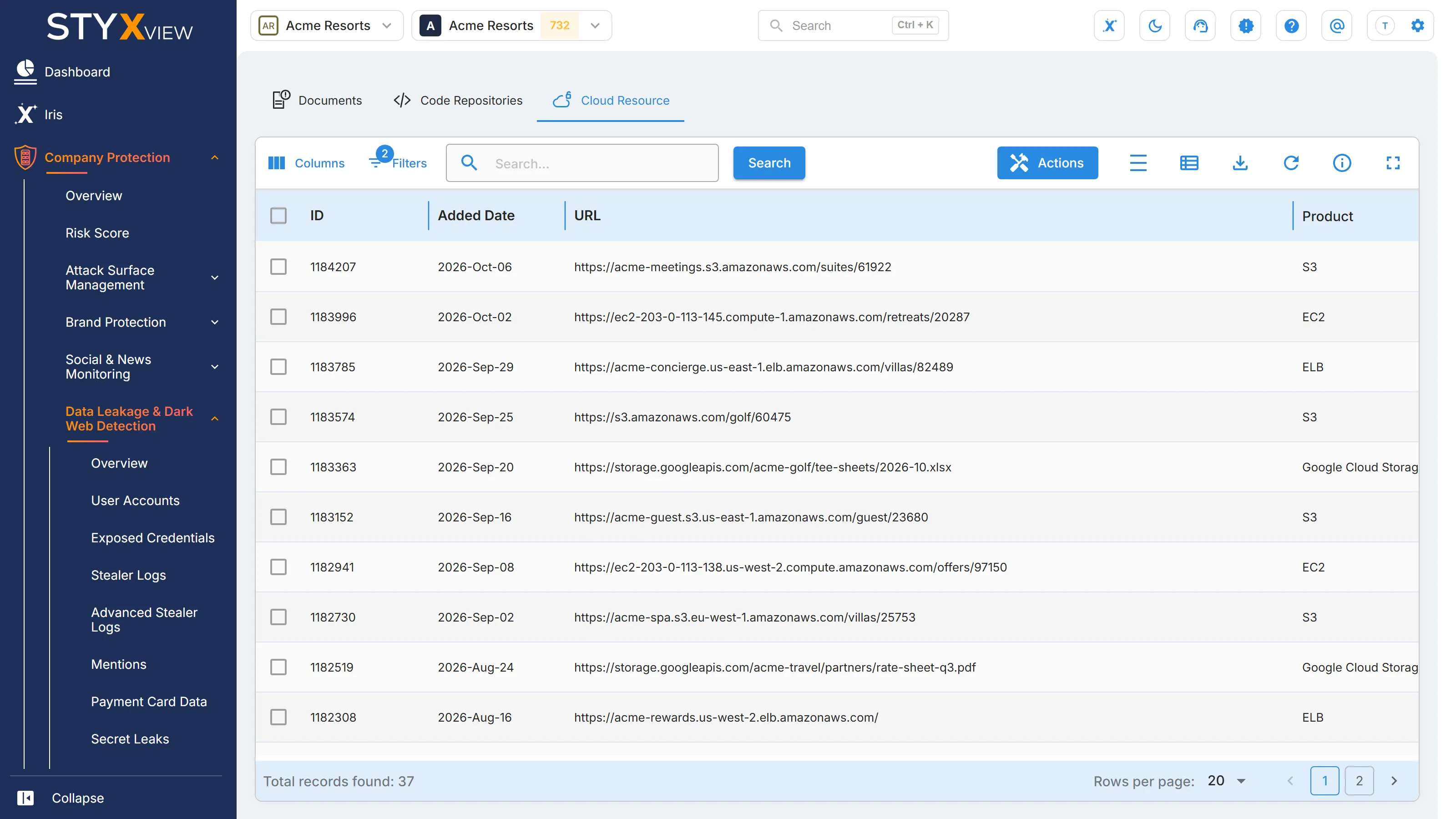
Section titled “Cloud Resource”The "Cloud Resource" tab of Surface Web Exposure lists publicly accessible cloud resources that match one of your monitored keywords: storage buckets, virtual machines, load balancers, and API endpoints. Each row is a finding of the type "Exposed Cloud Resource". Check whether each resource is yours and whether it should be public, then restrict or remove it.
Where to find it
Section titled “Where to find it”Select "Company Protection" > "Data Leakage & Dark Web Detection" > "Surface Web Exposure", then the "Cloud Resource" tab. The "Cloud Storage Exposure" card on the overview also opens it.
Columns
Section titled “Columns”| Column | What it shows |
|---|---|
| "ID" | The finding ID. |
| "Added Date" | When StyxView found the resource. |
| "URL" | The resource's address. Copy it or open it from the cell. |
| "Product" | The cloud service, such as "S3", "EC2", "ELB", "API Gateway", "Azure Blob", "Google Cloud Storage", or "DigitalOcean Spaces". |
| "Cloud Vendor" | The cloud provider, such as "Amazon AWS", "Microsoft Azure", "Google Cloud Platform", or "DigitalOcean". |
| "Keyword" | Your monitored keyword that the resource matched. |
| "Status" | The finding status. See Finding statuses. |
| "Assigned User" | The user the finding is assigned to. |
| "Latest Comment" | The most recent comment on the finding. |
The list opens filtered to open finding statuses.
Working with findings
Section titled “Working with findings”Select one or more rows, then select "Actions" for "Update Status", "Assign To", "Comment", or "Mark as False Positive". See Finding statuses and User Actions.
Select a row to open the finding's page, which shows the "Product", "Cloud Vendor", "Source", and "Metadata". To export the list, select the export icon, then "Download as CSV" or "Download as Excel".