

Creating Third Party Risk Reports
The "Reports" page creates reports from templates, either once or on a schedule, and keeps the results for download. This page covers the third-party report templates. For every template and tab, see Reports.
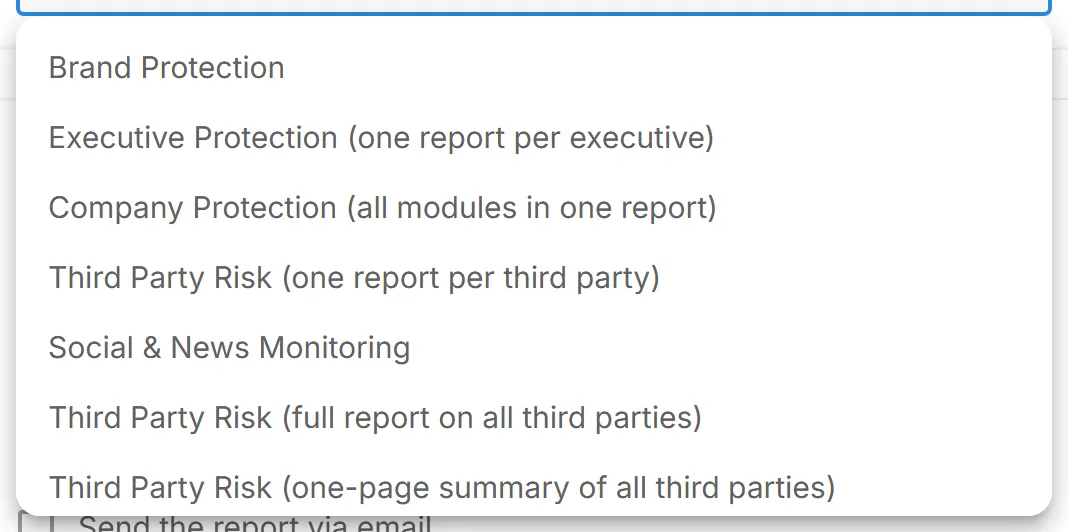
Three templates cover third parties. They are offered when your account includes Third Party Risk.
| Template | What it covers |
|---|---|
| "Third Party Risk (one report per third party)" | A separate report for each third party you select. |
| "Third Party Risk (full report on all third parties)" | One full report on all your third parties. |
| "Third Party Risk (one-page summary of all third parties)" | A one-page summary of all your third parties. |
Navigation path
Section titled “Navigation path”-
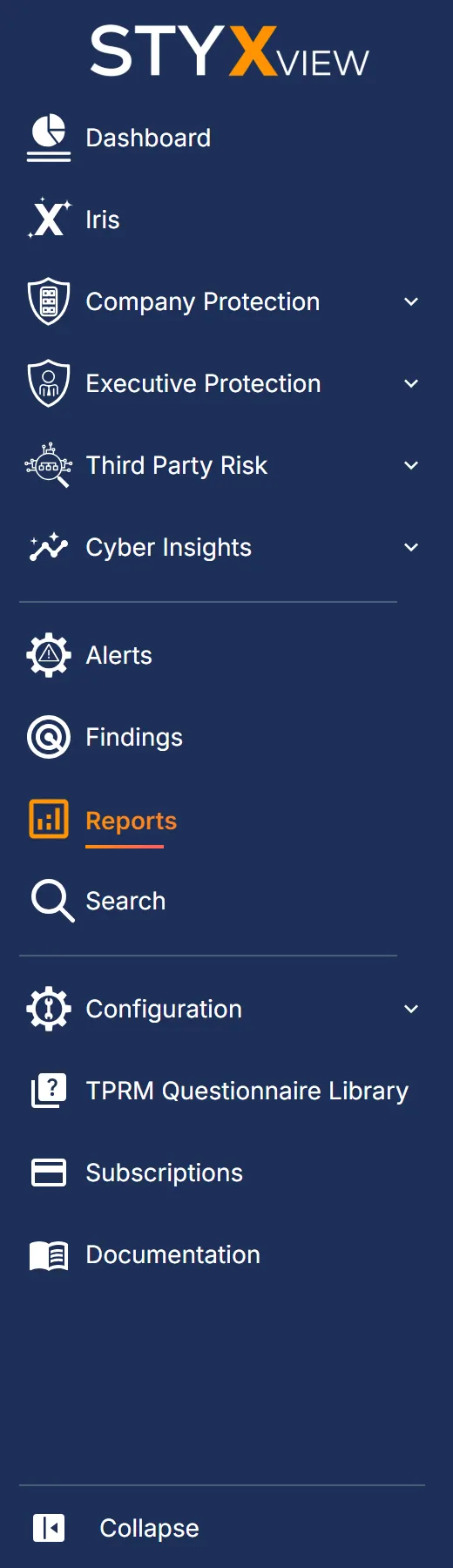
In the sidebar, select Reports.
-
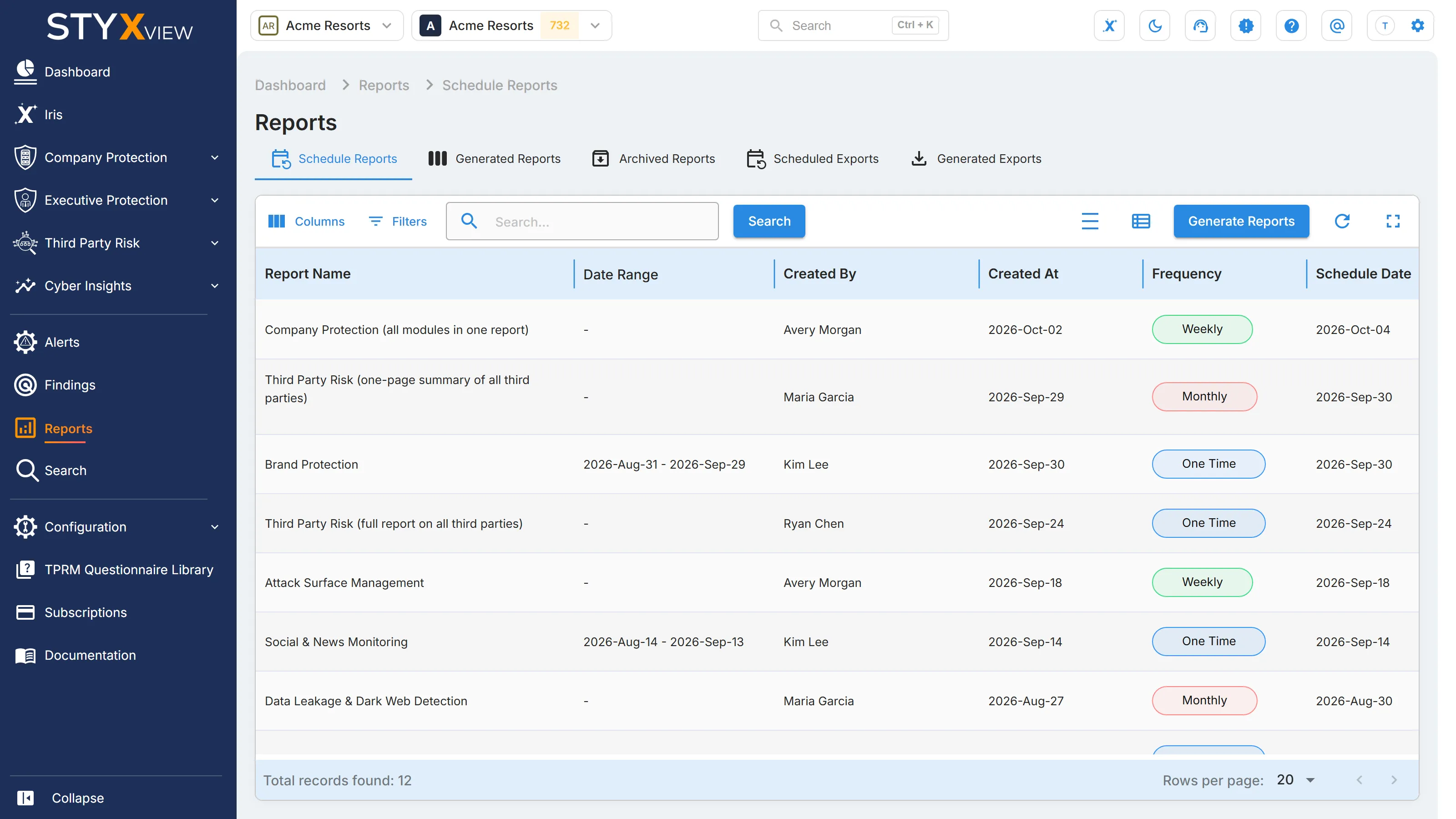
The page opens on the "Schedule Reports" tab. The other tabs are "Generated Reports", "Archived Reports", "Scheduled Exports", and "Generated Exports". The export tabs are for data exports, not reports.

Schedule Reports overview
Section titled “Schedule Reports overview”"Schedule Reports" lists the reports you have set up, one-time and recurring.
| Column | What it shows |
|---|---|
| "Report Name" | The template the report uses. |
| "Date Range" | The period the report covers, if one was set. |
| "Created By" | The user who set up the report. |
| "Created At" | When the report was set up. |
| "Frequency" | "One Time", "Weekly", or "Monthly". |
| "Schedule Date" | The date a one-time report runs. |
| "Schedule Time" | The time the report runs. |
| "Timezone" | The timezone of the schedule. |
| "Schedule Day of week" | The day a weekly report runs. |
| "Schedule Day of Month" | The day a monthly report runs. |
| "Actions" | Delete the report. |
Steps to schedule a report
Section titled “Steps to schedule a report”-
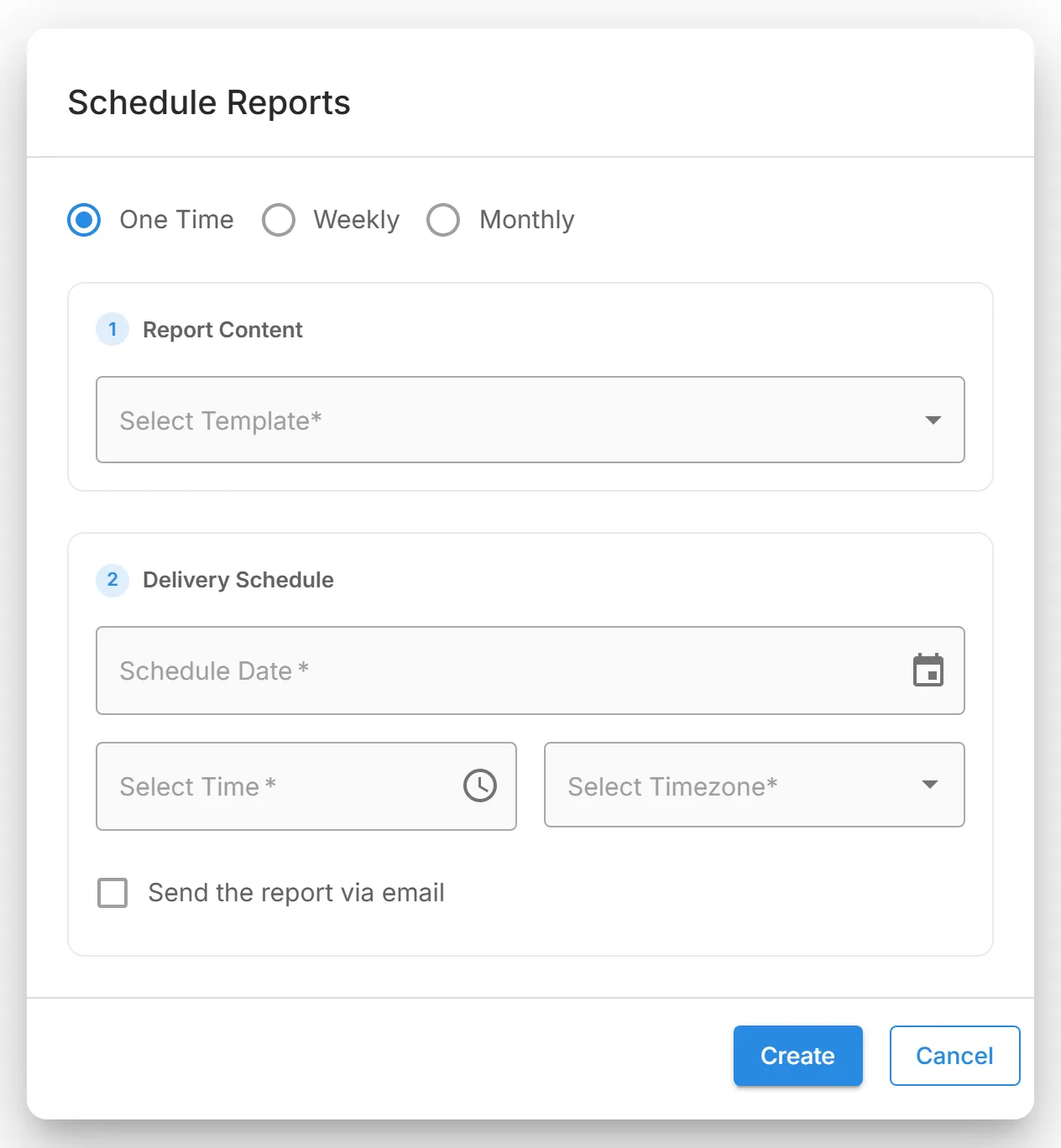
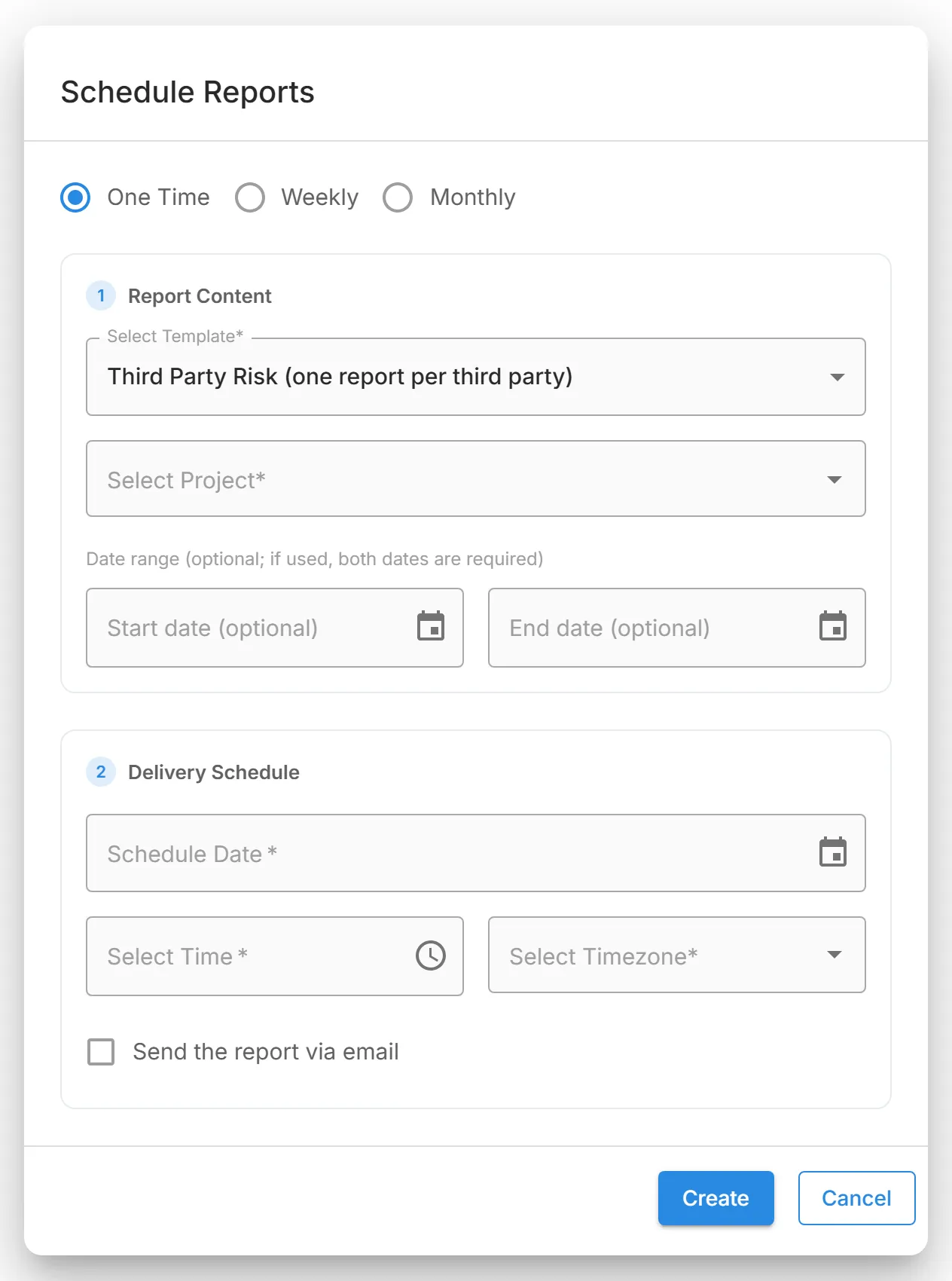
Select "Generate Reports". The "Schedule Reports" dialog opens.

-
Choose the frequency: "One Time", "Weekly", or "Monthly".
-
Under "Report Content", choose a template in "Select Template".
-
For "Third Party Risk (one report per third party)", select one or more third parties in "Select Project". You get one report per third party.
-
For a one-time "Third Party Risk (one report per third party)" report, you can limit the period it covers with "Start date (optional)" and "End date (optional)". If you use one, both are required.
-
Under "Delivery Schedule", set when the report runs:
- One Time: a "Schedule Date" of today or later.
- Weekly: "Select Week Day".
- Monthly: "Select Delivery Date".
Then set "Select Time" and "Select Timezone". For a weekly or monthly report, also set a "Generation Start Date" and "Generation End Date" for the period in which it keeps running.
-
To have the report emailed, select "Send the report via email" and choose users in "Select Recipient".
-
Select "Create" for a one-time report, or "Create And Schedule" for a recurring one. Select "Cancel" to close without saving.
Generated Reports overview
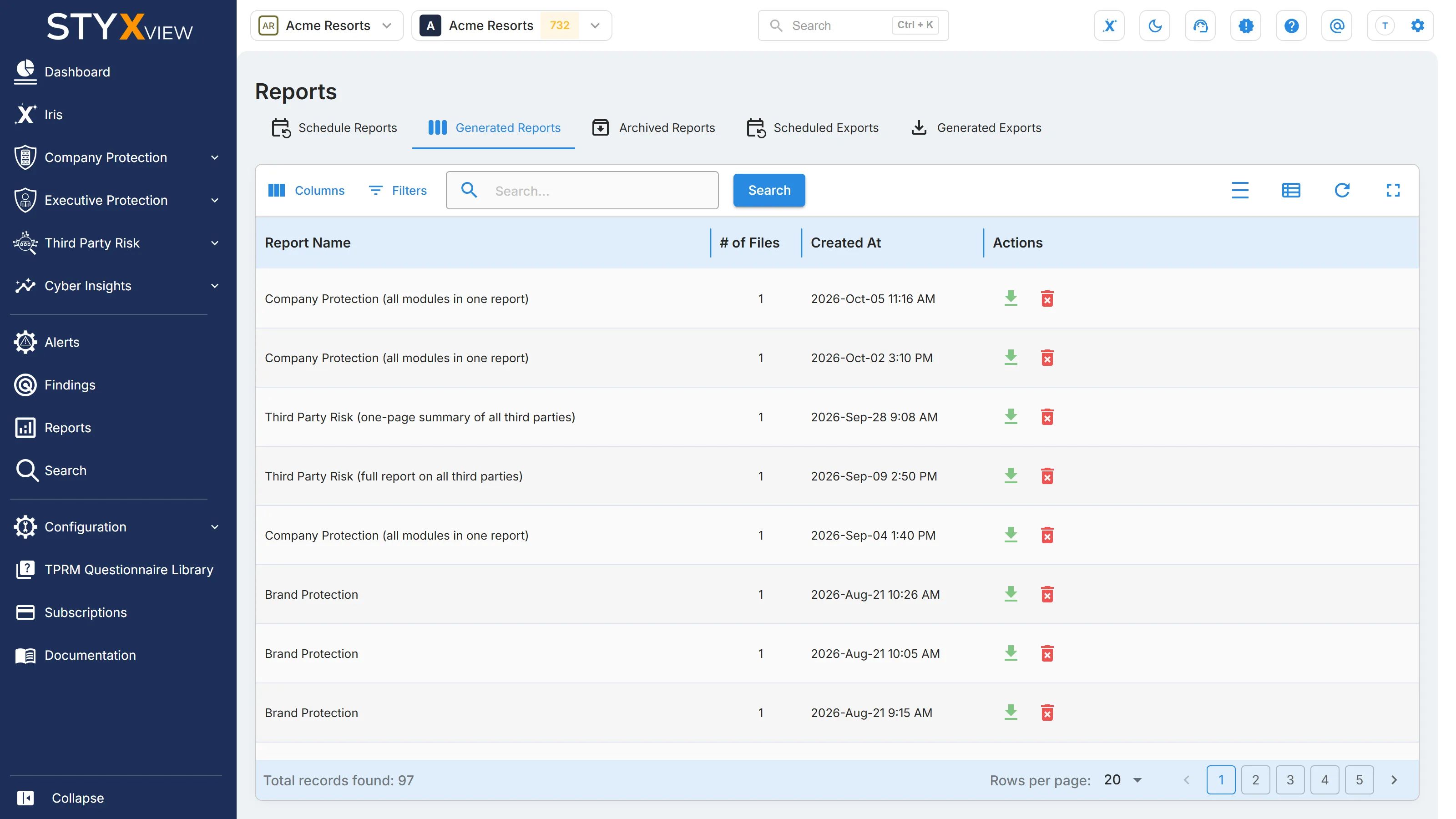
Section titled “Generated Reports overview”"Generated Reports" lists every report that has run, including each run of a scheduled report.
| Column | What it shows |
|---|---|
| "Report Name" | The template the report used. |
| "# of Files" | The number of files the report produced. A per-third-party report produces one file for each third party. |
| "Created At" | When the report was generated. |
| "Actions" | Download or delete the report. |
- Download: opens "Download Reports", listing the report's files. Download the one you need.
- Delete: removes the report from the list after you confirm.
Archived Reports overview
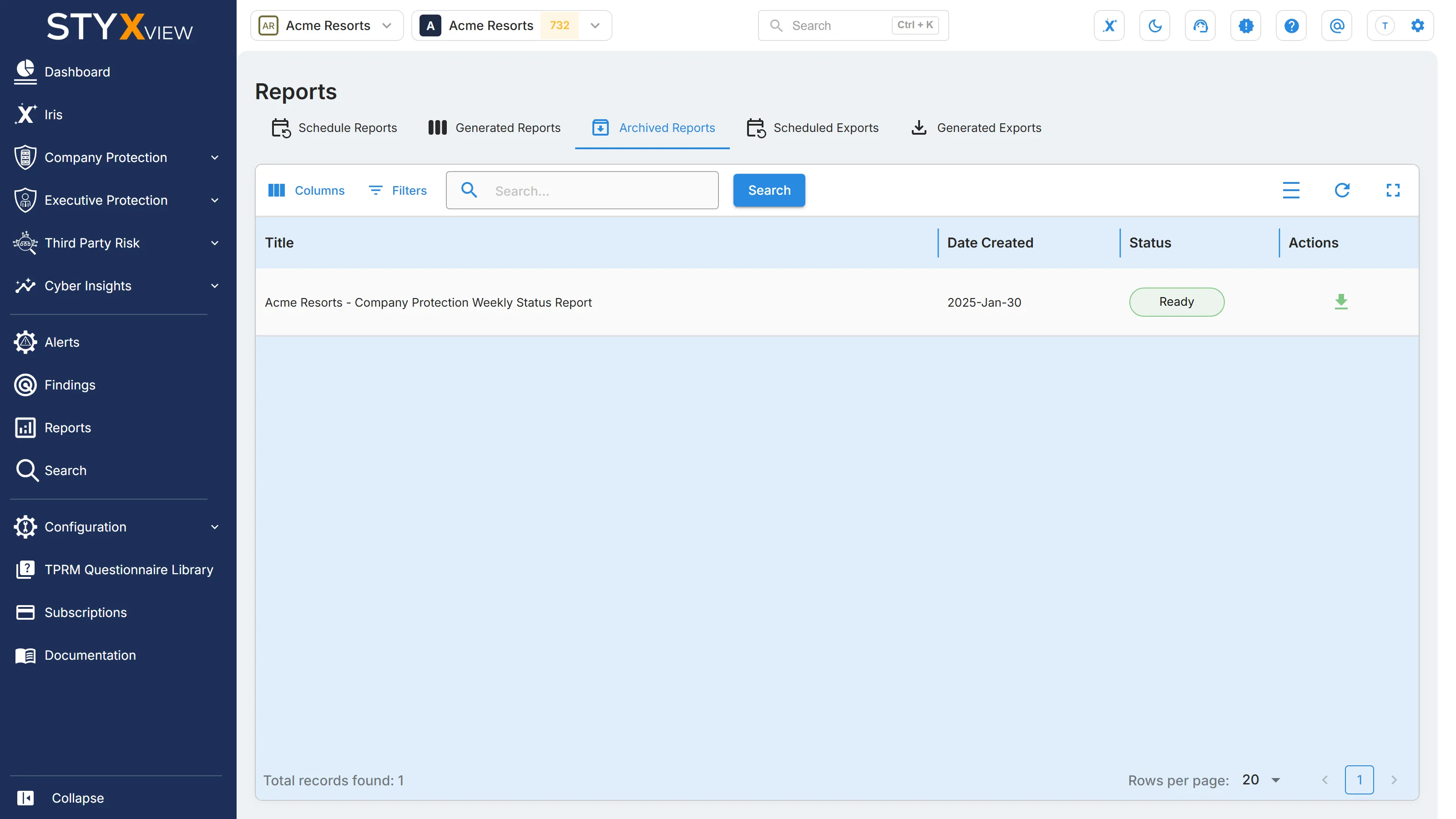
Section titled “Archived Reports overview”"Archived Reports" keeps older reports for reference or audit.
| Column | What it shows |
|---|---|
| "Title" | The report's title. |
| "Date Created" | When the report was created. |
| "Status" | "Ready" when the report can be downloaded, or "Pending". |
| "Actions" | Download the report. |