

Search
"Search" looks up the events StyxView has recorded against your risk indicators: each detection, with all of its data. Use it to see exactly what was found for a risk indicator or a finding, and when.
Where to find it
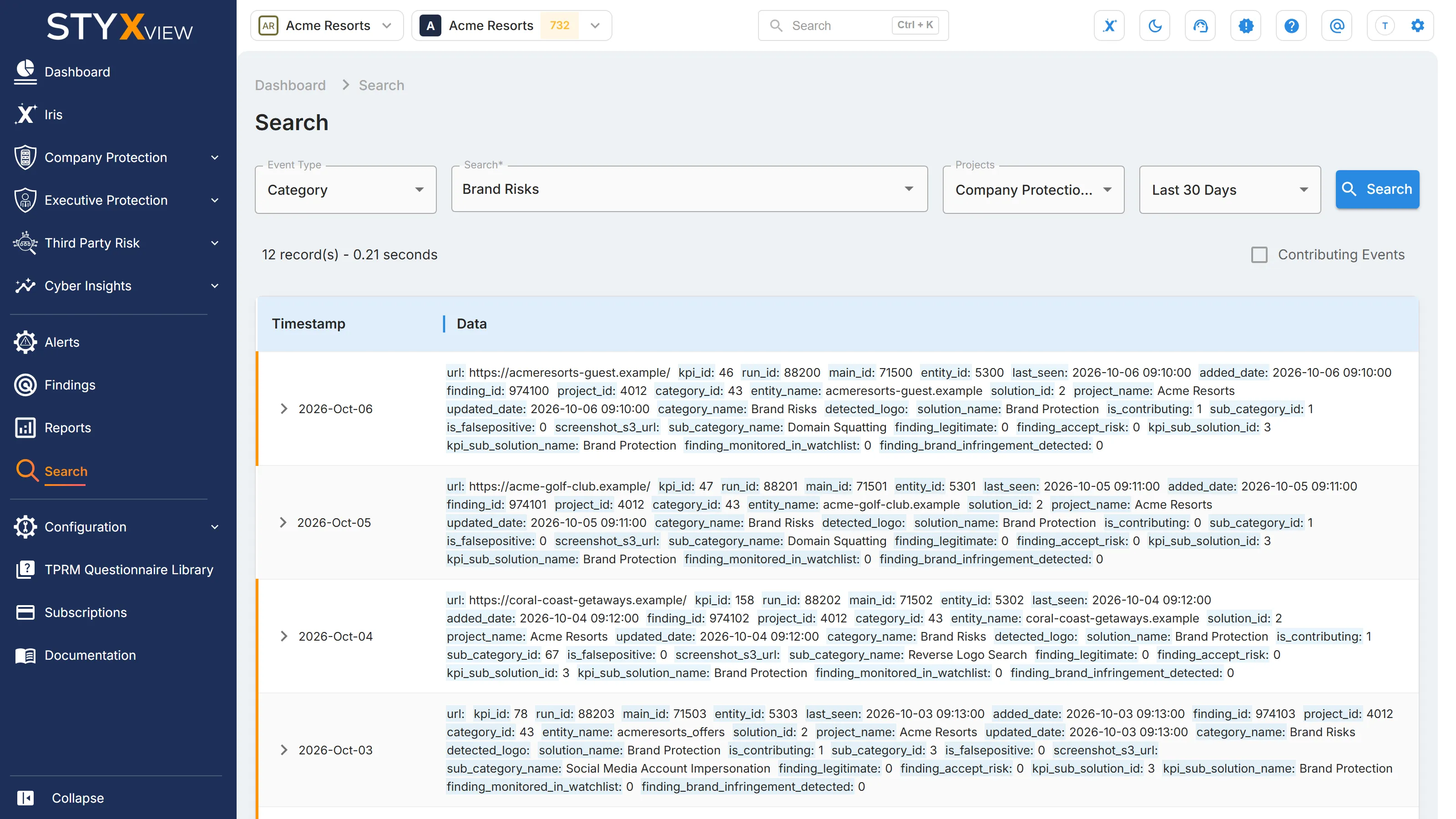
Section titled “Where to find it”In the left menu, select "Search". Only users with the Admin role see it.
Run a search
Section titled “Run a search”- In "Event Type", choose what to search by: "All", "Category", "Sub Category", "Risk Indicator", or "Findings".
- Enter what to look for:
- For "Category", "Sub Category", or "Risk Indicator", choose a value in "Search". The list offers the categories, sub categories, or risk indicators StyxView uses.
- For "Findings", enter the finding's number in "Finding ID". The box accepts digits only.
- For "All", leave "Search" empty. It is unavailable, and the search returns every event.
- In "Projects", choose the company, executive, or third party to search. The list opens on the first project of the account.
- In the list next to "Projects", choose the period: "Last 24 hours", "Last 7 Days", "Last 30 Days", or "All Time". The page opens on "Last 24 hours".
- Select "Search".
The page opens with the events of the last 24 hours for the first project. Changing a list does not run the search again; select "Search".
See Risk Indicator List for what each risk indicator measures.
Results
Section titled “Results”The line above the results gives the number of records found and how long the search took, for example "120 record(s) - 0.85 seconds". The newest events are first, 20 to a page.
| Column | What it shows |
|---|---|
| Timestamp | When the event was last updated. The period you choose applies to this date. |
| Data | The event's fields, each shown as a name and its value. |
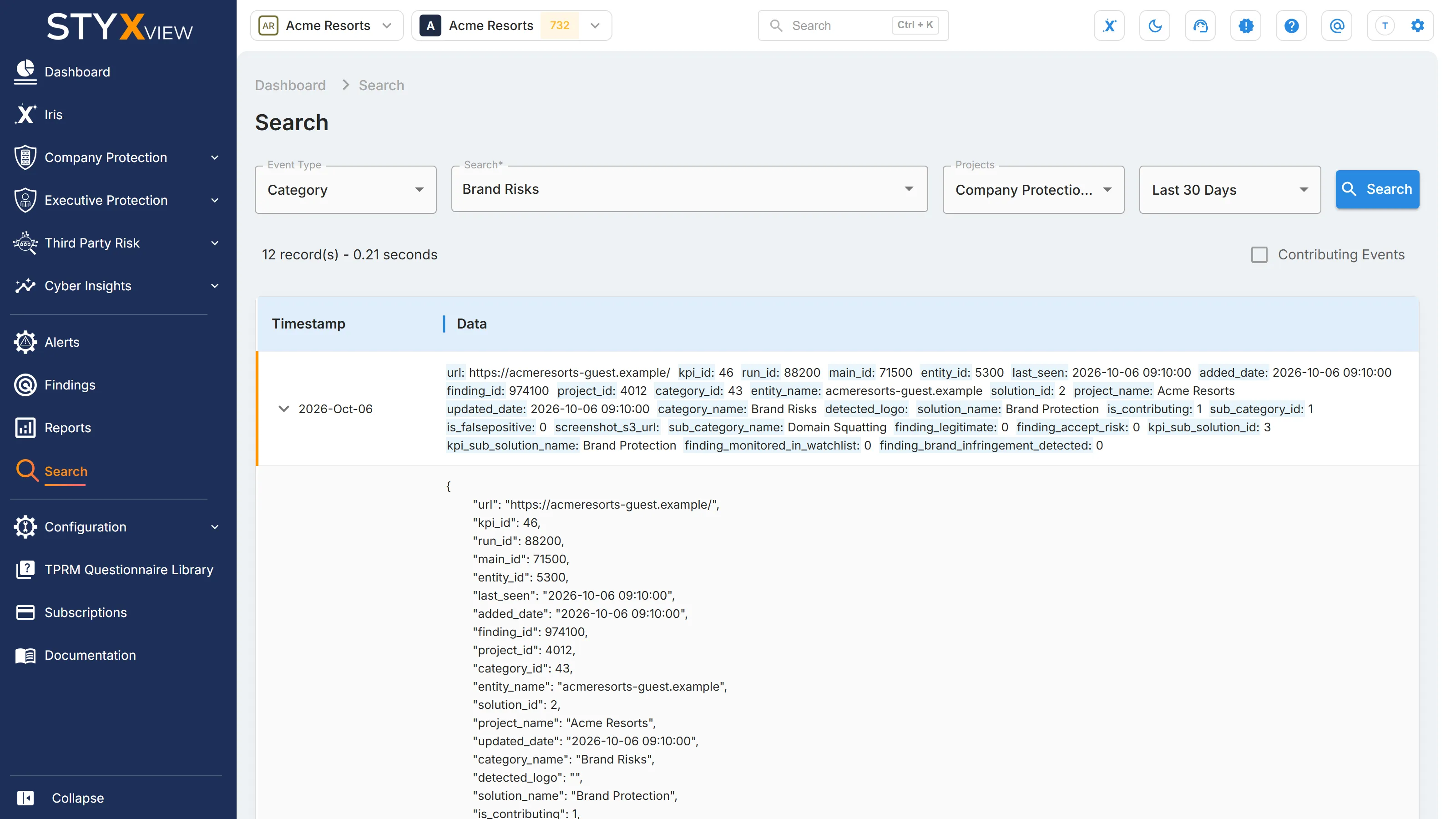
Select the arrow next to a timestamp to show the whole event as formatted JSON.
Contributing events
Section titled “Contributing events”A contributing event is one that its risk indicator currently counts. Contributing events have a coloured bar on the left of the row. Select the "Contributing Events" checkbox above the results to show only those.
When the data was last updated
Section titled “When the data was last updated”The search reads a copy of your data that StyxView refreshes every four hours. "Last sync" and "Next sync" at the bottom of the page show the times of the last and next refresh, in your local time, with a countdown to the next one. An event found since the last refresh appears after the next one.