
Exposed Credentials
Snippets
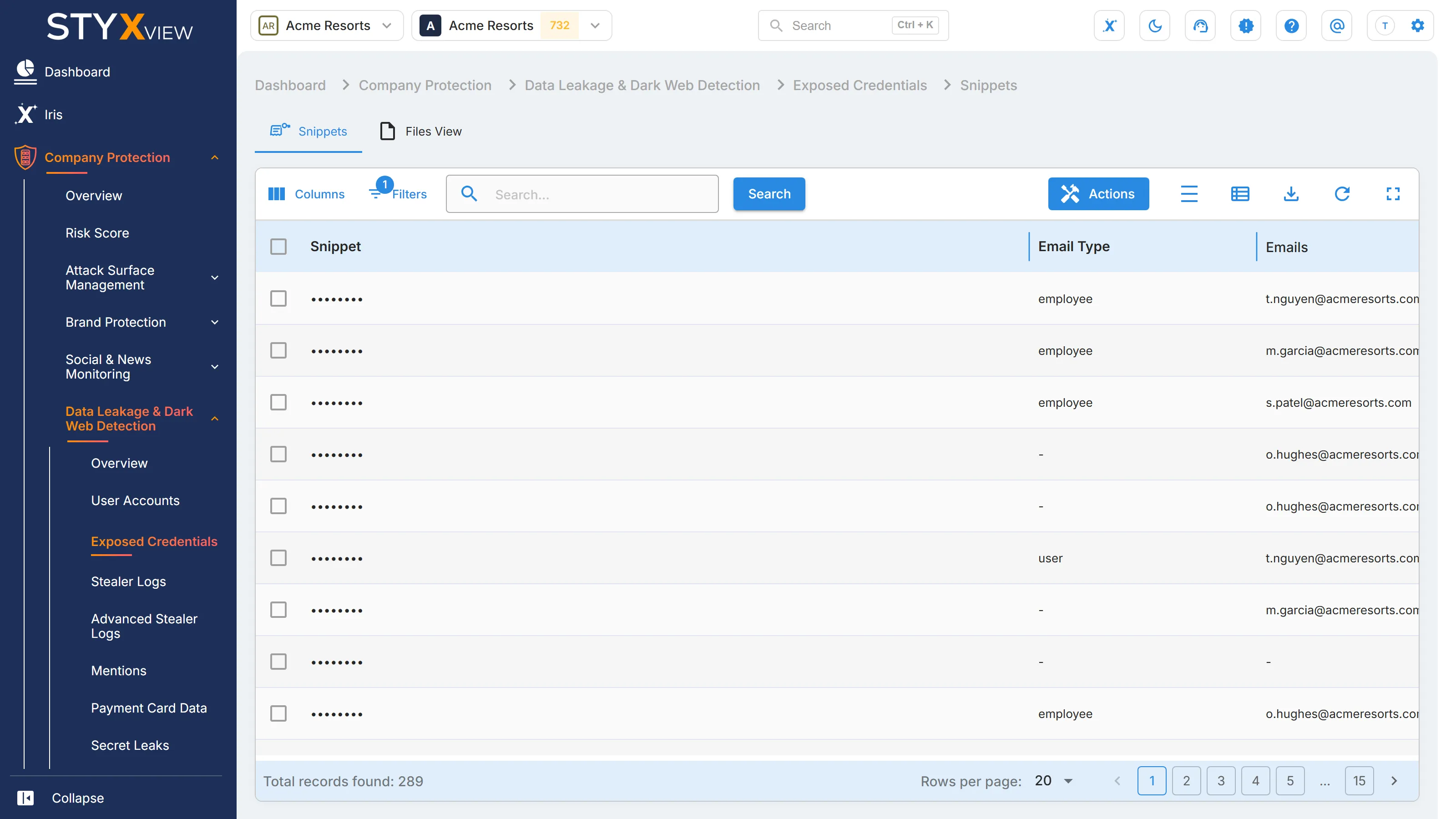
Section titled “Snippets”Snippets lists extracts that StyxView found in leaked data sets, paste sites, and dark web sources and that match one of your monitored keywords, such as your domain. A snippet often holds an email address with its password. Records from infostealer malware are listed separately, under Stealer Logs.
Where to find it
Section titled “Where to find it”Select "Company Protection" > "Data Leakage & Dark Web Detection" > "Exposed Credentials". The "Snippets" tab opens first, beside Files View.
Columns
Section titled “Columns”| Column | What it shows |
|---|---|
| "Snippet" | The extract that matched, as found in the source. |
| "Email Type" | "employee" when the address is on one of your verified domains, "user" when it is on another domain. Empty when the snippet was not classified, for example because it holds several addresses. |
| "Emails" | The email addresses in the snippet. |
| "Domains" | The website domains in the snippet, such as the site a credential is for. |
| "Source Category" | The kind of source: "Private Leaks", "Public Leaks", "COMB Leaks", "Paste Sites", "Darkweb Tor", "Darkweb I2P", "Wikileaks", or "Unclassified". |
| "Keyword" | Your monitored keyword that the snippet matched. |
| "Added Date" | When StyxView recorded the snippet. |
| "First Seen" | The earliest date the snippet was seen in a source. |
| "Last Seen" | The latest date the snippet was seen in a source. |
| "Status" | The review status. See Review statuses. |
"Source Category" and "Keyword" filter by a list of values. "Filters" also offers "Type": "Credentials" or "Cookies". The list opens with "Closed" snippets filtered out.
Working with snippets
Section titled “Working with snippets”To change the status of several snippets, select rows that share the same status, select "Actions", then "Update Status". See Review statuses.
Right-click a snippet that holds a single email address and select "Investigate" with that address to open the address's page (see Accounts Monitored).
To export the list now or on a schedule, select the export icon (see Export Functionality).
The snippet page
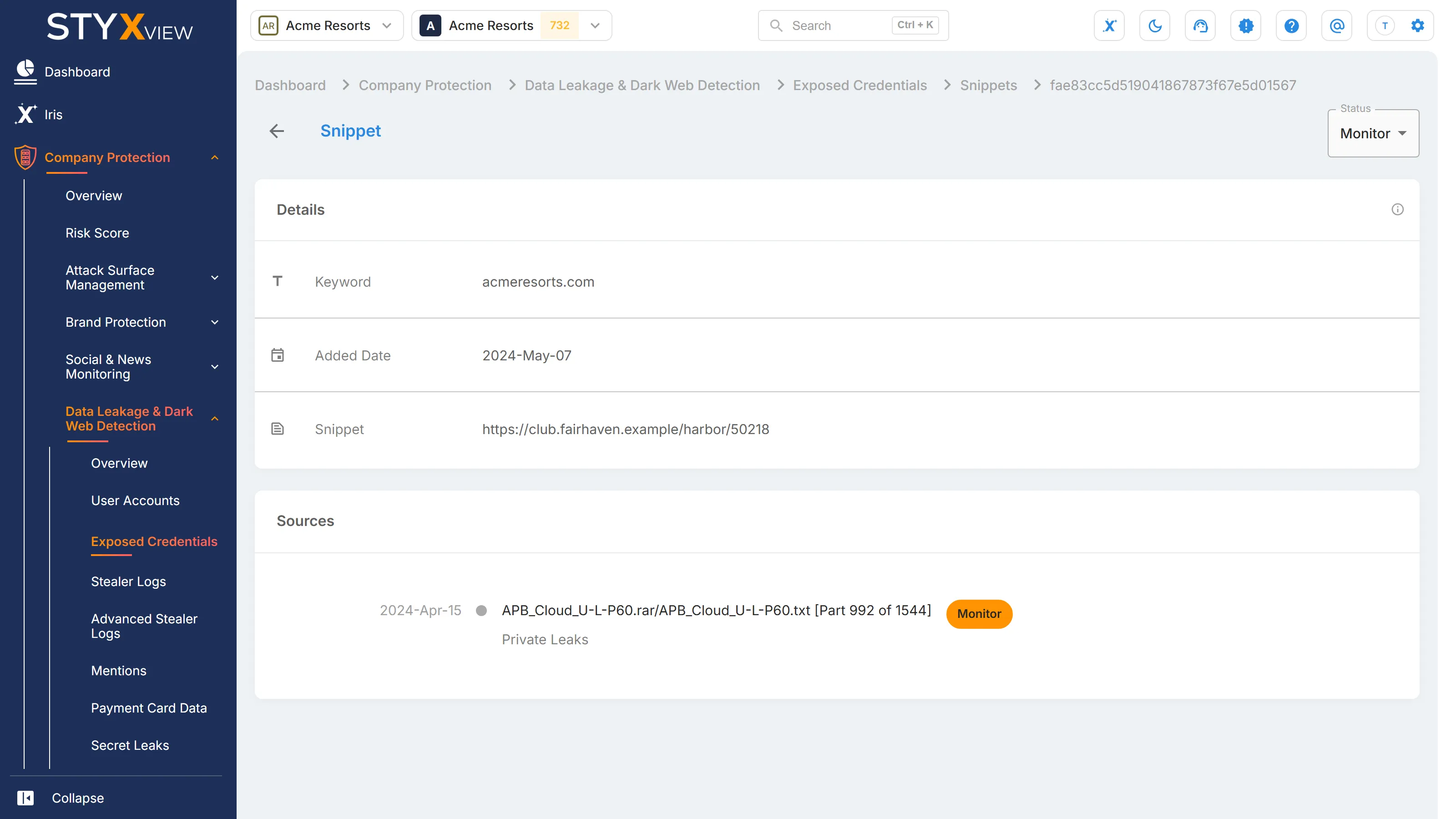
Section titled “The snippet page”Select a row to open the snippet's page. It shows:
- "Status": the review status, which you can change here.
- "Details": "Keyword", "Added Date", and "Snippet". Select "See More" to read a long snippet in full.
- "Sources": the files the snippet was found in, most recent breach first.
- "Metadata": further fields extracted from the record, when available.
In Executive Protection
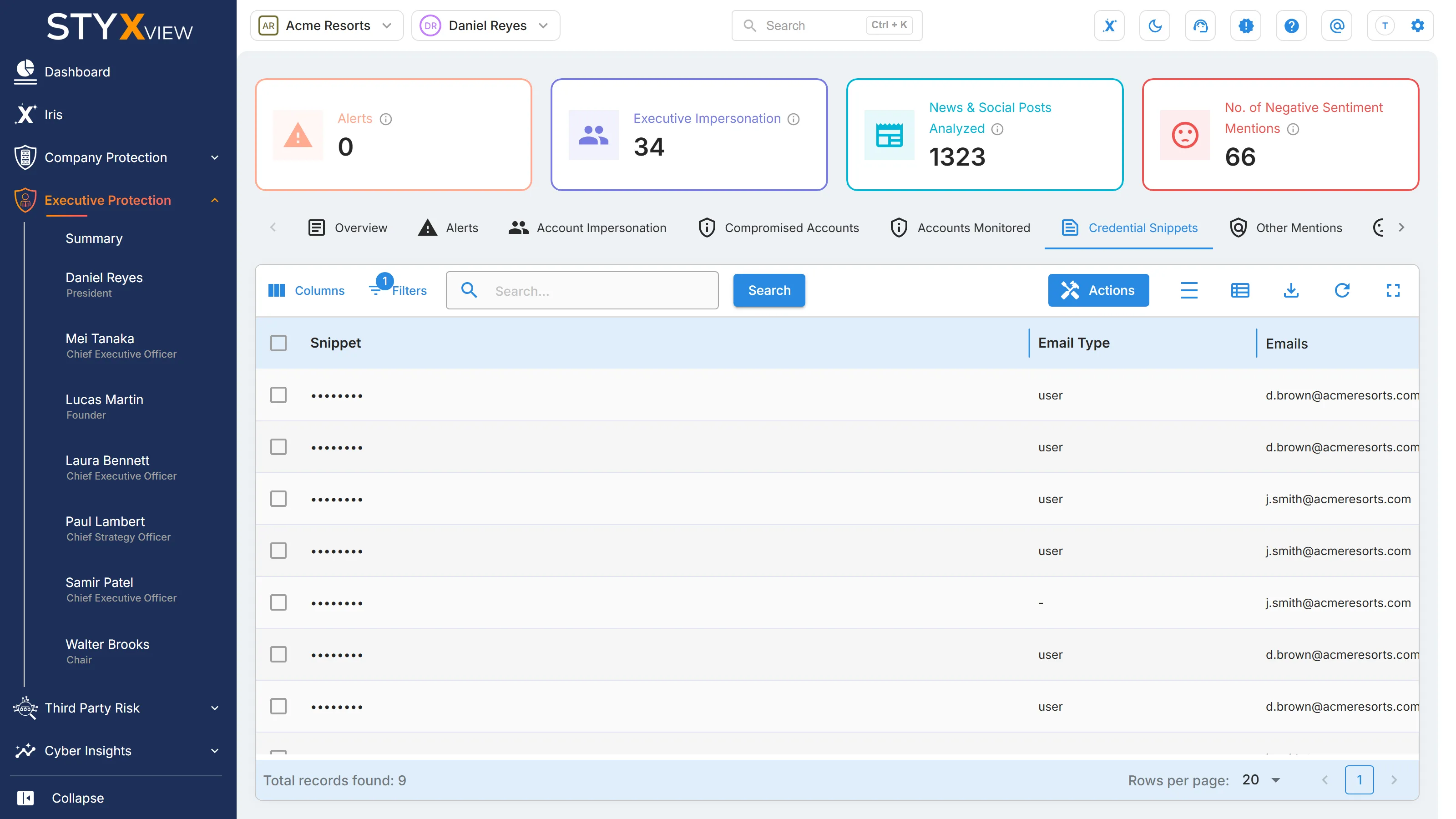
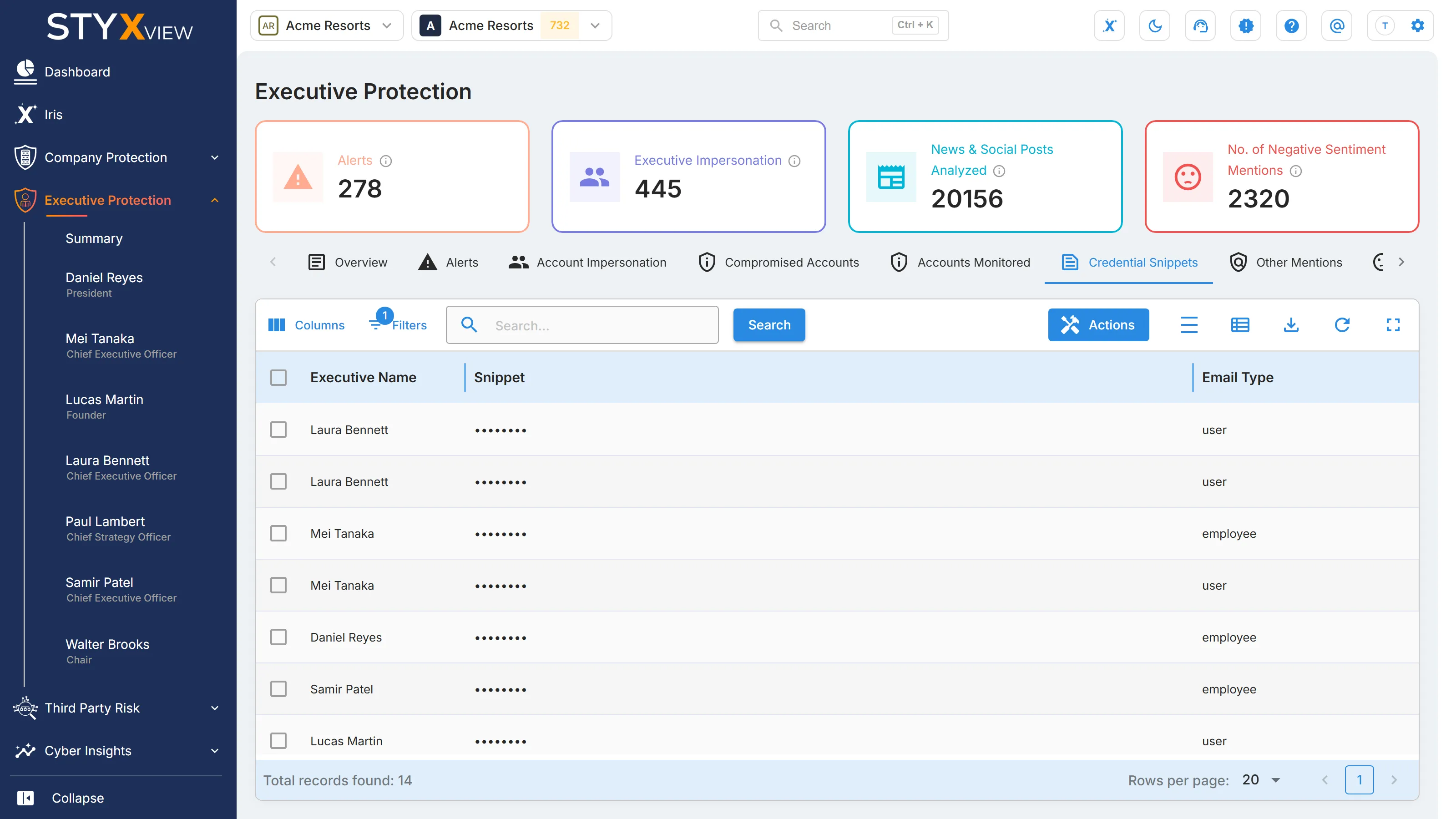
Section titled “In Executive Protection”Executive Protection names this list "Credential Snippets":
-
For one executive, select "Executive Protection", the executive's name, then the "Credential Snippets" tab. The list is the one described above, limited to that executive's keywords.
-
For all executives, select "Executive Protection" > "Summary", then the "Credential Snippets" tab. This list adds an "Executive Name" column and an "Executive" filter, and has no "Added Date" column.
Files View
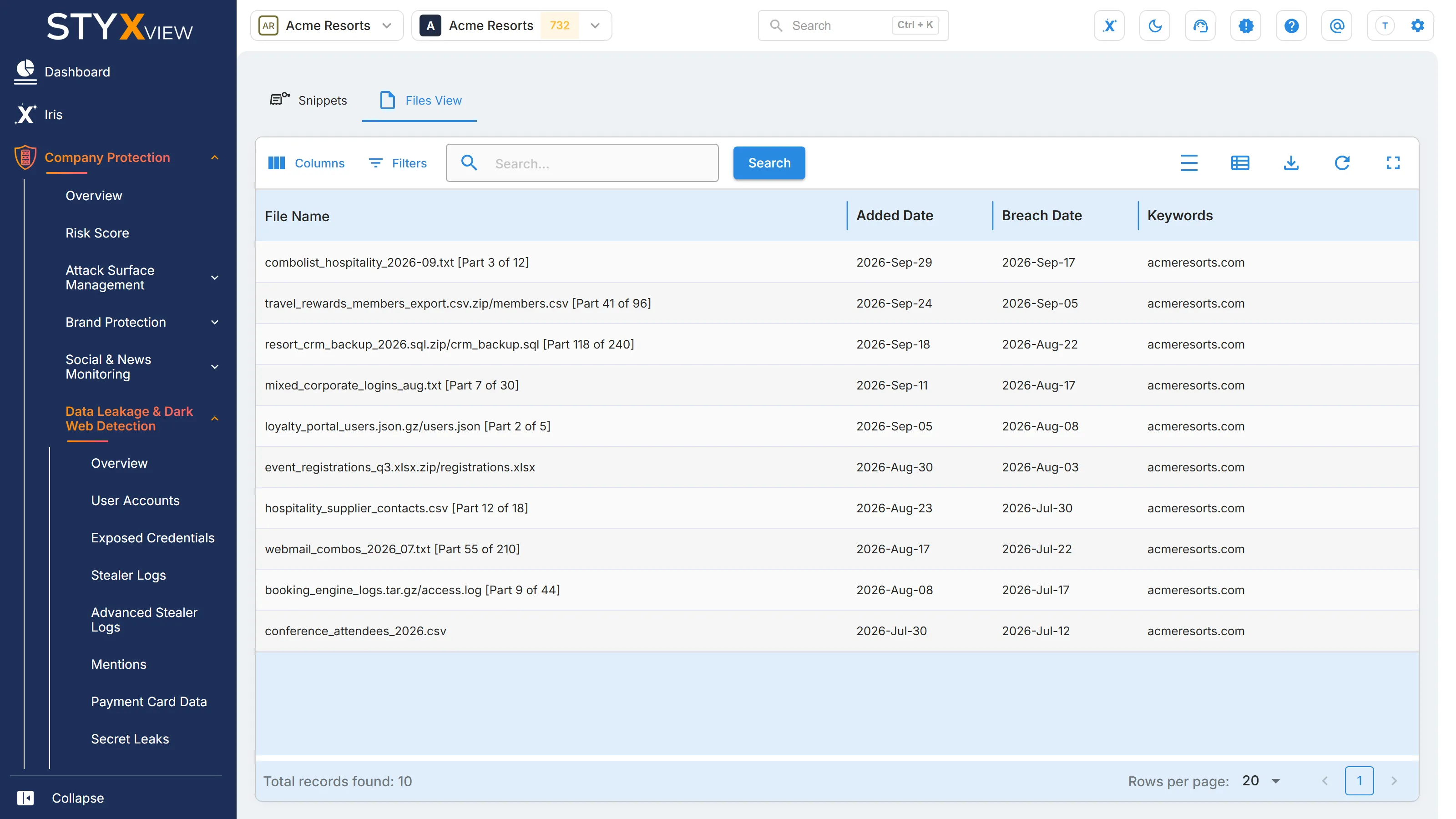
Section titled “Files View”File View lists the source files behind your snippets: one row for each file that contains at least one of your monitored keywords. Use it to see which leaks expose you and when, rather than snippet by snippet. There are two file views, one for each kind of source.
Where to find it
Section titled “Where to find it”- For leaked data sets, paste sites, and dark web sources: select "Company Protection" > "Data Leakage & Dark Web Detection" > "Exposed Credentials", then the "Files View" tab. Its snippets are in Snippets.
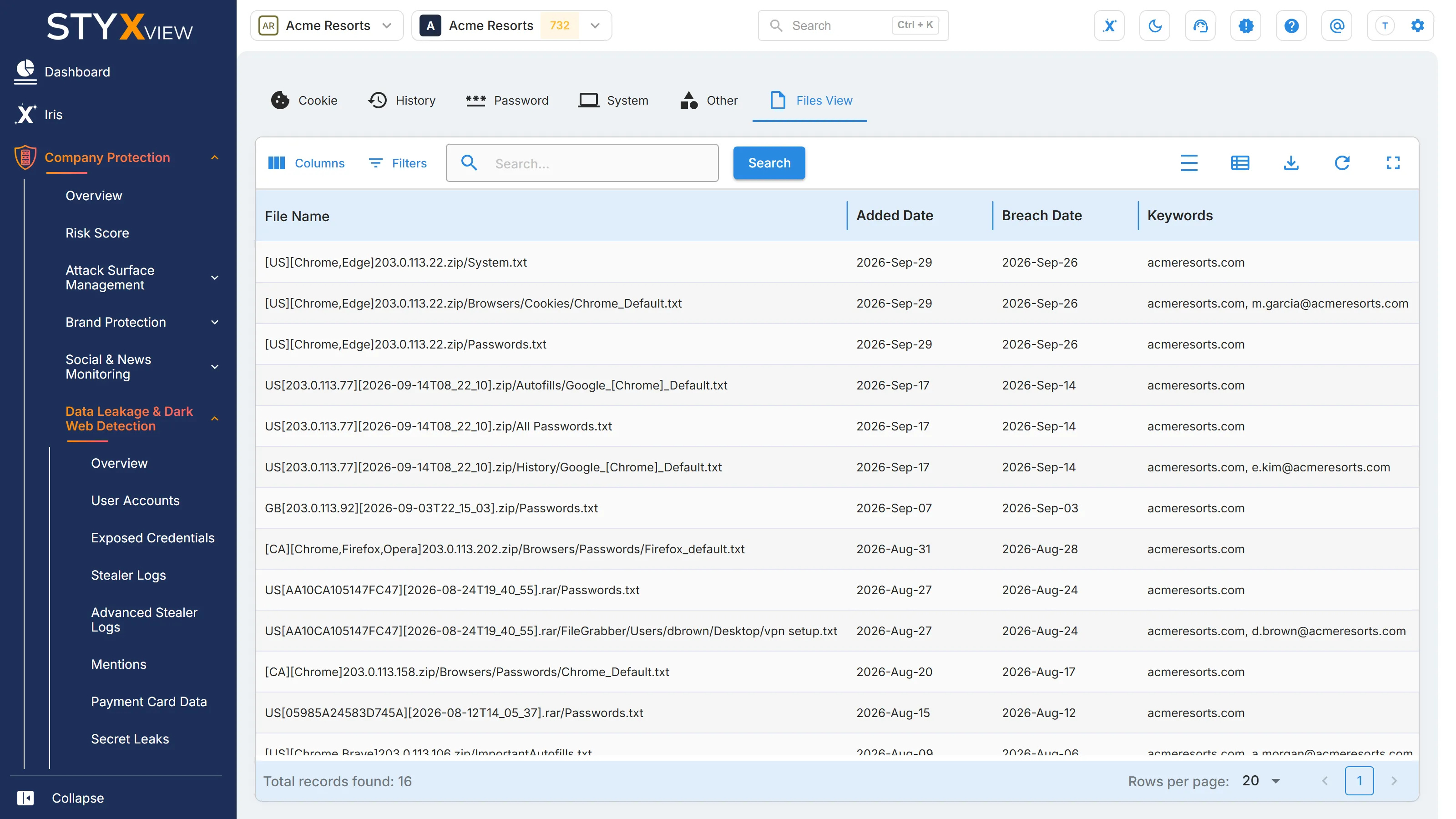
- For infostealer malware logs: select "Company Protection" > "Data Leakage & Dark Web Detection" > "Stealer Logs", then the "Files View" tab. Its records are in the other Stealer Logs tabs, such as Cookies.
Columns
Section titled “Columns”Both file views have the same columns.
| Column | What it shows |
|---|---|
| "File Name" | The file, with its path inside the leaked archive. A large file is split into parts, and the name ends with the part, for example "[Part 3 of 20]". |
| "Added Date" | When StyxView recorded the file. |
| "Breach Date" | The date the source gives for the leak. |
| "Keywords" | Your monitored keywords found in the file. |
Files have no status and no "Actions" menu. To export the list, select the export icon, then "Download as CSV" or "Download as Excel".
The file page
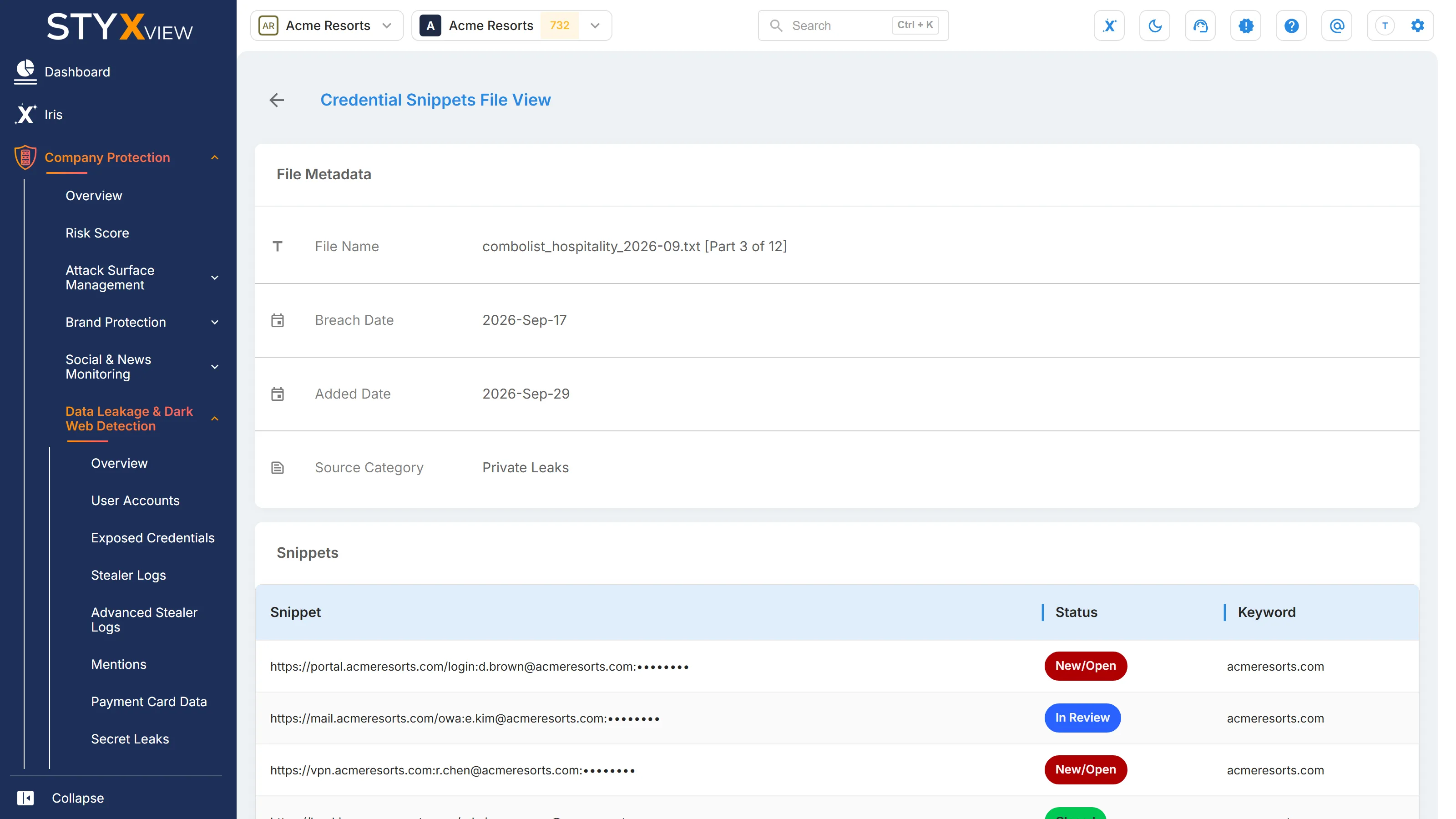
Section titled “The file page”Select a row to open the file's page, titled "Credential Snippets File View" or "Bot Logs File View". It shows:
- "File Metadata": "File Name", "Breach Date", "Added Date", and "Source Category".
- "Snippets": each snippet in the file that matched, with its "Status" and "Keyword".
In Executive Protection
Section titled “In Executive Protection”Executive Protection has no file view. Its "Credential Snippets" tab is described in Snippets.