

Summary
Overview
Section titled “Overview”"Summary" is the starting page of Executive Protection. It totals activity across every monitored executive and shows one risk card per executive, so you can see who is most exposed and open their profile.
To open it, select Executive Protection in the sidebar, then "Summary".
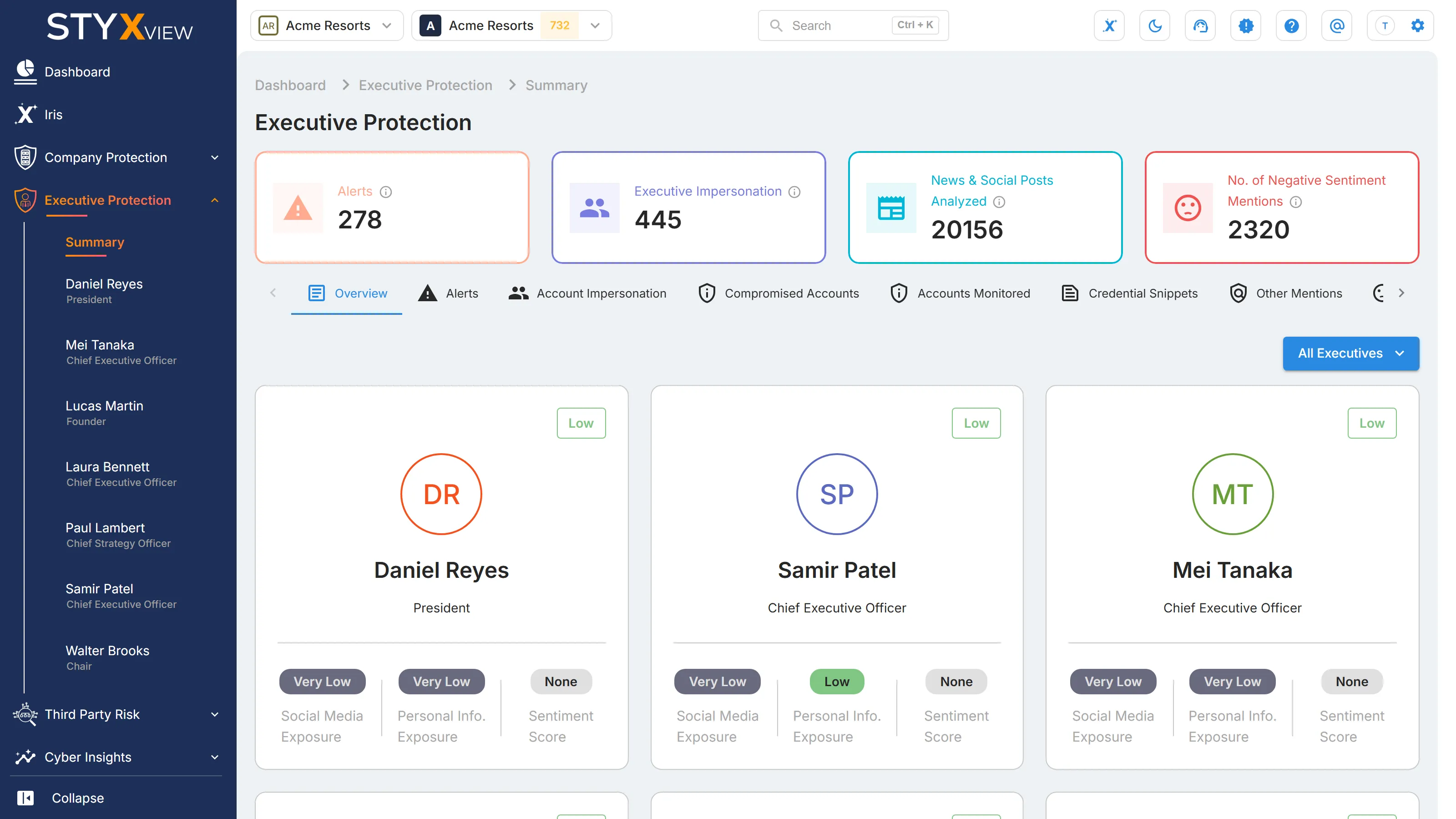
The tabs below the tiles open grids that cover every executive. Each tab is described in Executive Protection.
Count tiles
Section titled “Count tiles”
The four tiles count across all executives. Select a tile to open the matching tab.
| Tile | What it counts |
|---|---|
| "Alerts" | Alerts raised for your executives, in any status. |
| "Executive Impersonation" | Impersonating accounts that are still open: status "New", "Analyzing", "On Watchlist", "Response In Progress", or "Reappeared". |
| "News & Social Posts Analyzed" | Social media posts and news articles about your executives that StyxView has collected and analysed. |
| "No. of Negative Sentiment Mentions" | Collected posts and articles whose tone was scored as negative. |
The tiles count everything collected so far, not a fixed period. Items marked as false positives are excluded.
Executive Risk Cards
Section titled “Executive Risk Cards”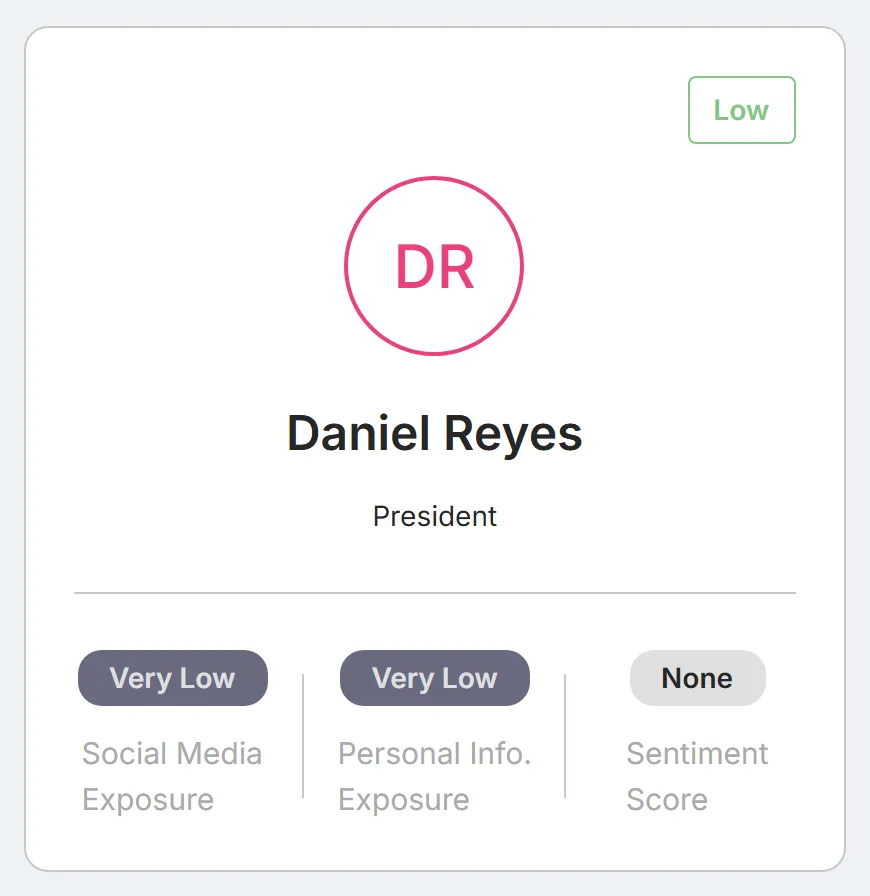
Each card shows:
- The overall risk rating, top right: "Low", "Medium", "High", or "Very High".
- The executive's initials, name, and title. Select the initials to open the executive's profile.
- Three ratings along the bottom: "Social Media Exposure", "Personal Info. Exposure", and "Sentiment Score".
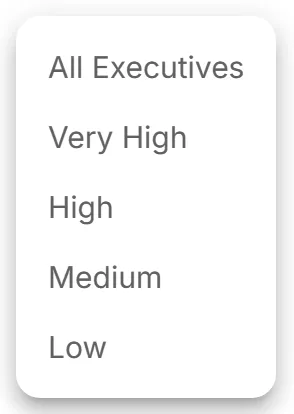
To show only executives with one overall rating, open the menu above the cards ("All Executives" by default) and choose "Very High", "High", "Medium", or "Low".
How the ratings are set
Section titled “How the ratings are set”The two exposure ratings run from "Very Low" to "Very High":
| Rating | Counts | Very Low | Low | Medium | High | Very High |
|---|---|---|---|---|---|---|
| "Social Media Exposure" | Social media posts about the executive in the last 90 days | 0 | 1 to 10 | 11 to 100 | 101 to 150 | More than 150 |
| "Personal Info. Exposure" | Data breach records from the last two years that include the executive | 0 | 1 to 5 | 6 to 10 | 11 to 15 | More than 15 |
The overall risk rating is the higher of the two exposure ratings, and is never lower than "Low".
"Sentiment Score" is not a number. It is the tone that most of the executive's collected posts and articles from the last 90 days carry: "Positive", "Negative", or "Neutral". It does not affect the overall rating.
Alerts
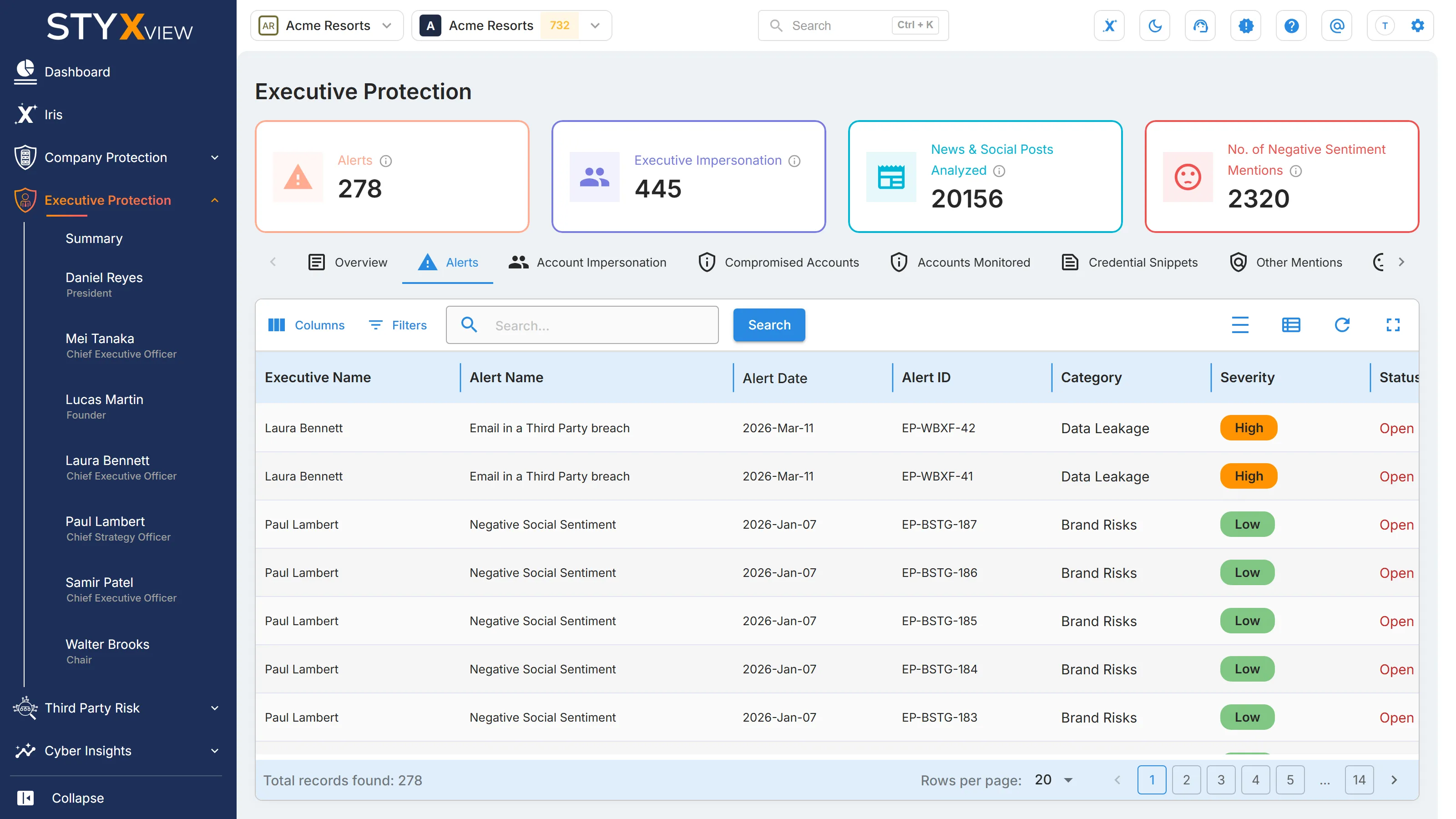
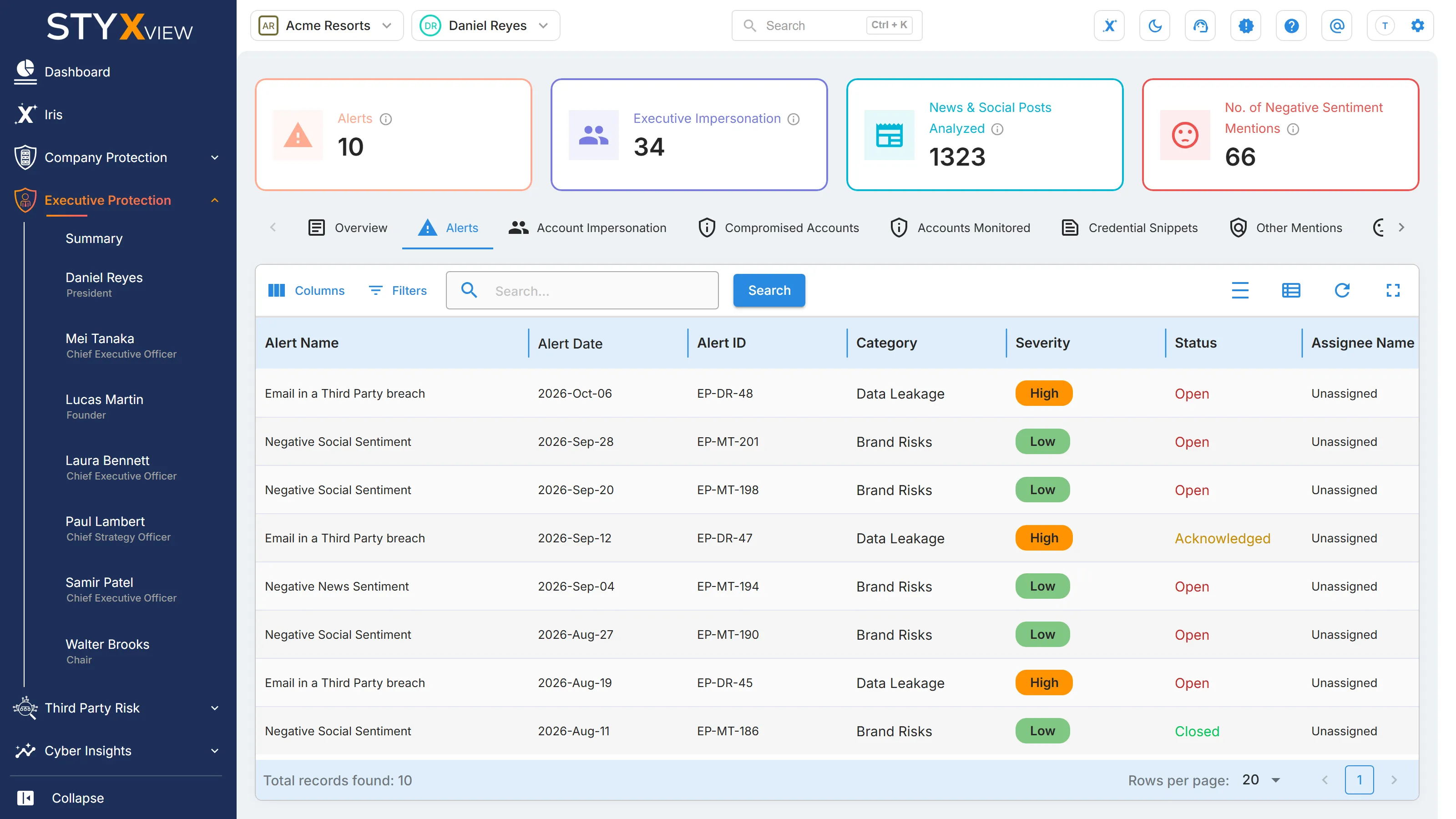
Section titled “Alerts”The "Alerts" tab in Executive Protection lists the alerts that your alert rules have raised for your executives. Use it to see what needs attention for each executive, then open an alert to work on it.
Open the "Alerts" tab on the Summary page to see every executive, or on an executive's page to see that executive only.
Columns
Section titled “Columns”| Column | What it shows |
|---|---|
| "Executive Name" | The executive the alert concerns. On the "Summary" page only. |
| "Alert Name" | The alert rule that fired. |
| "Alert Date" | When the alert was raised. |
| "Alert ID" | The alert's permanent identifier. |
| "Category" | The risk category of the alert. |
| "Severity" | The severity of the alert. |
| "Status" | "Open", "Acknowledged", "Resolved", or "Closed". |
| "Assignee Name" | The user the alert is assigned to. |
On the "Summary" page, use the "Executive" filter in "Filters" to show one executive's alerts.
Select a row to open the alert. Alerts are worked, assigned, and closed on the Alerts page: see Alerts.
Account Impersonation
Section titled “Account Impersonation”This tab is described in Account Impersonation → Impersonating Social Media Accounts → In Executive Protection.
Compromised Accounts
Section titled “Compromised Accounts”This tab is described in User Accounts → Compromised Accounts → In Executive Protection.
Accounts Monitored
Section titled “Accounts Monitored”This tab is described in User Accounts → Accounts Monitored → In Executive Protection.
Credential Snippets
Section titled “Credential Snippets”This tab is described in Exposed Credentials → Snippets → In Executive Protection.
Other Mentions
Section titled “Other Mentions”This tab is described in Mentions → Other Mentions → In Executive Protection.
Negative Sentiment
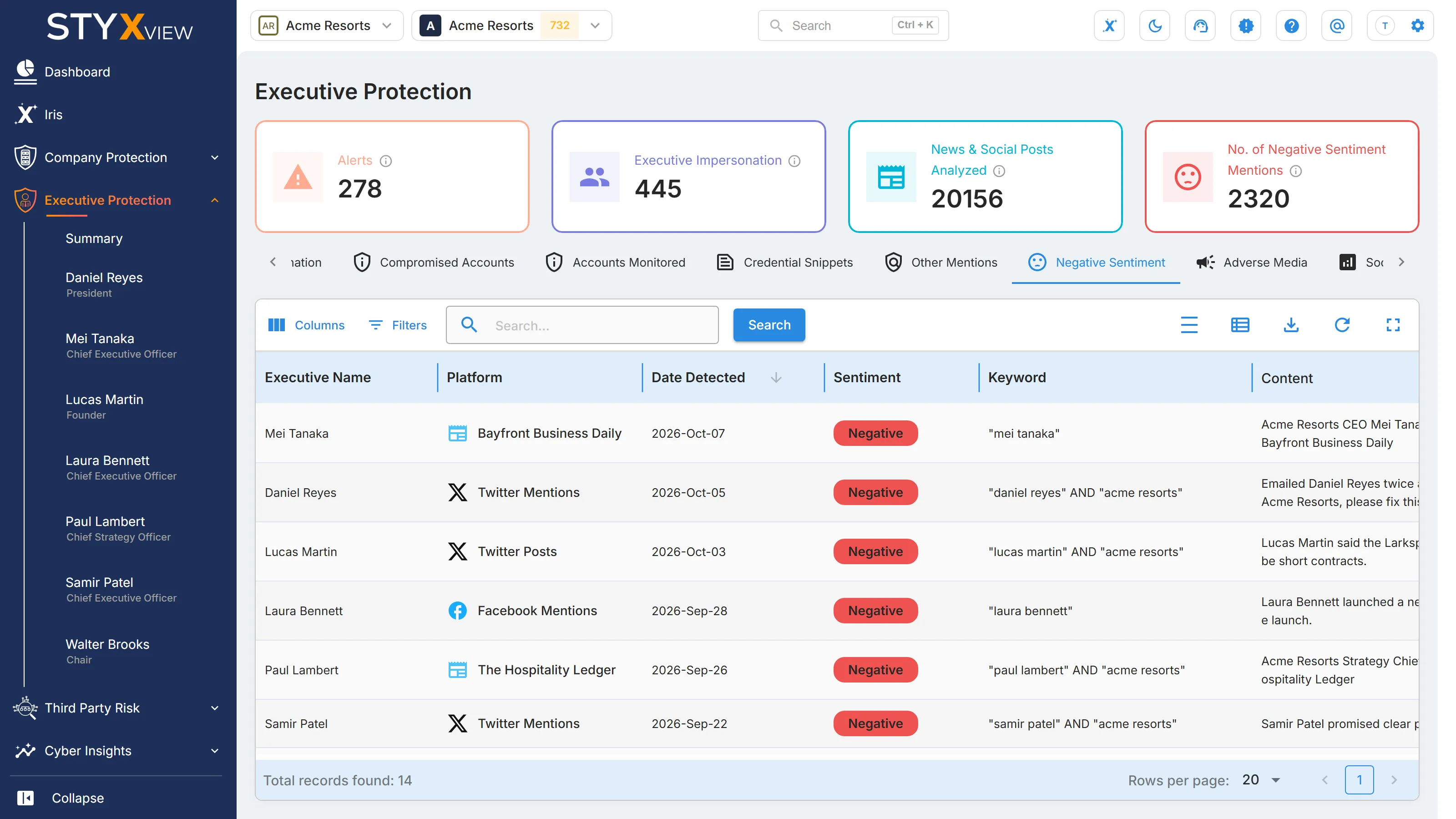
Section titled “Negative Sentiment”"Negative Sentiment" lists the social media posts and news articles about your executives whose tone StyxView scored as negative. Use it to catch hostile coverage and reputational risk early.
Open the "Negative Sentiment" tab on the Summary page to see every executive. On an executive's page the tab is "Negative Sentiments" and shows that executive only.
Sentiment is scored automatically from the text. It measures tone, not accuracy or reach: a hostile post that nobody reads counts the same as one that spreads widely.
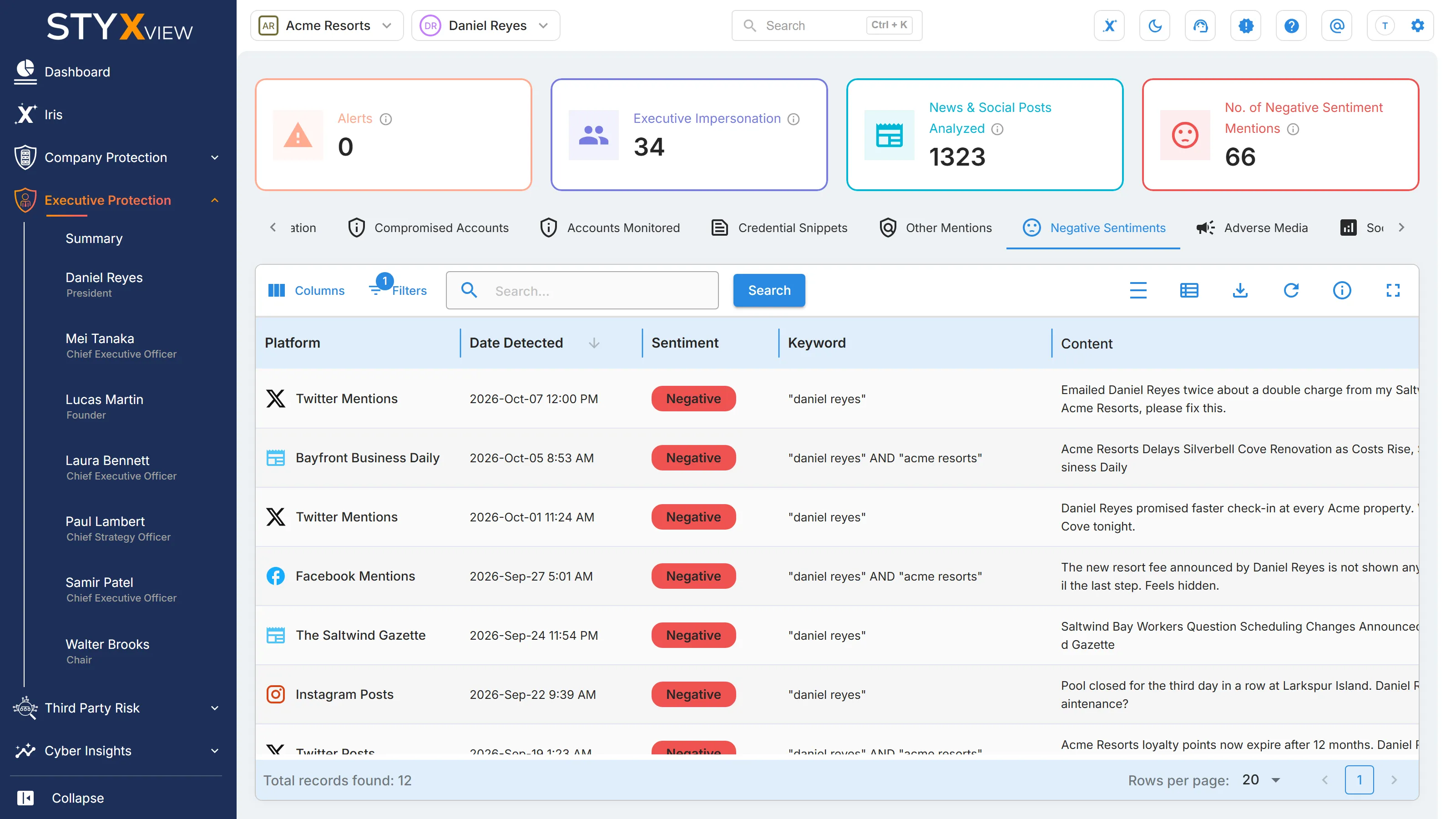
Columns
Section titled “Columns”| Column | What it shows |
|---|---|
| "Executive Name" | The executive the item mentions. On the "Summary" page only. |
| "Platform" | The site or platform where the item appeared. |
| "Date Detected" | The date of the post or article. |
| "Sentiment" | Always "Negative" on this tab. |
| "Keyword" | The monitored term that matched. |
| "Content" | The title or opening text, with a button to open the original. |
The list is newest first. To show only social media posts or only news articles, use the "Type" filter in "Filters" and choose "Social" or "News". On the "Summary" page, use the "Executive" filter to show one executive's items.
Select a row to open the post or article's detail page. To download the list or schedule a recurring export, select "Export". See Export Functionality.
Adverse Media
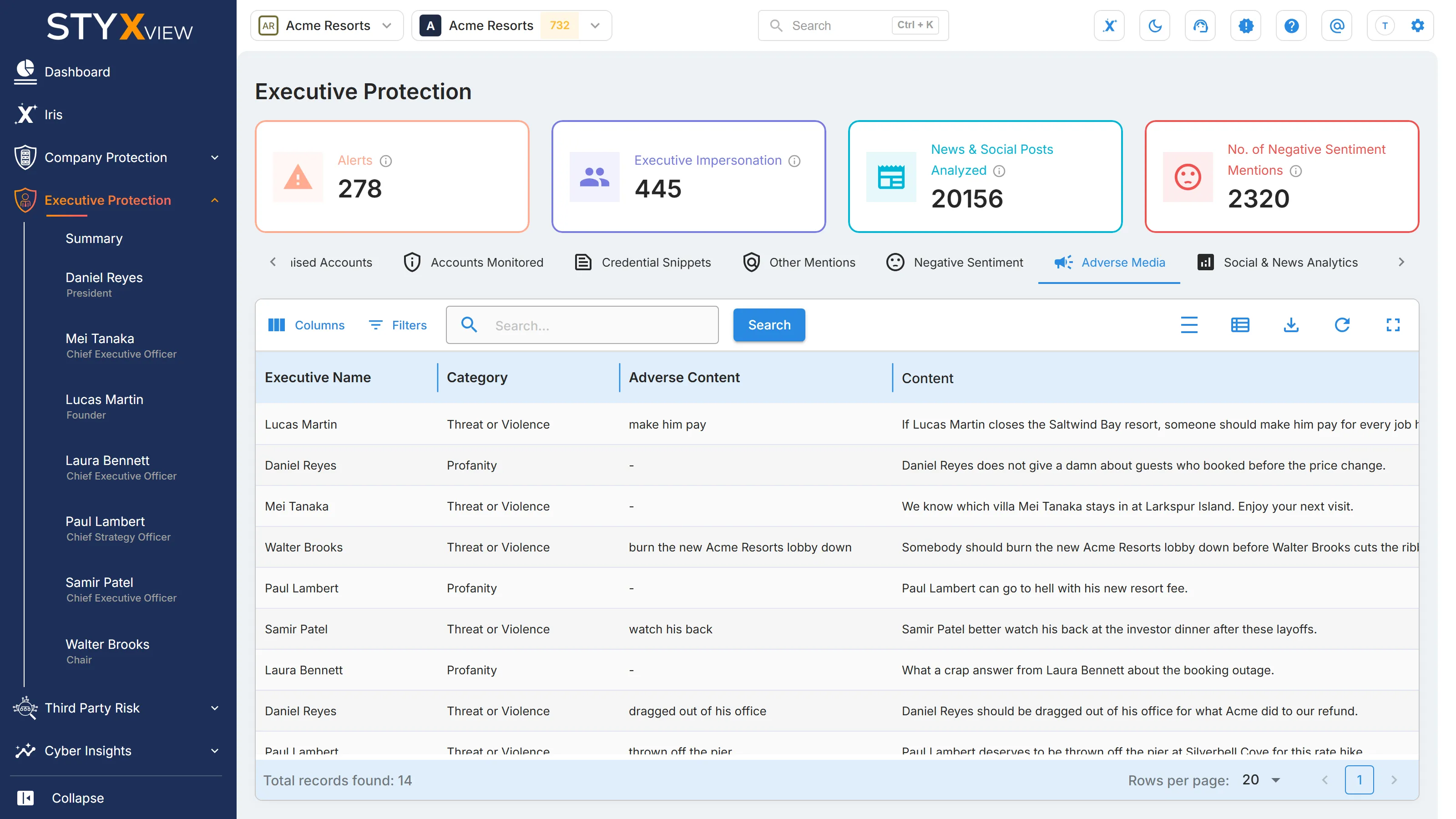
Section titled “Adverse Media”"Adverse Media" lists posts about your executives that StyxView flagged for threats, violence, or profanity. Use it to spot content that could signal a physical or reputational threat to an executive.
Open the "Adverse Media" tab on the Summary page to see every executive, or on an executive's page to see that executive only. The "Threats or Violence" count on an executive's Overview also opens it.
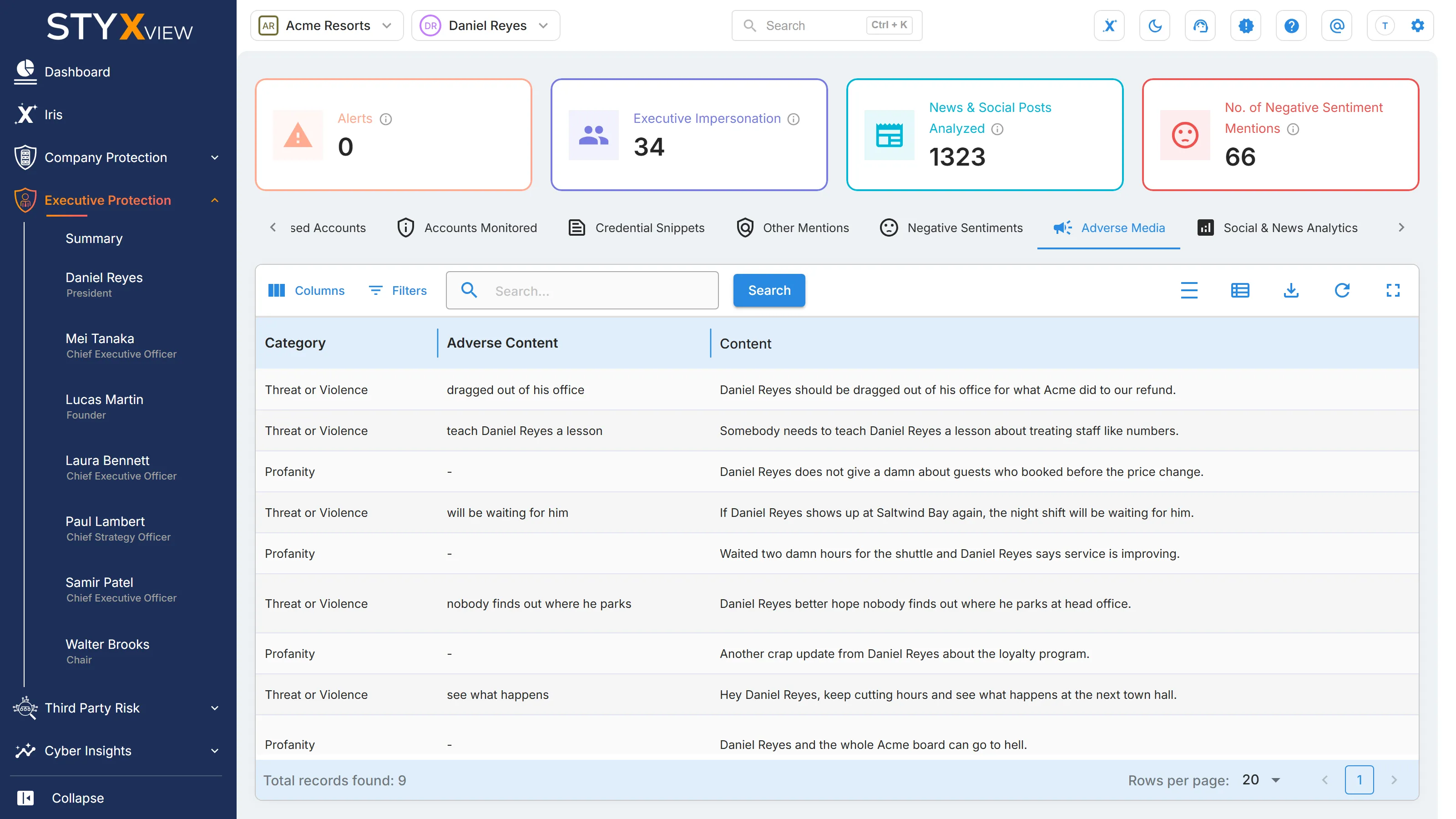
Columns
Section titled “Columns”| Column | What it shows |
|---|---|
| "Executive Name" | The executive the post concerns. On the "Summary" page only. |
| "Category" | "Threat or Violence" or "Profanity". |
| "Adverse Content" | The part of the post that reads as damaging to the executive. It is extracted automatically, so read the full post before drawing a conclusion. |
| "Content" | The text of the post. |
| "URL" | The address of the original post, with buttons to copy it and to open it. |
On the "Summary" page, use the "Executive" filter in "Filters" to show one executive's posts.
Select a row to open the post's detail page. To download the grid, select "Export", then "Download as CSV" or "Download as Excel".
Social & News Analytics
Section titled “Social & News Analytics”"Social & News Analytics" shows how much is said about your executives on social media and in the news, and in what tone. Use it to spot a rise in negative coverage and to see which platforms it comes from.
Open the "Social & News Analytics" tab on the Summary page to see every executive, or on an executive's page to see that executive only. The "News & Social Posts Analyzed" tile opens it too.
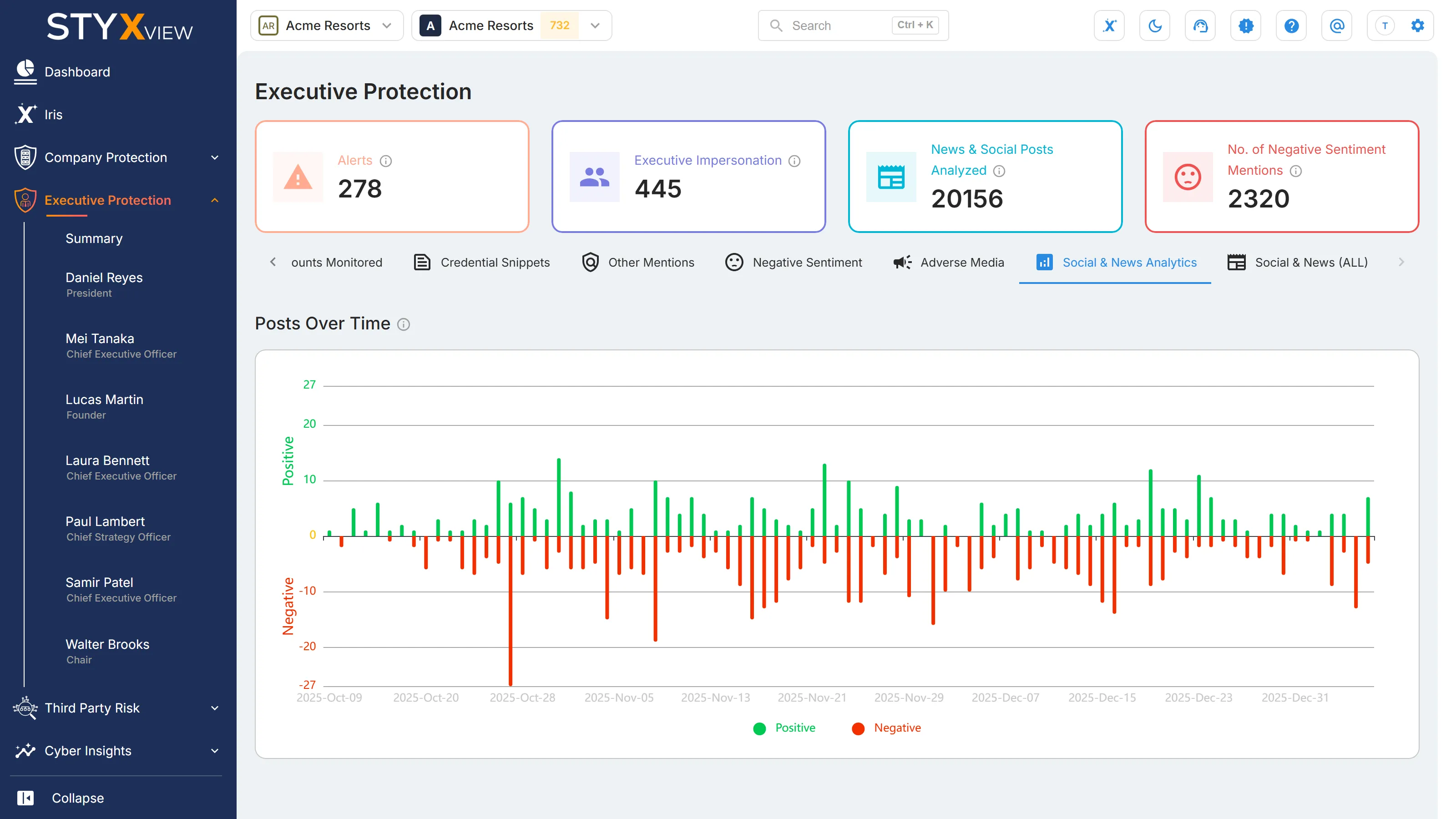
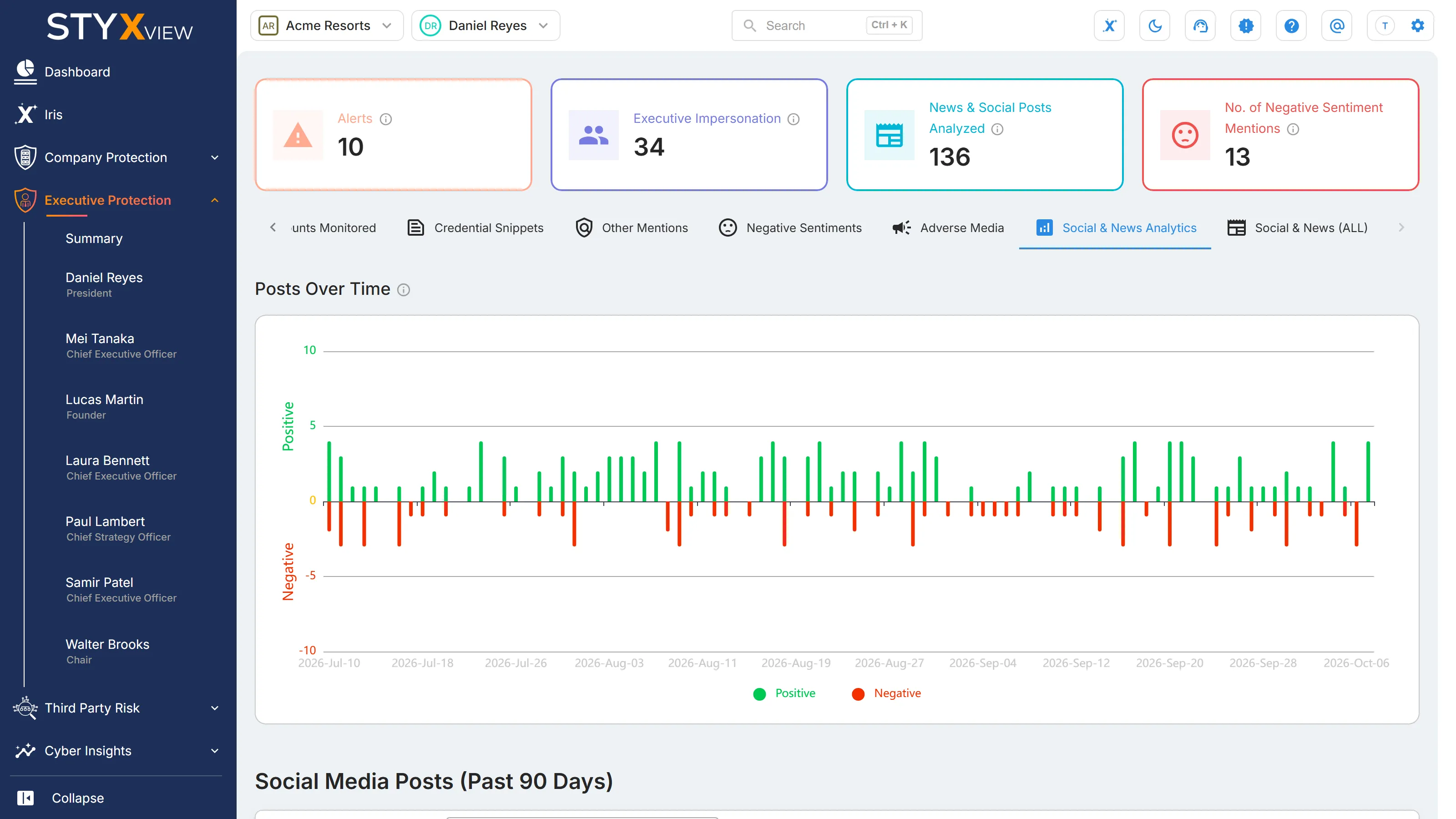
Posts Over Time
Section titled “Posts Over Time”A bar chart of the last 12 months, one day per bar. Positive posts and articles rise above the axis, and negative ones drop below it. Neutral items are not plotted. Hover over a day to see its counts.
Social Media Posts (Past 90 Days)
Section titled “Social Media Posts (Past 90 Days)”Social media posts collected in the past 90 days, one row per platform. On the "Summary" page there is one row per executive and platform, with an "Executive Name" column.
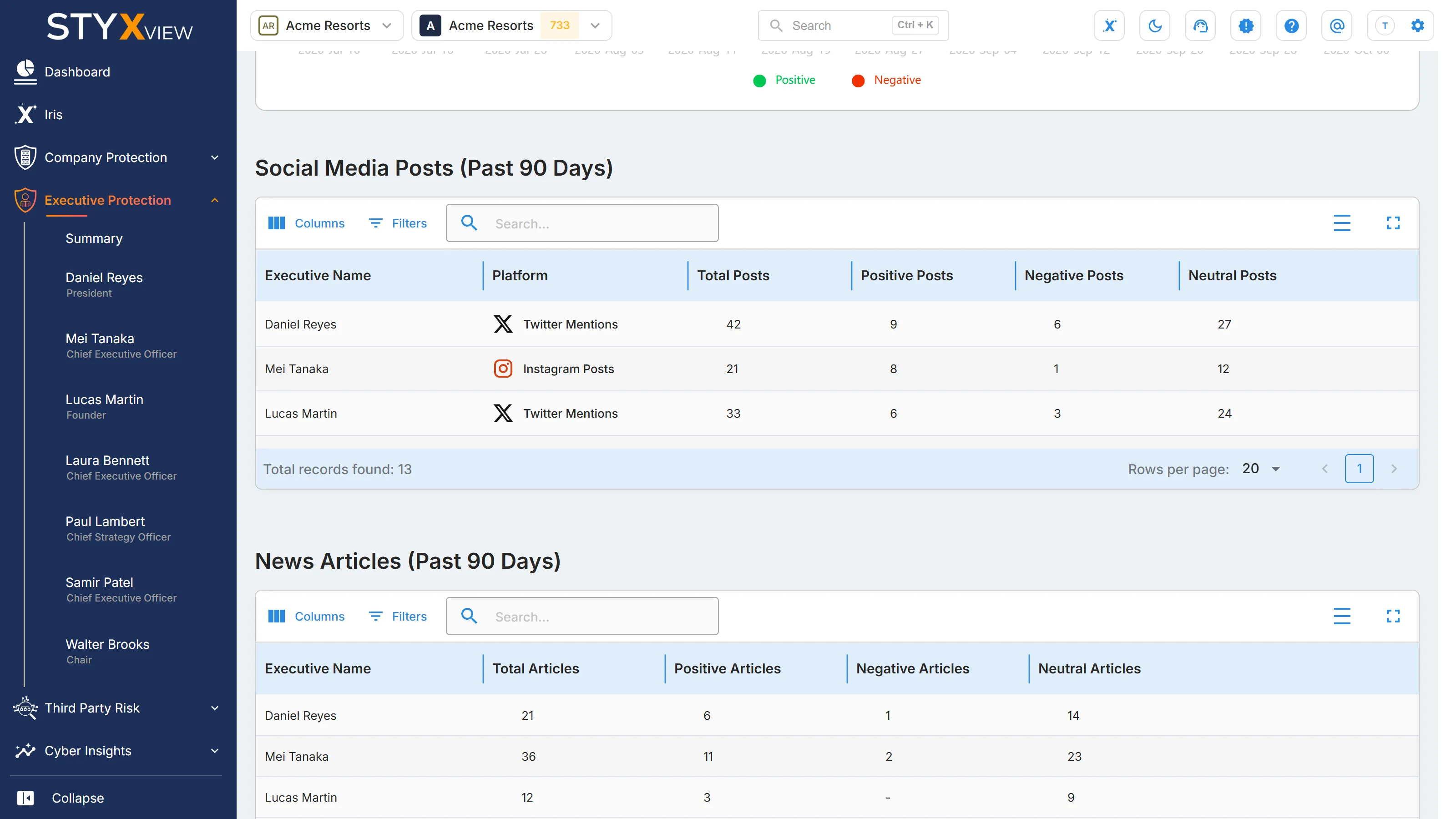
| Column | What it shows |
|---|---|
| "Platform" | The social media platform. |
| "Total Posts" | All posts collected from that platform. |
| "Positive Posts" | Posts whose tone was scored as positive. |
| "Negative Posts" | Posts whose tone was scored as negative. |
| "Neutral Posts" | Posts with no clear positive or negative tone. |
News Articles (Past 90 Days)
Section titled “News Articles (Past 90 Days)”News articles collected in the past 90 days. On the "Summary" page there is one row per executive, with an "Executive Name" column.
| Column | What it shows |
|---|---|
| "Total Articles" | All articles collected. |
| "Positive Articles" | Articles whose tone was scored as positive. |
| "Negative Articles" | Articles whose tone was scored as negative. |
| "Neutral Articles" | Articles with no clear positive or negative tone. |
Select a row in either table to open the executive's posts or articles in Search Social & News.
Social & News (ALL)
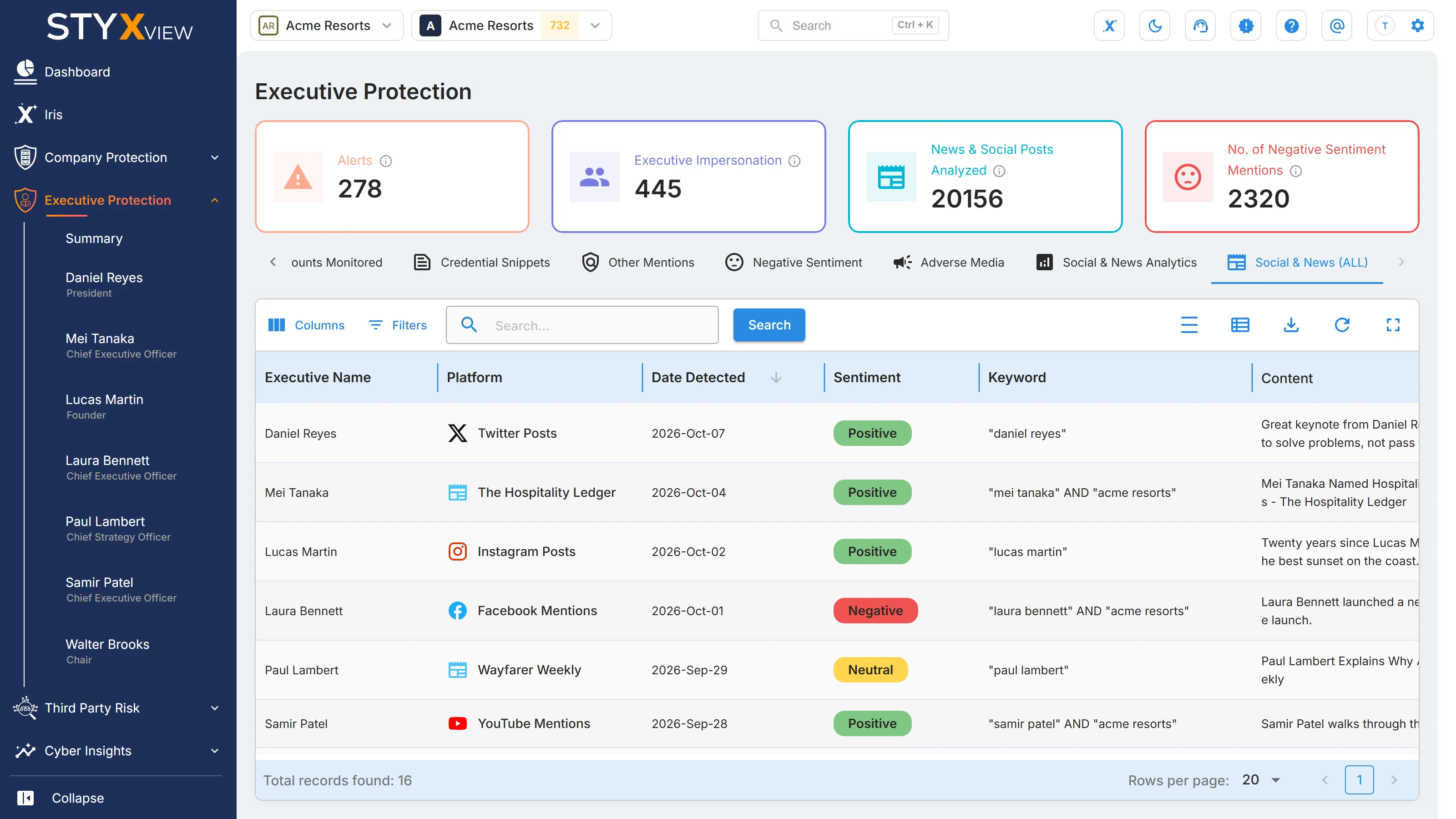
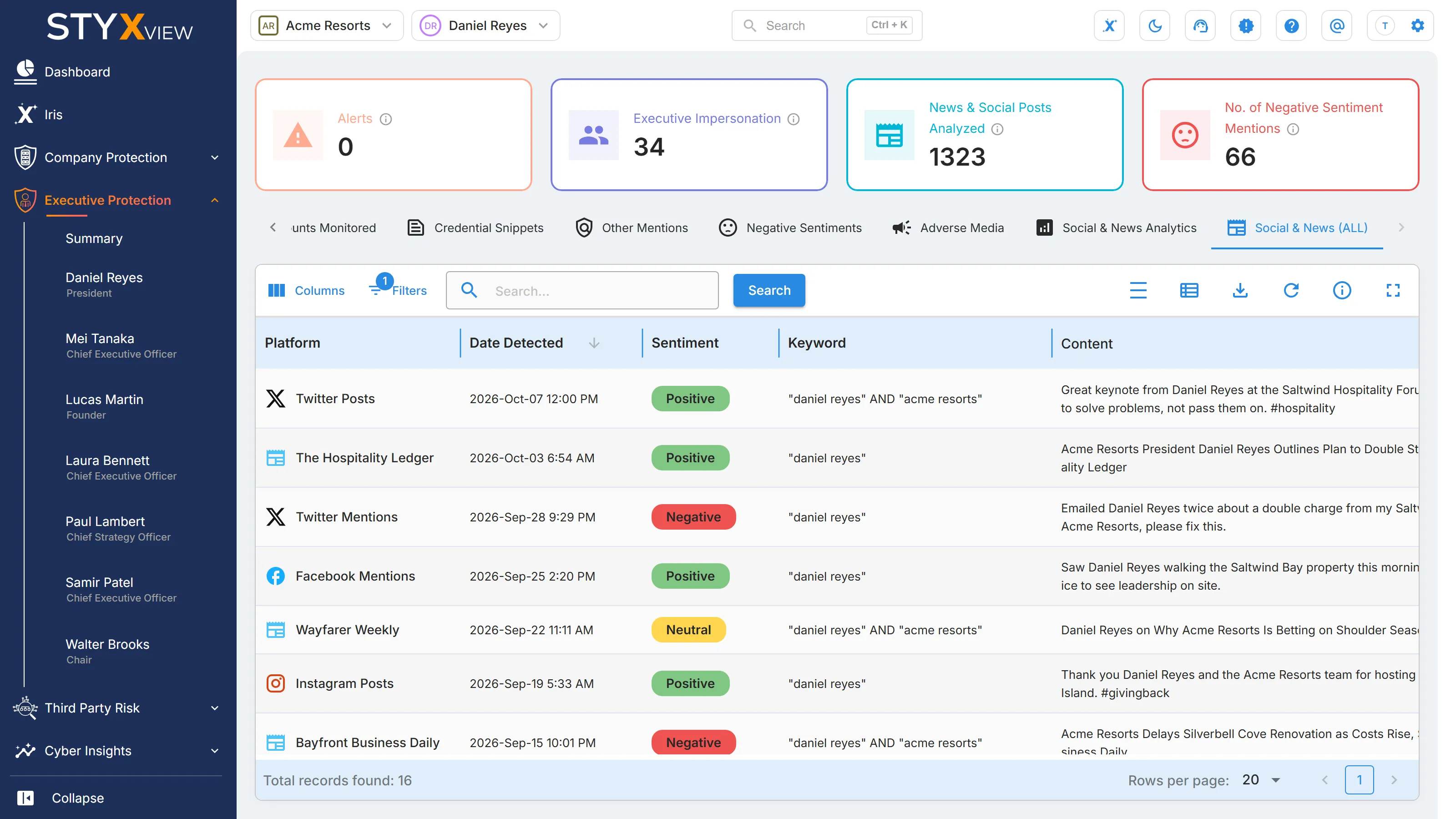
Section titled “Social & News (ALL)”"Social & News (ALL)" lists every social media post and news article that StyxView has collected about your executives, whatever its tone. Use it to search all coverage of an executive, or to filter it by sentiment.
Open the "Social & News (ALL)" tab on the Summary page to see every executive, or on an executive's page to see that executive only. For negative items only, use Negative Sentiment.
Columns
Section titled “Columns”| Column | What it shows |
|---|---|
| "Executive Name" | The executive the item mentions. On the "Summary" page only. |
| "Platform" | The site or platform where the item appeared. |
| "Date Detected" | The date of the post or article. |
| "Sentiment" | "Positive", "Negative", "Neutral", or "N/A" when the item has no sentiment score. |
| "Keyword" | The monitored term that matched. |
| "Content" | The title or opening text, with a button to open the original. |
The list is newest first. In "Filters", use "Sentiment" to show one tone, and "Type" to show only "Social" posts or only "News" articles. On the "Summary" page, use the "Executive" filter to show one executive's items.
Select a row to open the post or article's detail page. To download the list or schedule a recurring export, select "Export". See Export Functionality.