

Account Impersonation
Impersonating Social Media Accounts
Section titled “Impersonating Social Media Accounts”This grid lists social media accounts that may be impersonating your organization, such as fake brand pages and fake support accounts. Impersonating accounts are used for scams, phishing links, and misinformation, and they borrow your authority to do it. Each account is a finding your team reviews and acts on.
The grid covers every monitored platform, including LinkedIn company pages. Personal LinkedIn profiles are listed separately under Potential Employee Profiles.
To open it, select "Company Protection" in the left menu, then "Brand Protection", then "Account Impersonation". "Impersonating Social Media Accounts" is the first tab.
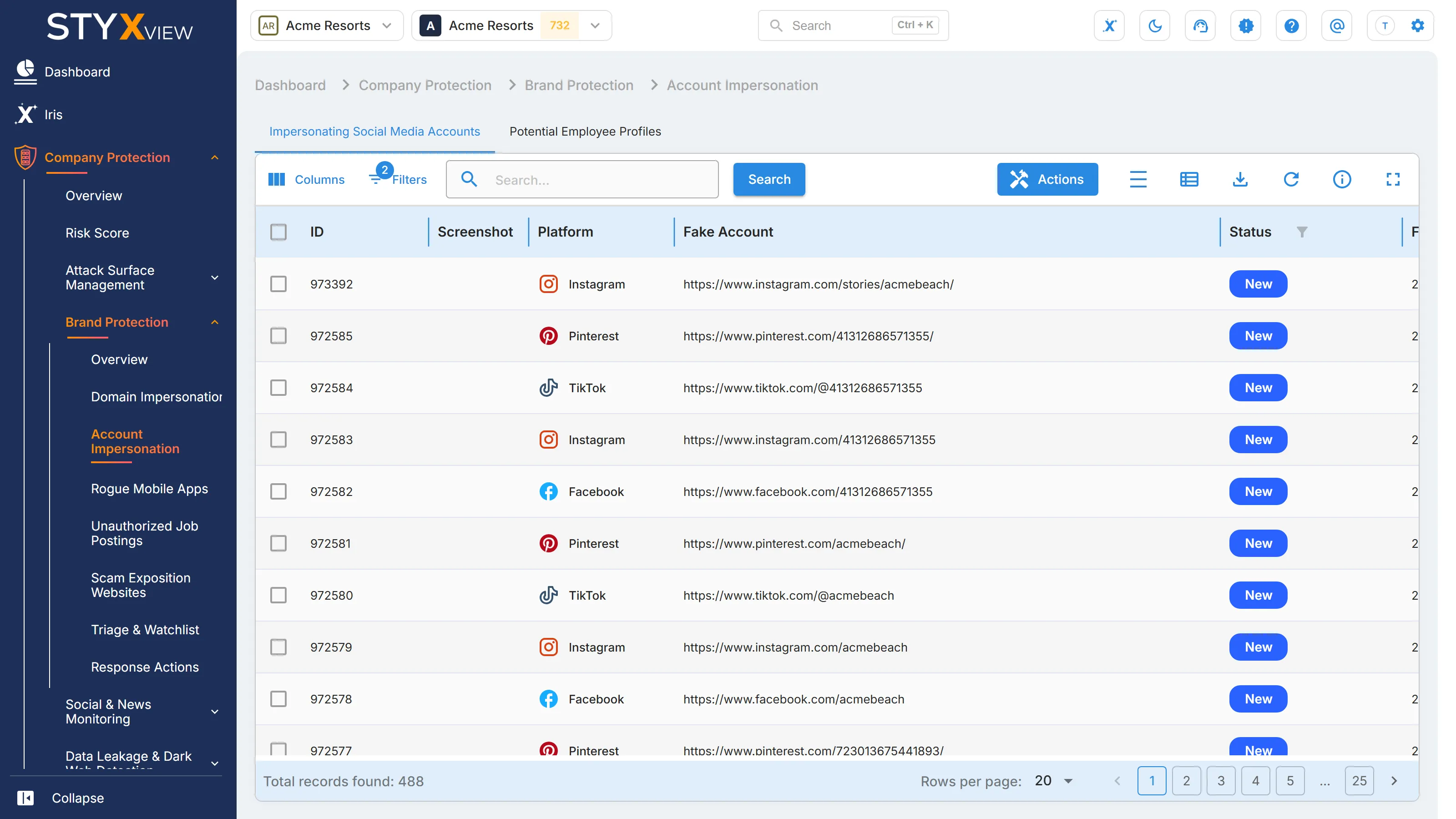
The grid opens sorted by "First Seen", newest first, and filtered to open findings. See Working with brand findings.
Columns
Section titled “Columns”| Column | What it shows |
|---|---|
| "ID" | The finding's permanent identifier. |
| "Screenshot" | A capture of the account. Hover over it for a larger view. |
| "Platform" | The social media platform the account is on. |
| "Fake Account" | The address of the suspected account, with icons to copy it or open it. Treat the account as hostile: view it, but do not interact with it. |
| "Status" | Where the finding is in your triage workflow. See Finding statuses. |
| "First Seen" | When StyxView first detected the account. |
| "Last Seen" | The most recent scan that still found it. |
| "Severity Rating" | How serious the finding is, from "Very Low" to "Very High". |
| "Infringement Detected" | "Yes" when the account has been confirmed as impersonating you. |
| "Monitored In Watchlist" | "Yes" when the finding is on the watchlist. |
| "Assigned User" | The user the finding is assigned to. |
| "Latest Comment" | The most recent comment on the finding. |
"Potential Attacks" and "Detection Keywords" are available under "Columns".
Actions
Section titled “Actions”Select one or more rows, then "Actions". This grid offers "Update Status", "Assign To", "Comment", "Mark as False Positive", "Mark as Brand Infringement/Impersonation/Leak Detected", "Add to Watchlist", "Request Takedown", and "Mark as Legitimate", with the matching "Unmark" and "Remove" actions. Each is described in Acting on findings.
- "Request Takedown" raises an account suspension request for one account at a time.
- "Mark as Legitimate" is for official accounts your organization owns and manages. It also adds the account to your monitored social media accounts in Attack Surface Management.
Adding an account yourself
Section titled “Adding an account yourself”To track an impersonating account that StyxView has not detected:
-
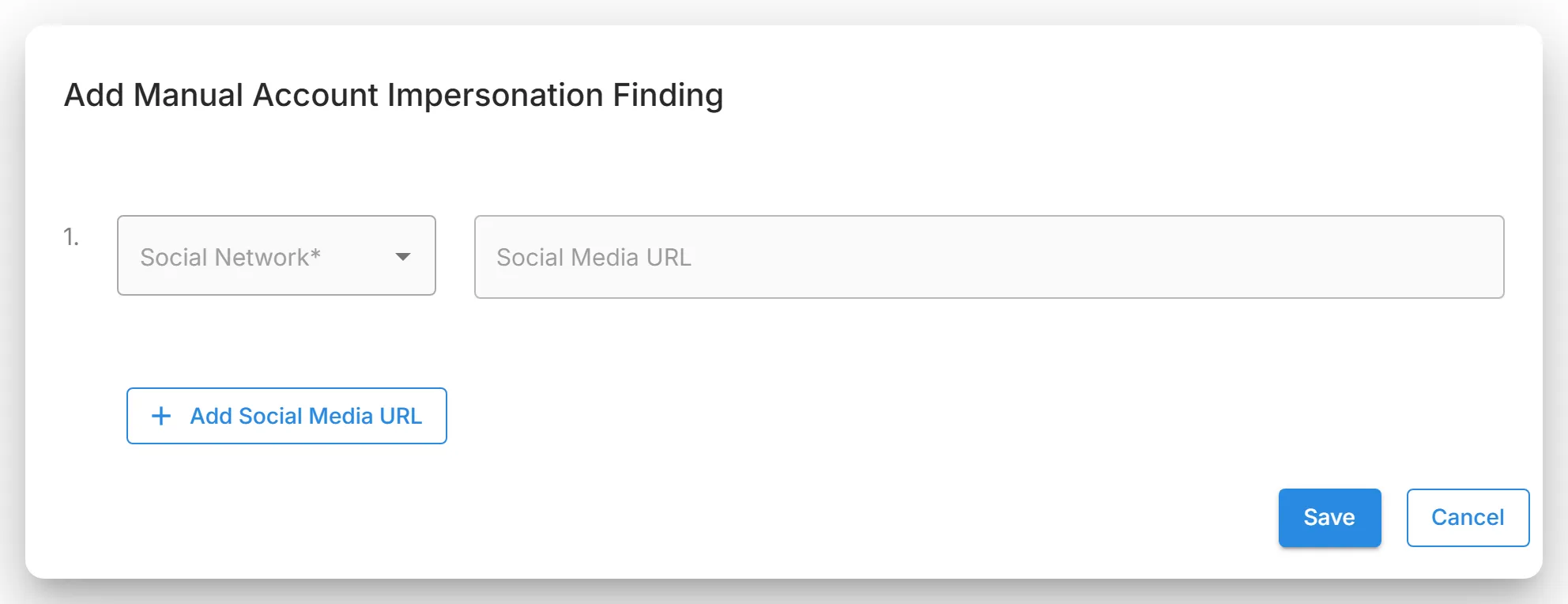
Select "Actions", then "Add Manual Account Impersonation Finding".
-
Select the "Social Network" and enter the "Social Media URL" of the account.
-
To add more accounts, select "Add Social Media URL" and repeat.
-
Select "Save".
Account detail page
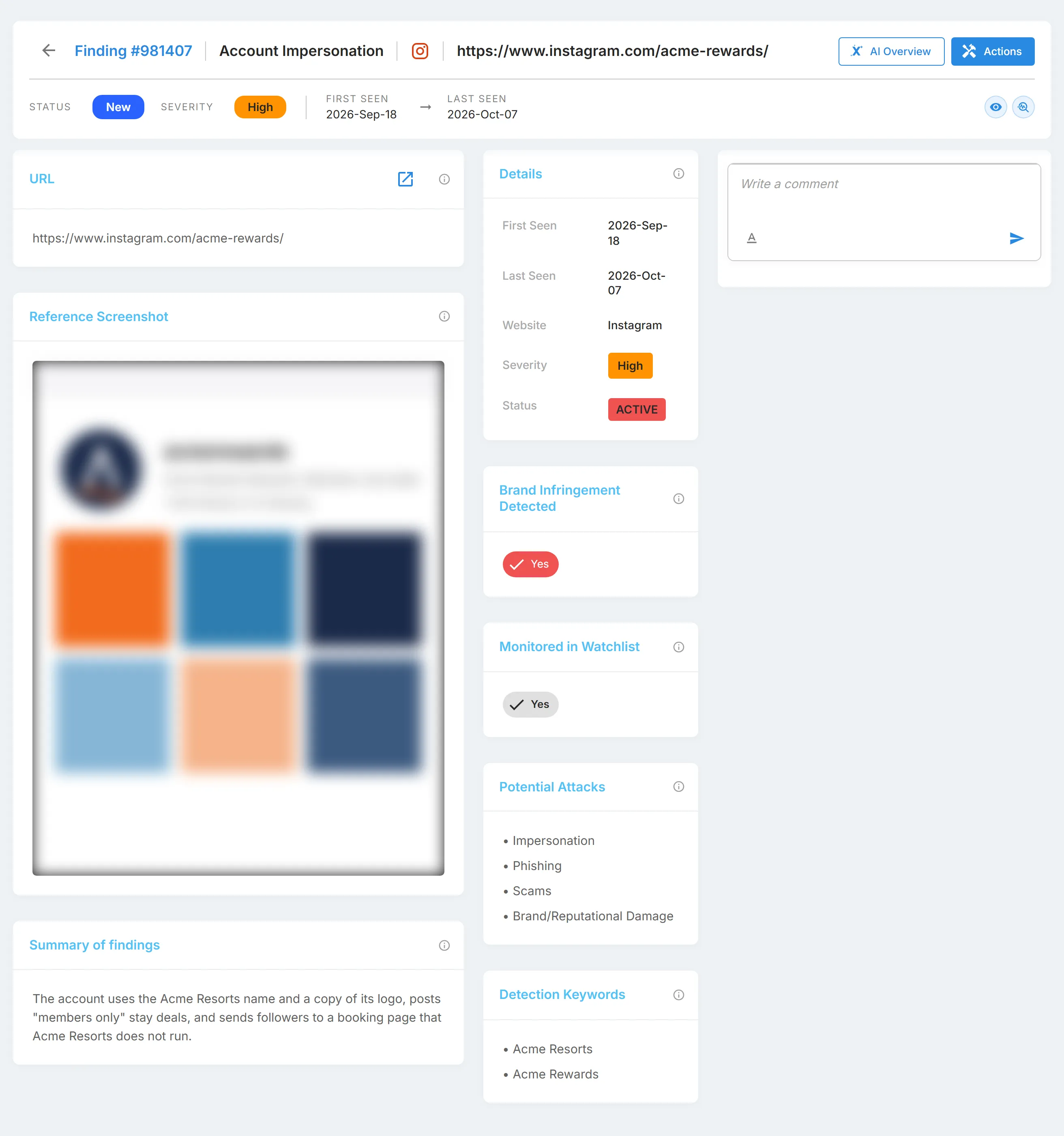
Section titled “Account detail page”Select a row to open the account's detail page. Besides the status, comments, and actions described in Findings, it shows the account's details, a "Reference Screenshot", its "Potential Attacks" and "Detection Keywords", and whether it is flagged as "Brand Infringement Detected" or "Monitored in Watchlist".
In Executive Protection
Section titled “In Executive Protection”"Account Impersonation" lists accounts that pose as one of your executives, mostly on social media platforms. Use it to triage each candidate: confirm the impersonation, dismiss it, keep it under watch, or request a takedown.
Open the "Account Impersonation" tab on the Summary page to see every executive, or on an executive's page to see that executive only.
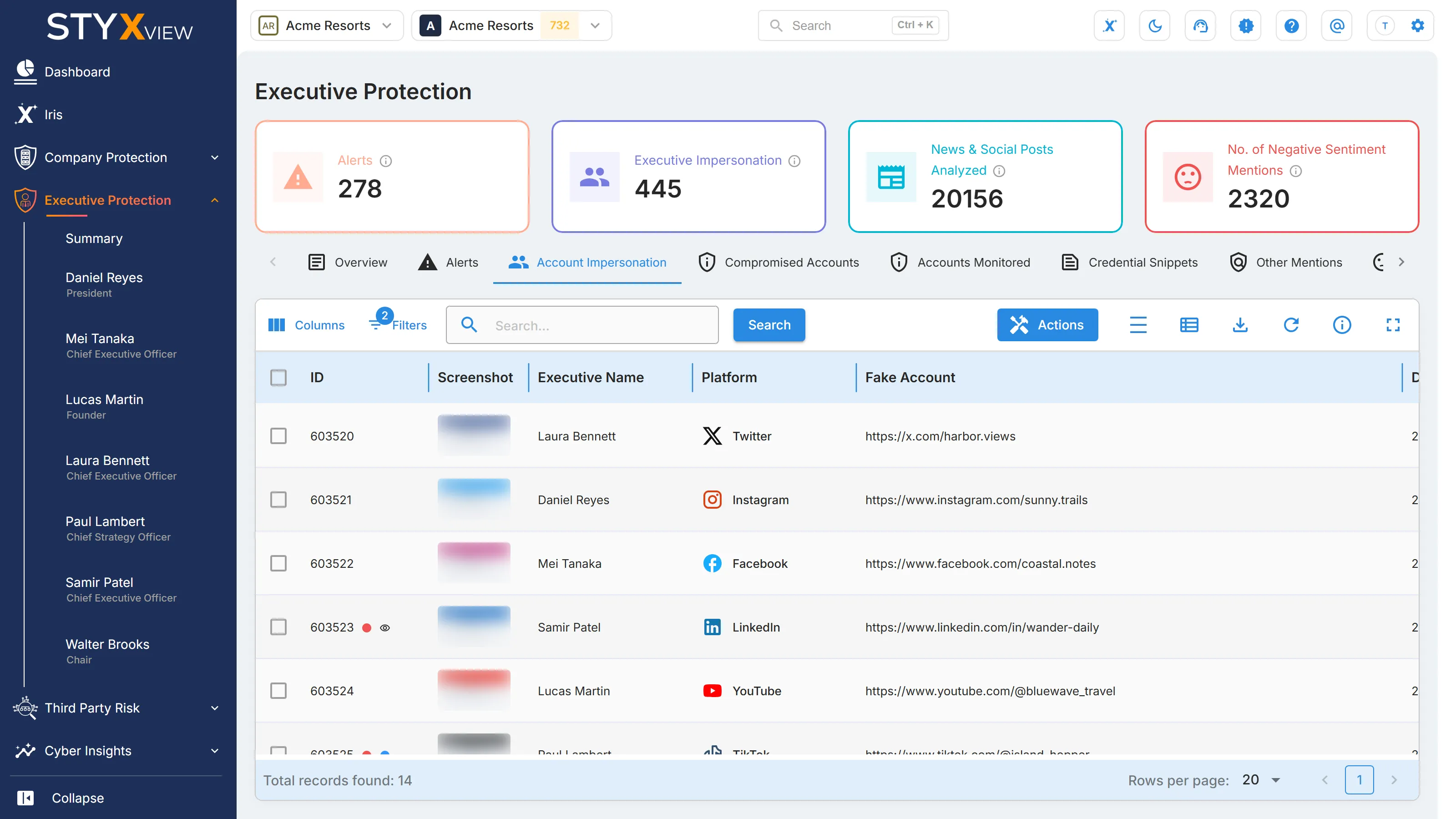
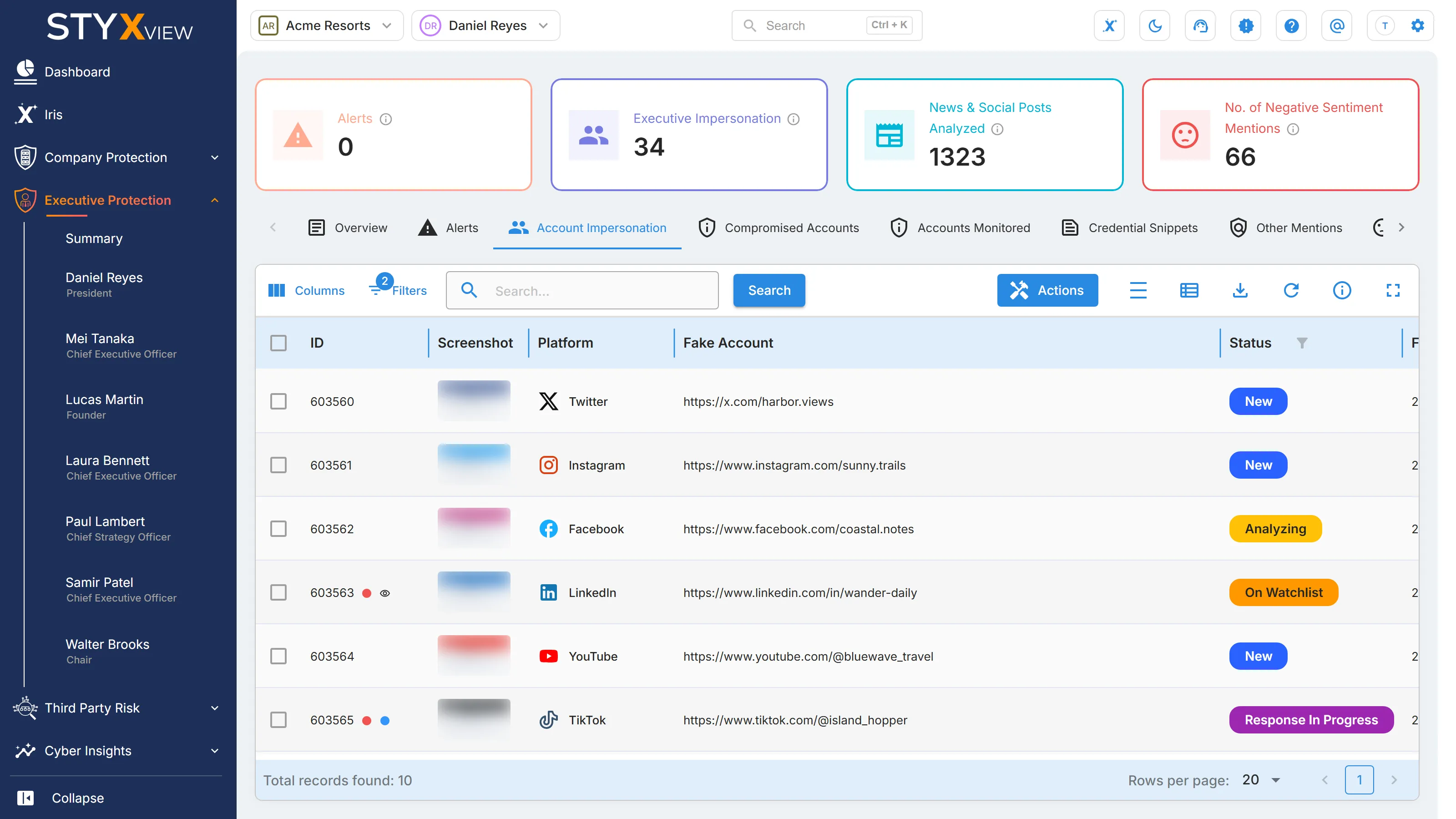
The grid opens filtered to open findings, with status "New", "Analyzing", "On Watchlist", "Response In Progress", or "Reappeared", newest first. To include resolved and closed findings, change the "Status" filter in "Filters".
Select a row to open the finding's detail page.
Columns
Section titled “Columns”| Column | What it shows |
|---|---|
| "ID" | The finding ID. |
| "Screenshot" | A capture of the account. Hover over it to enlarge it. |
| "Executive Name" | The executive being impersonated. On the "Summary" page only. |
| "Platform" | The platform where the account was found. |
| "Fake Account" | The URL of the account, with buttons to copy it and to open it. Treat the account as hostile: view it, but do not interact with it. |
| "Date Detected" | When StyxView first found the account. On an executive's page this column is "First Seen". |
| "Last Detected" | The most recent scan that still found the account. On an executive's page this column is "Last Seen". |
| "Severity Rating" | How serious the impersonation is: "Very Low", "Low", "Medium", "High", or "Very High". |
| "Infringement Detected" | "Yes" once the account has been confirmed as an impersonation. |
| "Monitored In Watchlist" | "Yes" when the account is being kept under observation without action. |
| "Status" | Where the finding is in its workflow. See Findings. |
| "Assigned User" | The user the finding is assigned to. |
| "Latest Comment" | The most recent comment on the finding. |
Two more columns can be shown from "Columns": "Potential Attacks", the attacks the account is equipped to support, and "Detection Keywords", the monitored terms that matched.
On the "Summary" page, use the "Executive" filter in "Filters" to show one executive's accounts.
Actions
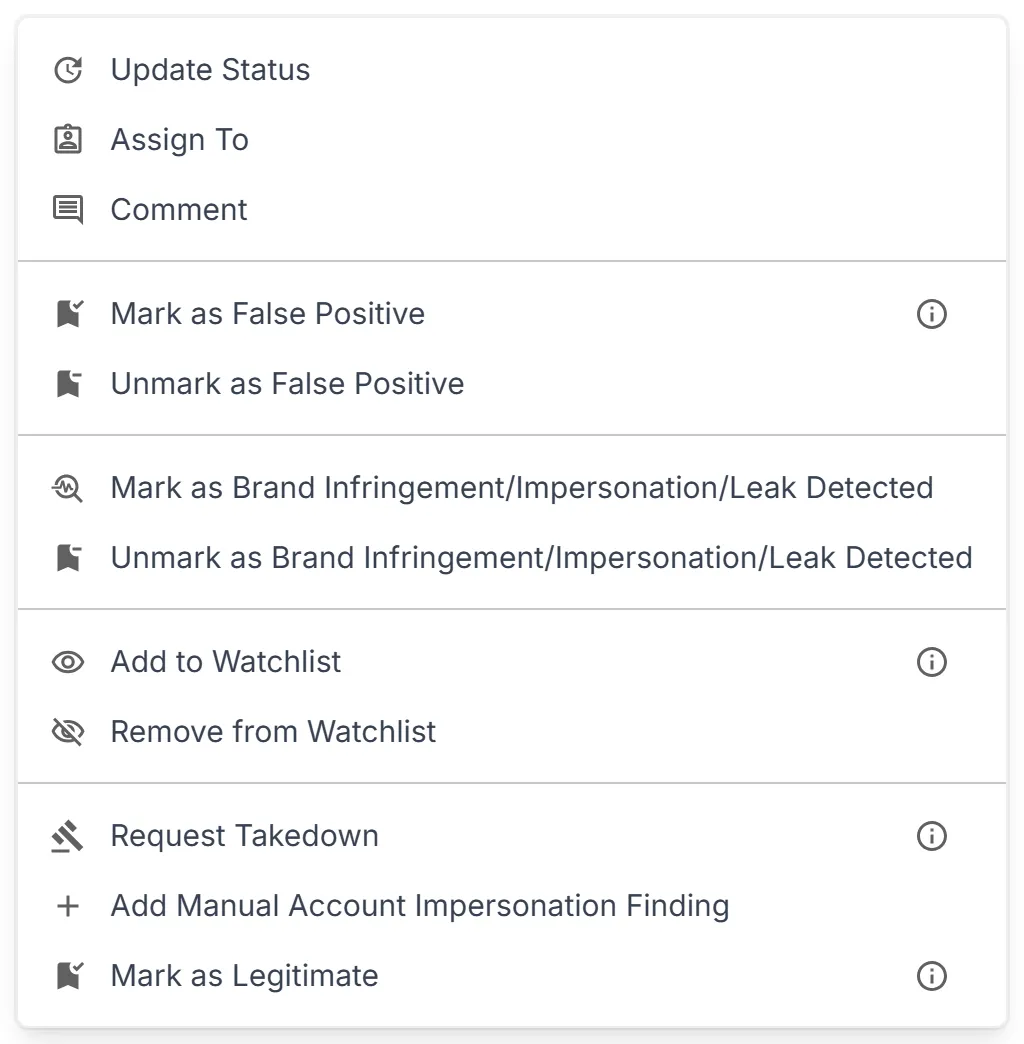
Section titled “Actions”Select one or more rows, then select "Actions", or right-click a row:
-
"Update Status": move the findings to another status.
-
"Assign To": assign the findings to a user.
-
"Comment": add a comment. On an executive's page only.
-
"Mark as False Positive": the account was detected in error. "Unmark as False Positive" reverses it.
-
"Mark as Brand Infringement/Impersonation/Leak Detected": confirm the impersonation. "Infringement Detected" changes to "Yes".
-
"Add to Watchlist": keep the account under observation without acting yet. "Remove from Watchlist" reverses it.
-
"Request Takedown": ask for the account to be removed. Select one row at a time. A takedown can be requested once per account. See Response Actions / Takedowns.
-
"Mark as Legitimate": the account belongs to the executive. Confirm that the account is owned and managed by the individual, and add context.
-
"Add Manual Account Impersonation Finding": add an impersonating account that StyxView has not found, by its "Social Network" and "Social Media URL". On an executive's page only.
To download the grid, select "Export", then "Download as CSV" or "Download as Excel".
Potential Employee Profiles
Section titled “Potential Employee Profiles”This grid lists personal LinkedIn profiles that StyxView has linked to your organization. Each is a candidate for review: a profile may belong to a real member of your staff, or it may be a fake that impersonates your employees or recruiters, for example to run job scams.
Accounts on other platforms, and LinkedIn company pages, are listed under Impersonating Social Media Accounts.
To open the list, select "Company Protection" in the left menu, then "Brand Protection", then "Account Impersonation", and select the "Potential Employee Profiles" tab.
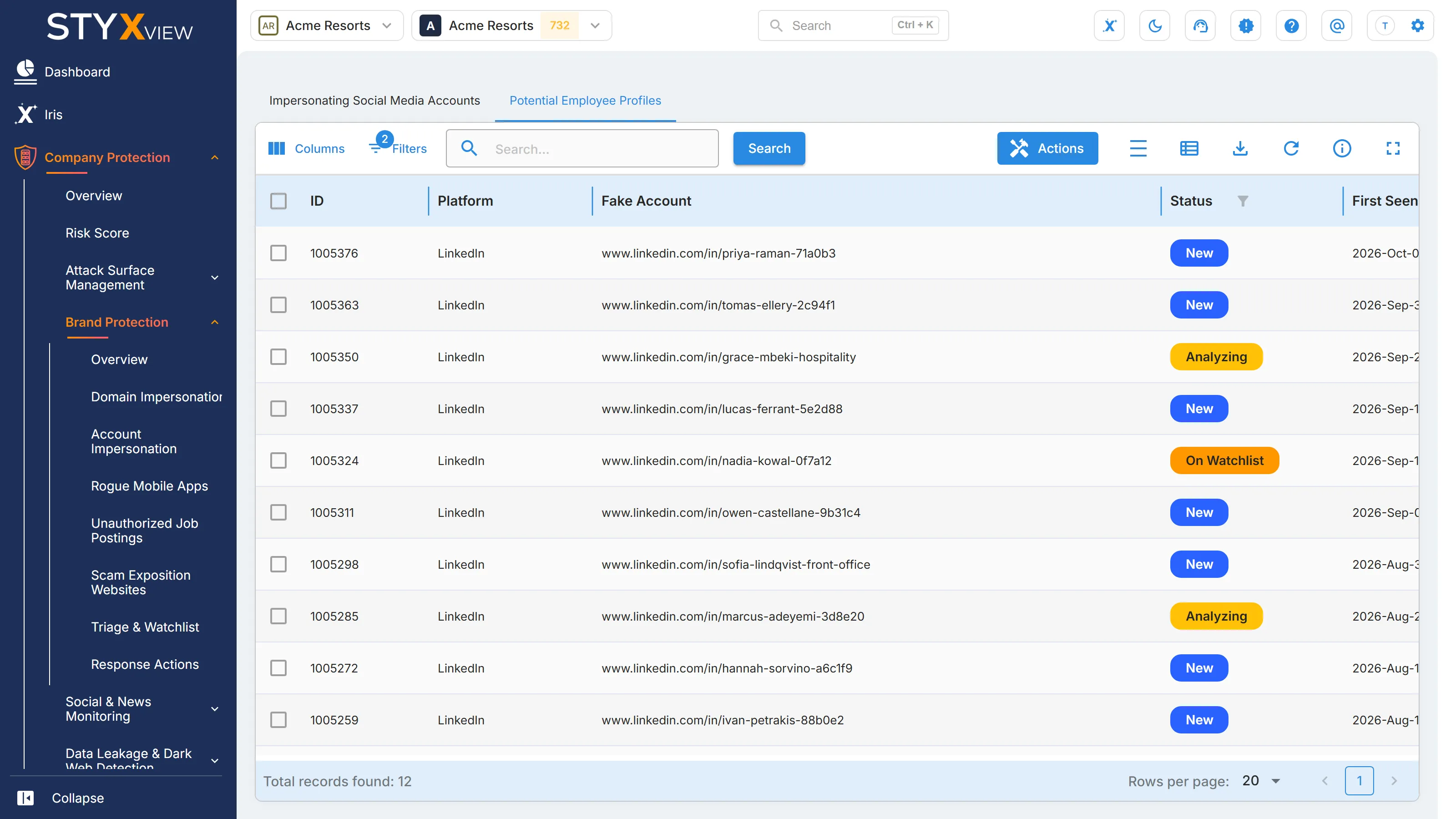
The grid opens sorted by "First Seen", newest first, and filtered to open findings. See Working with brand findings.
Columns
Section titled “Columns”| Column | What it shows |
|---|---|
| "ID" | The finding's permanent identifier. |
| "Platform" | The platform the profile is on. |
| "Fake Account" | The address of the profile, with icons to copy it or open it. |
| "Status" | Where the finding is in your triage workflow. See Finding statuses. |
| "First Seen" | When StyxView first detected the profile. |
| "Last Seen" | The most recent scan that still found it. |
| "Severity Rating" | How serious the finding is, from "Very Low" to "Very High". |
| "Infringement Detected" | "Yes" when the profile has been confirmed as impersonating your organization or its staff. |
| "Monitored In Watchlist" | "Yes" when the finding is on the watchlist. |
| "Assigned User" | The user the finding is assigned to. |
| "Latest Comment" | The most recent comment on the finding. |
"Potential Attacks" and "Detection Keywords" are available under "Columns".
Actions
Section titled “Actions”Select one or more rows, then "Actions". This grid offers "Update Status", "Assign To", "Comment", "Mark as False Positive", "Mark as Brand Infringement/Impersonation/Leak Detected", "Request Takedown", and "Mark as Legitimate", with their "Unmark" actions. Each is described in Acting on findings.
"Request Takedown" raises an account suspension request for one profile at a time. How long the platform takes to act varies from case to case.
Select a row to open the profile's detail page, described in Findings. The watchlist actions are available there.