

Network Security
Potentially Insecure Ports
Section titled “Potentially Insecure Ports”Overview
Section titled “Overview”The "Potentially Insecure Ports" tab lists open ports on your hosts and IP addresses that run services which should rarely be reachable from the internet, such as databases and remote management. Each row is one port on one asset. An open port is not a vulnerability in itself; what matters is whether the service behind it should be public at all.
Open it from "Company Protection" > "Attack Surface Management" > "Network Security". "Potentially Insecure Ports" is the first tab. To see all ports on one asset together, use Potentially Insecure Ports by Host/IP.
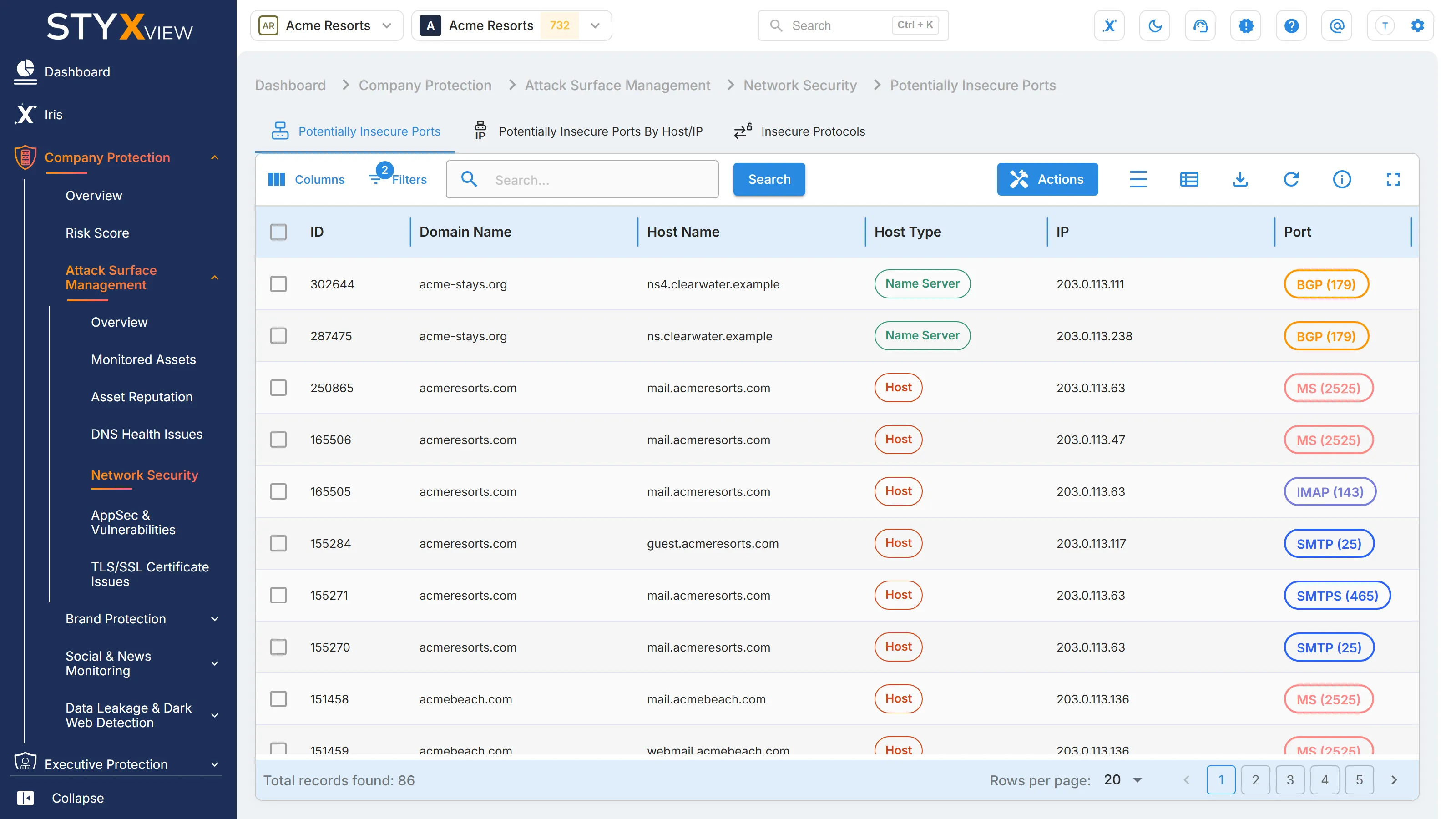
Columns
Section titled “Columns”| Column | What it shows |
|---|---|
| ID | The finding's permanent identifier. |
| Domain Name | The domain the host belongs to. |
| Host Name | The host the port is open on. |
| Host Type | The kind of asset, such as "Host", "Mail Server", "Name Server", or "Dedicated IP Address". |
| IP | The IP address the port is open on. |
| Port | The service and port number, such as SNMP (161). |
| Status | Where the finding is in the triage workflow. See Findings for each status. |
| First Seen | When StyxView first found the port open. |
| Last Seen | The most recent scan that still found it open. |
| Severity Rating | How serious the exposure is, from "Very Low" to "Very High". |
| Risk Category | The kind of exposure. See the table below. |
| Risk Sub Category | The service found on the port, such as "MySQL Service Observed". |
| Associated Risks | What the exposure can lead to. |
| Assigned User | The user the finding is assigned to. |
| Latest Comment | The most recent comment on the finding. |
More columns are hidden by default: "IP Organization", "IP ISP", "Port Description", "Port Banner Response" (what the service sent back when contacted), and the issue description and recommendation. Add them with "Columns".
Risk categories
Section titled “Risk categories”| Risk Category | What it covers | Default rating |
|---|---|---|
| database-exposure | Database services, such as MySQL, PostgreSQL, MS SQL, Oracle, MongoDB, Redis, Elasticsearch, and Cassandra. | "Very High" |
| remote-management-exposure | Remote access services: SSH, RDP, Telnet, and FTP. | "Very High" |
| other-high-risk-port-exposure | Other risky services, such as SMB, SMTP, IMAP, POP3, LDAP, VNC, VPN services, and industrial control devices. | "Medium" |
Working with findings
Section titled “Working with findings”By default the grid shows open findings, with the status "New", "Analyzing", "On Watchlist", "Response In Progress", or "Reappeared", and hides findings marked as false positives. Change "Filters" to see the rest.
To act on findings:
- Select the checkbox of one or more rows, then select "Actions". To act on one row, you can right-click it instead.
- Choose an action:
- "Update Status" moves the findings through the triage workflow.
- "Assign To" assigns them to a user.
- "Comment" adds a note.
- "Mark as False Positive" records that a finding is not a real issue. "Unmark as False Positive" reverses it.
- "Accept Risk" records a decision to leave the issue unfixed: the finding's status becomes "Closed Without Action", so it leaves the open list, and it keeps being detected. "Undo Accept Risk" sets it to "Reappeared" and adds it to the watchlist. See Accept Risk.
- Enter the context the dialog asks for, then select "Confirm".
Select a row to open the finding's detail page. See Findings.
To close an exposure, restrict the service to the networks that need it, or turn it off. A database or remote management port that must stay reachable belongs behind a VPN or an allowlist.
Third parties
Section titled “Third parties”For a third party you monitor, open "Third Party Risk", the third party's name, "Risks", then "Network Security". The grid lists that third party's ports, and "Actions" offers "Create Risk", which raises a risk from the selected findings in the Risk Register.
Potentially Insecure Ports by Host/IP
Section titled “Potentially Insecure Ports by Host/IP”Overview
Section titled “Overview”The "Potentially Insecure Ports by Host/IP" tab groups the findings from Potentially Insecure Ports by asset: one row per host or IP address, with all of its potentially insecure ports together. Use it to see which assets expose the most, and to plan changes one asset at a time.
Open it from "Company Protection" > "Attack Surface Management" > "Network Security" > "Potentially Insecure Ports by Host/IP".
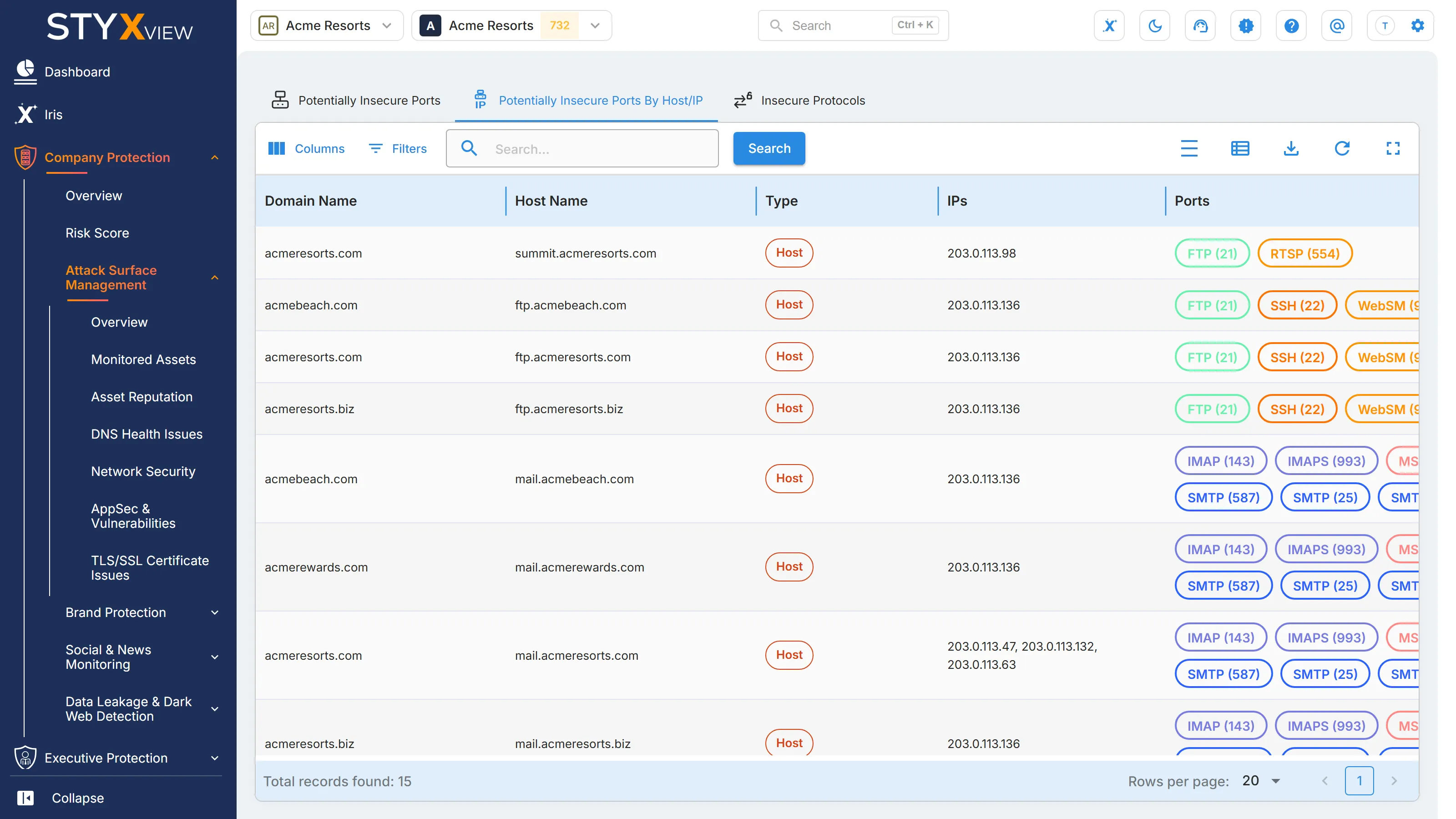
Columns
Section titled “Columns”| Column | What it shows |
|---|---|
| Domain Name | The domain the host belongs to, or "None" for an IP address with no host. |
| Host Name | The host, or "None" for an IP address with no host. |
| Type | The kind of asset, such as "Host" or "Dedicated IP Address". |
| IPs | The IP addresses of the asset. |
| Ports | Every potentially insecure port found on the asset, with the service on each. |
Asset details
Section titled “Asset details”Select a row to open the asset's detail page: the IP address page for a "Dedicated IP Address", or the host page for anything else. There, each port is listed as a separate finding.
To change a finding's status, assign it, or comment on it, use the Potentially Insecure Ports tab. This tab has no actions.
Third parties
Section titled “Third parties”For a third party you monitor, open "Third Party Risk", the third party's name, "Risks", "Network Security", then "Potentially Insecure Ports by Host/IP".
Insecure Protocols
Section titled “Insecure Protocols”Overview
Section titled “Overview”The "Insecure Protocols" tab lists SSH servers on your hosts and IP addresses that still accept weak encryption or integrity algorithms, or an SSH protocol version older than 2.0. Each row is one issue on one server. The server is not broken: it agrees to use these weak settings if a client asks, and an attacker in the middle of a connection can try to force them.
Open it from "Company Protection" > "Attack Surface Management" > "Network Security" > "Insecure Protocols".
Certificate and protocol problems on HTTPS services are listed separately, under TLS/SSL Certificate Issues.
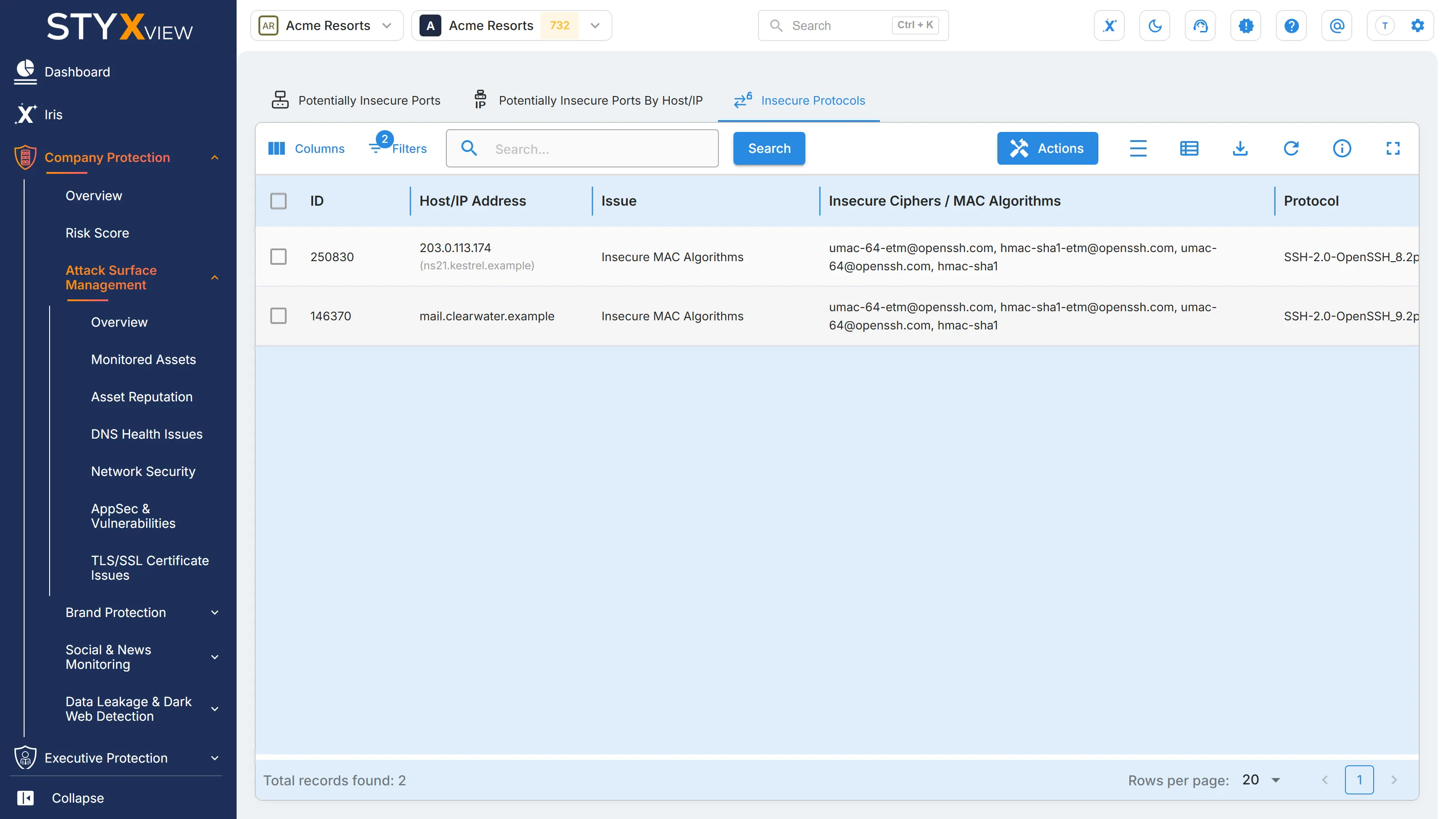
Columns
Section titled “Columns”| Column | What it shows |
|---|---|
| ID | The finding's permanent identifier. |
| Host/IP Address | The host or IP address running the SSH server. |
| Issue | The problem found. See the table below. |
| Insecure Ciphers / MAC Algorithms | The weak algorithms the server offers. |
| Protocol | The identification string the SSH server sent, which names its protocol version and software. |
| SSH Protocol | The SSH protocol version. |
| Port | The port the SSH server listens on. |
| Status | Where the finding is in the triage workflow. See Findings for each status. |
| First Seen | When StyxView first found the issue. |
| Last Seen | The most recent scan that still found it. |
| Severity Rating | How serious the issue is, from "Very Low" to "Very High". |
| Associated Risks | What the issue can lead to. |
| Assigned User | The user the finding is assigned to. |
| Latest Comment | The most recent comment on the finding. |
"Issue Description" and "Issue Recommendation" are hidden by default. Add them with "Columns".
Issues
Section titled “Issues”| Issue | What it means | Default rating |
|---|---|---|
| Very Insecure Ciphers | The server supports obsolete ciphers such as DES, 3DES, or RC4. | "Very High" |
| Insecure Ciphers | The server supports weak ciphers alongside secure ones, so a connection can be downgraded to a weak cipher. | "Medium" |
| Very Insecure MAC Algorithms | The server uses weak message authentication code (MAC) algorithms such as MD5 or SHA-1, so messages could be altered without detection. | "Very High" |
| Insecure MAC Algorithms | The server offers weak MAC algorithms, but not as its primary check. | "Medium" |
| Insecure Protocol | The server accepts SSH protocol versions earlier than 2.0. | "Very High" |
To fix these issues, remove the weak ciphers and MAC algorithms from the SSH server configuration and allow only protocol version 2. Modern clients are not affected.
Working with findings
Section titled “Working with findings”By default the grid shows open findings, with the status "New", "Analyzing", "On Watchlist", "Response In Progress", or "Reappeared", and hides findings marked as false positives. Change "Filters" to see the rest.
To act on findings:
- Select the checkbox of one or more rows, then select "Actions". To act on one row, you can right-click it instead.
- Choose an action:
- "Update Status" moves the findings through the triage workflow.
- "Assign To" assigns them to a user.
- "Comment" adds a note.
- "Mark as False Positive" records that a finding is not a real issue. "Unmark as False Positive" reverses it.
- "Accept Risk" records a decision to leave the issue unfixed: the finding's status becomes "Closed Without Action", so it leaves the open list, and it keeps being detected. "Undo Accept Risk" sets it to "Reappeared" and adds it to the watchlist. See Accept Risk.
- Enter the context the dialog asks for, then select "Confirm".
Select a row to open the finding's detail page. See Findings.
Third parties
Section titled “Third parties”For a third party you monitor, open "Third Party Risk", the third party's name, "Risks", "Network Security", then "Insecure Protocols". The grid lists that third party's issues, and "Actions" offers "Create Risk", which raises a risk from the selected findings in the Risk Register.