
Finding Actions
Finding actions record what your team decided about a finding: that someone is working on it, that it is not a real issue, that you accept the risk, or that the asset is yours. Most actions work on one finding or on many at once.
You find the actions in four places:
- A grid's "Actions" menu. Select findings with their checkboxes on the Findings page or in a module grid, such as "Lookalike Domains" or "Vulnerabilities", then select "Actions".
- The right-click menu. Right-click a row to act on that finding alone, or right-click a selection to act on every selected finding.
- A finding's detail page. Select "Actions" at the top right of the page. See Findings.
- Iris. Ask Iris to act on findings, then confirm the change it proposes. Iris can comment, change the status, assign, mark as false positive, accept the risk, mark as legitimate, mark brand infringement, and add to the watchlist. See Iris.
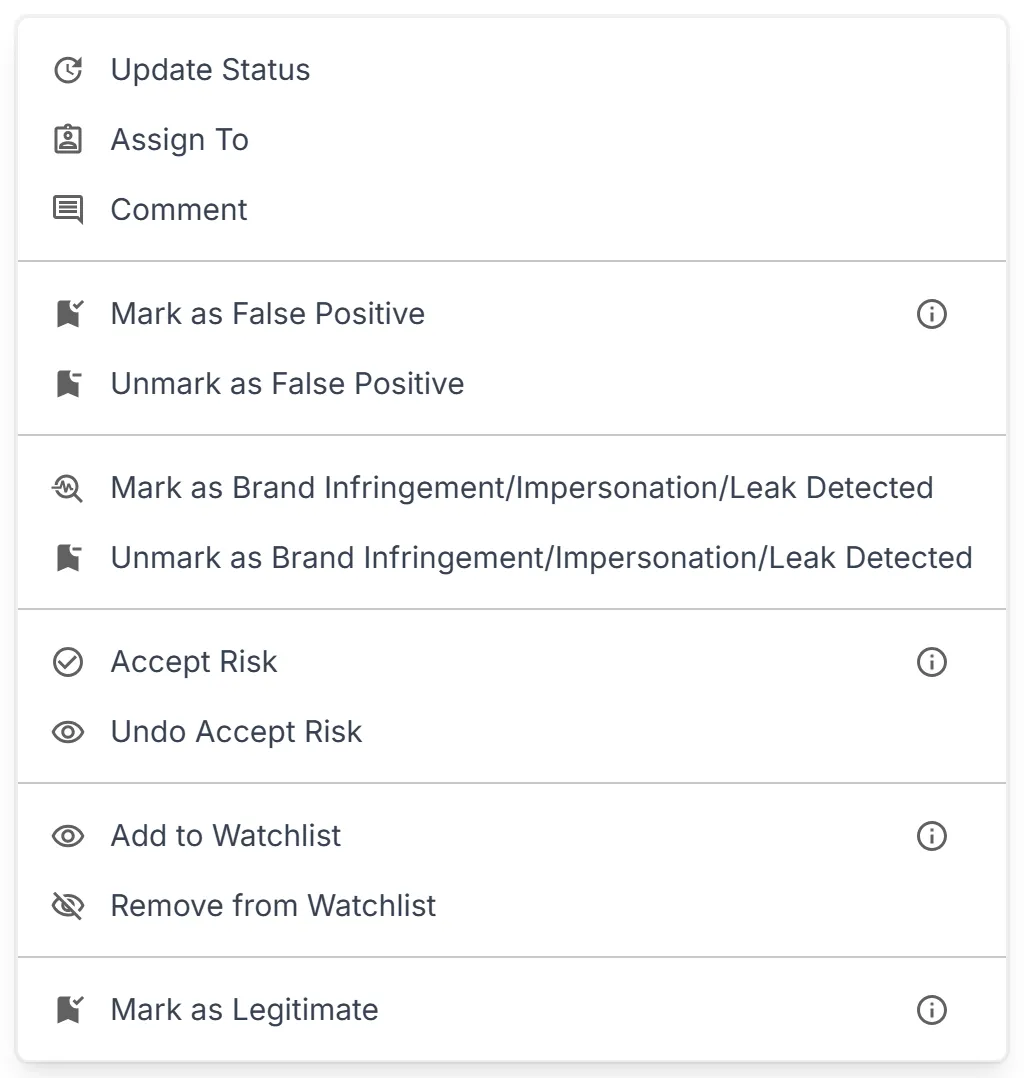
Each grid offers the actions that apply to its findings, and an action changes only the finding types that support it. In a grid, the dialog lists every selected finding with what will change: "No Change" for a finding already in that state, and "Not Applicable" for a finding whose type does not support the action, which is skipped. Select "Confirm" to apply it. On a detail page, the dialog covers that one finding.
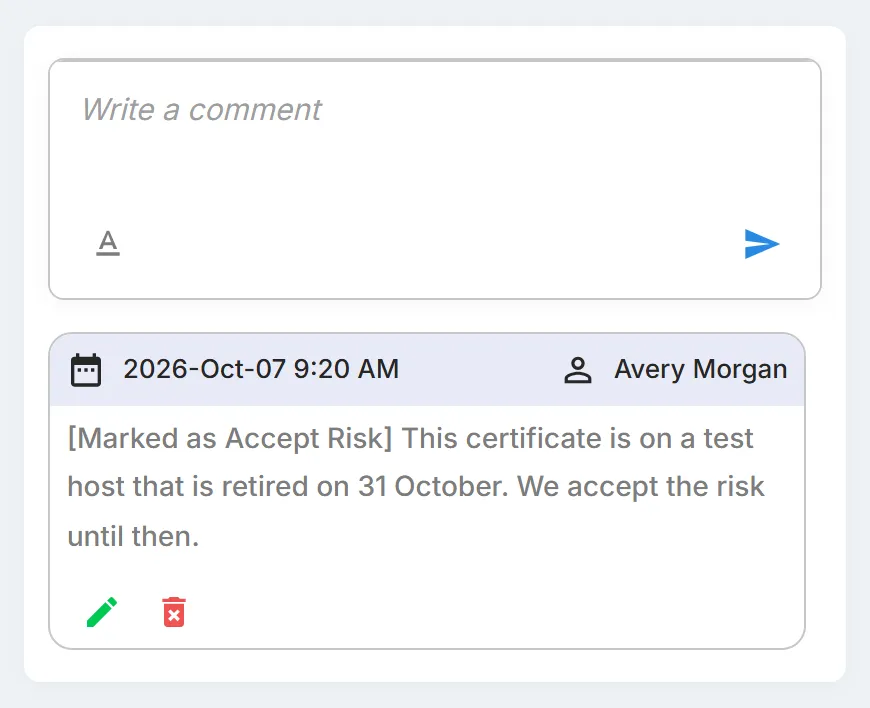
Most actions ask you to "Add context (required):". StyxView saves what you enter as a comment on every finding the action changes, after a note of what was done, such as "[Marked as False Positive]" or "[Status Changed -> Analyzing]". Audit Logs record these actions too, except watchlist changes. "Request Takedown", "Upload Screenshot", and "Create Risk" work differently; their pages say how.
A few things hold for every action:
- Roles. A finding's detail page shows "Actions" to Admins and Analysts only. The "Actions" menu and the right-click menu of a grid are shown to every role, Viewer included. See User Roles and Access.
- Digital Risk Score. StyxView recalculates the score every four hours, so an action that changes what counts shows at the next scoring run. See Risk Score.
- Alerts. No action changes an alert already raised for the finding.
- Third parties. A third party's findings take no finding actions. Their grids offer "Create Risk" only, where it applies.
The actions
Section titled “The actions”- Update Status: Moves findings to the status you choose in "Change Status to:".
- Assign To: Makes one user responsible for the findings.
- Comment: Adds the same comment to every selected finding and changes nothing else.
- Mark as False Positive: Records that a finding is not a real issue: detection matched something that is not what it seems.
- Mark as Brand Infringement/Impersonation/Leak Detected: Confirms that a finding is real abuse: it infringes your brand, impersonates your organisation or its people, or leaks your data.
- Accept Risk: Records a decision to leave a real issue unfixed: your team understands the risk and accepts it, for now or for good.
- Add to Watchlist: Keeps findings under observation without acting on them yet, such as a lookalike domain that is registered but shows no content.
- Request Takedown: Asks the Styx takedown team to have the content removed by the service provider carrying it, such as a registrar, host, social network, or app store.
- Upload Screenshot: Attaches your own screenshot to a finding, in JPG, JPEG, or PNG format, as evidence or as a record of what the content showed.
- Mark as Legitimate: Records that the asset belongs to your organisation: you own and manage it, and detection flagged it as suspicious.
- Create Risk: On a third party, "Create Risk" is the one action offered: it tracks the selected findings as risks in that third party's Risk Register.
Choosing between Accept Risk, False Positive, and Legitimate
Section titled “Choosing between Accept Risk, False Positive, and Legitimate”All three close the finding with the status "Closed Without Action" and stop it counting toward the Digital Risk Score. They record different decisions, and a reviewer reading the finding later relies on the right one.
| Action | Use it when | Example |
|---|---|---|
| "Accept Risk" | The issue is real and you decide not to fix it, for now or for good. Offered on Attack Surface Management findings. | A legacy server accepts an old TLS version until it is retired. |
| "Mark as False Positive" | The finding is wrong, or it is not a threat to you. This includes a third party's harmless use of your brand, such as an authorised reseller's site or a news article. | A vulnerability matched by version on a host where the fix was backported. |
| "Mark as Legitimate" | The asset is yours: your organisation owns and manages it. Never for an asset someone else owns. | A domain your marketing team registered for a campaign. |