

Stealer Logs
Cookie
Section titled “Cookie”The "Cookie" tab of Stealer Logs lists browser cookies taken by infostealer malware from infected devices, where the cookie matches one of your monitored keywords, such as your domain. A stolen session cookie can let an attacker use a signed-in session without the password, so these records point to sessions to revoke and devices to clean.
Where to find it
Section titled “Where to find it”Select "Company Protection" > "Data Leakage & Dark Web Detection" > "Stealer Logs". The "Cookie" tab opens first. The other tabs are History, Password, System, Other, and Files View.
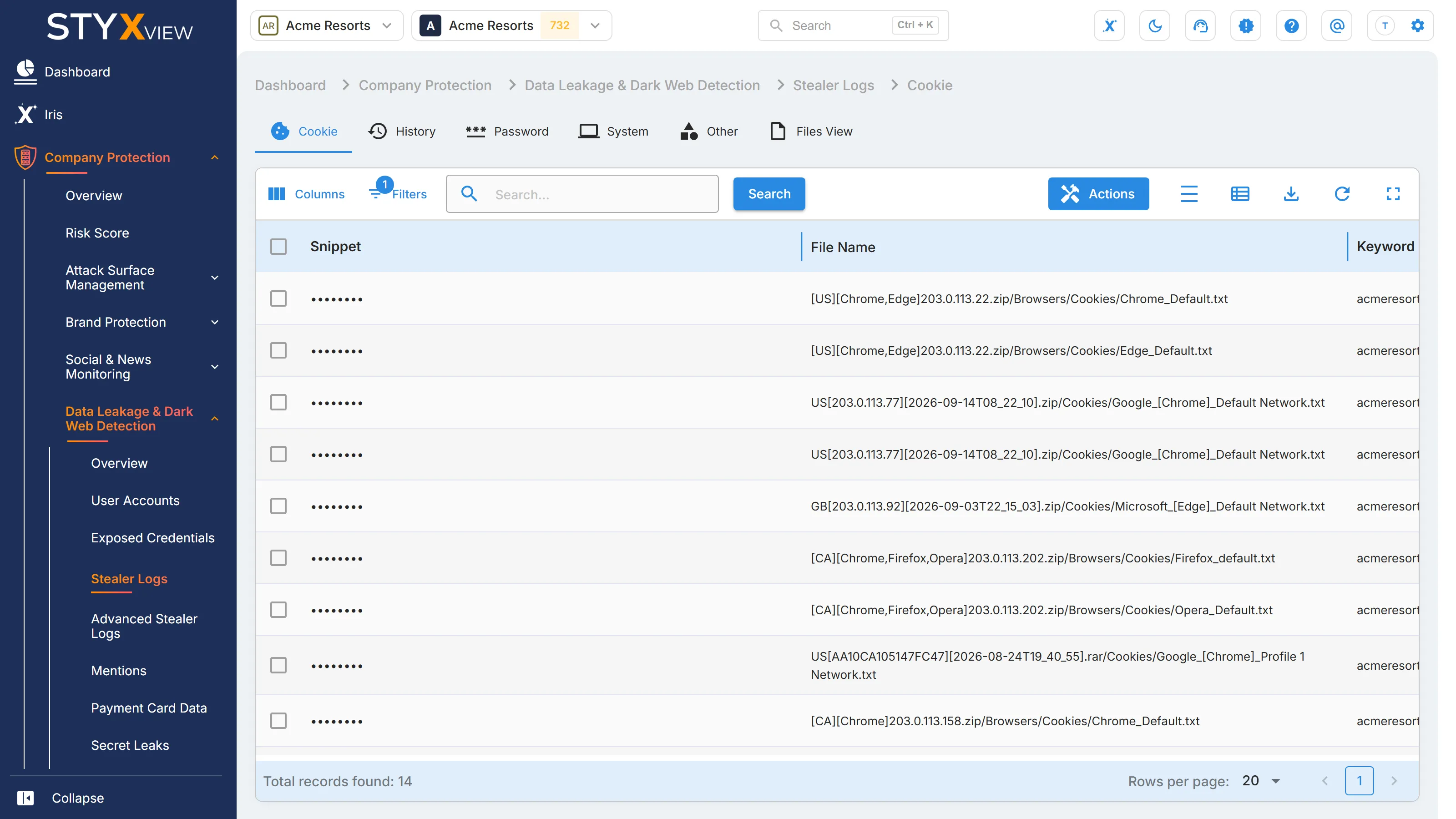
Columns
Section titled “Columns”Every Stealer Logs tab except "Files View" has these columns.
| Column | What it shows |
|---|---|
| "Snippet" | The record as found. On this tab, a cookie line with its domain, expiry, name, and value. |
| "File Name" | The file in the stealer log that the record came from, with its path. |
| "Keyword" | Your monitored keyword that the record matched. |
| "Emails" | Email addresses in the record, if any. |
| "Domains" | Website domains in the record, if any. |
| "Status" | The review status. See Review statuses. |
"Keyword" filters by a list of your keywords. The list opens with "Closed" records filtered out.
Working with records
Section titled “Working with records”To change the status of several records, select rows that share the same status, select "Actions", then "Update Status". See Review statuses.
Select a row to open the record's page, the same page as for a snippet (see The snippet page). To export the list, select the export icon, then "Download as CSV" or "Download as Excel".
History
Section titled “History”The "History" tab of Stealer Logs lists browsing history taken by infostealer malware from infected devices, where an entry matches one of your monitored keywords, such as your domain. It shows that a device used to visit your sites, such as internal portals, is infected.
Where to find it
Section titled “Where to find it”Select "Company Protection" > "Data Leakage & Dark Web Detection" > "Stealer Logs", then the "History" tab.
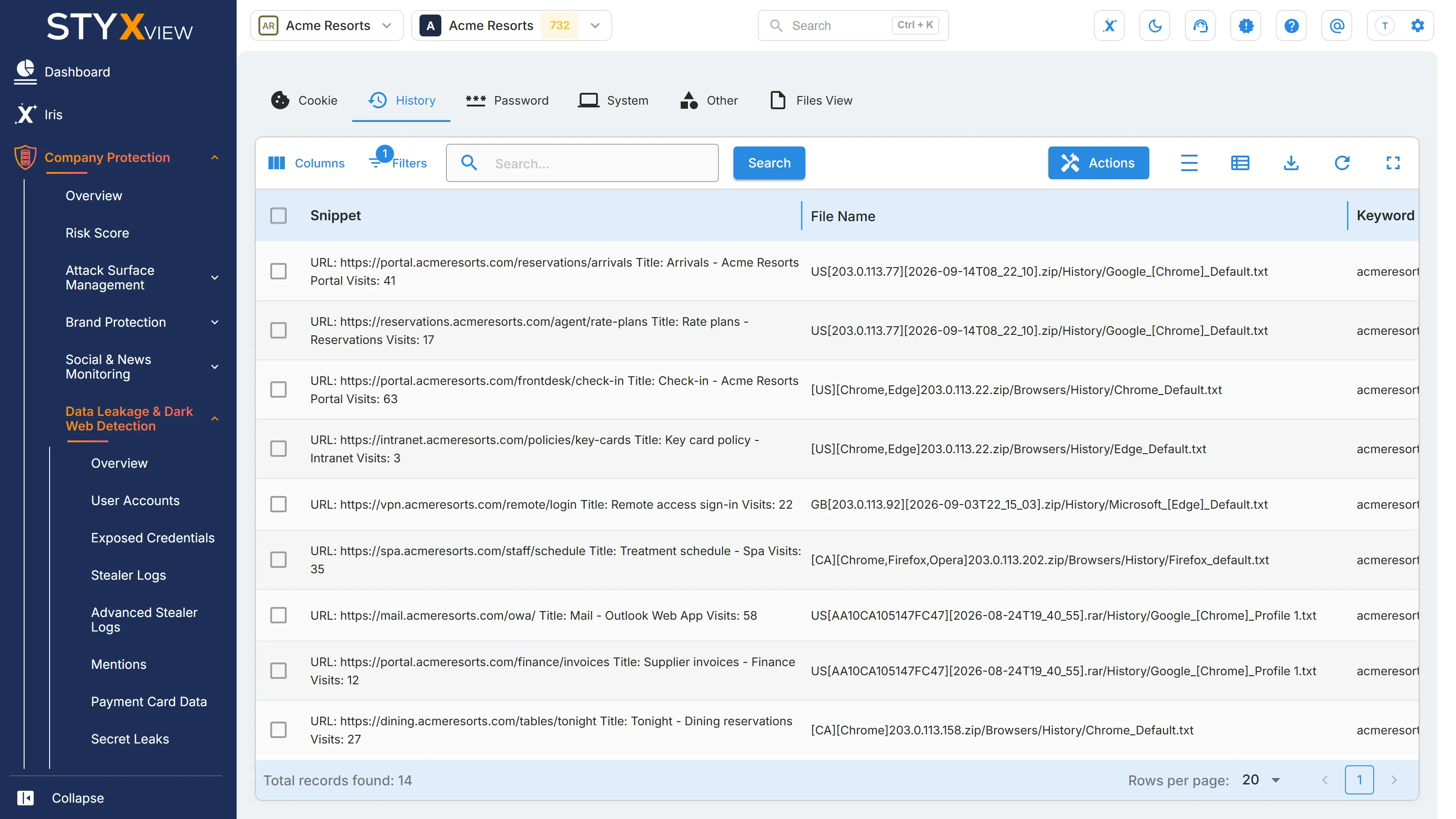
Columns
Section titled “Columns”| Column | What it shows |
|---|---|
| "Snippet" | The history entry as found: a visited URL, a page title, or a field such as a login email. |
| "File Name" | The file in the stealer log that the entry came from, with its path. |
| "Keyword" | Your monitored keyword that the entry matched. |
| "Emails" | Email addresses in the entry, if any. |
| "Domains" | Website domains in the entry, if any. |
| "Status" | The review status. See Review statuses. |
"Keyword" filters by a list of your keywords. The list opens with "Closed" records filtered out.
Working with records
Section titled “Working with records”To change the status of several records, select rows that share the same status, select "Actions", then "Update Status".
Select a row to open the record's page (see The snippet page). To export the list, select the export icon, then "Download as CSV" or "Download as Excel".
Password
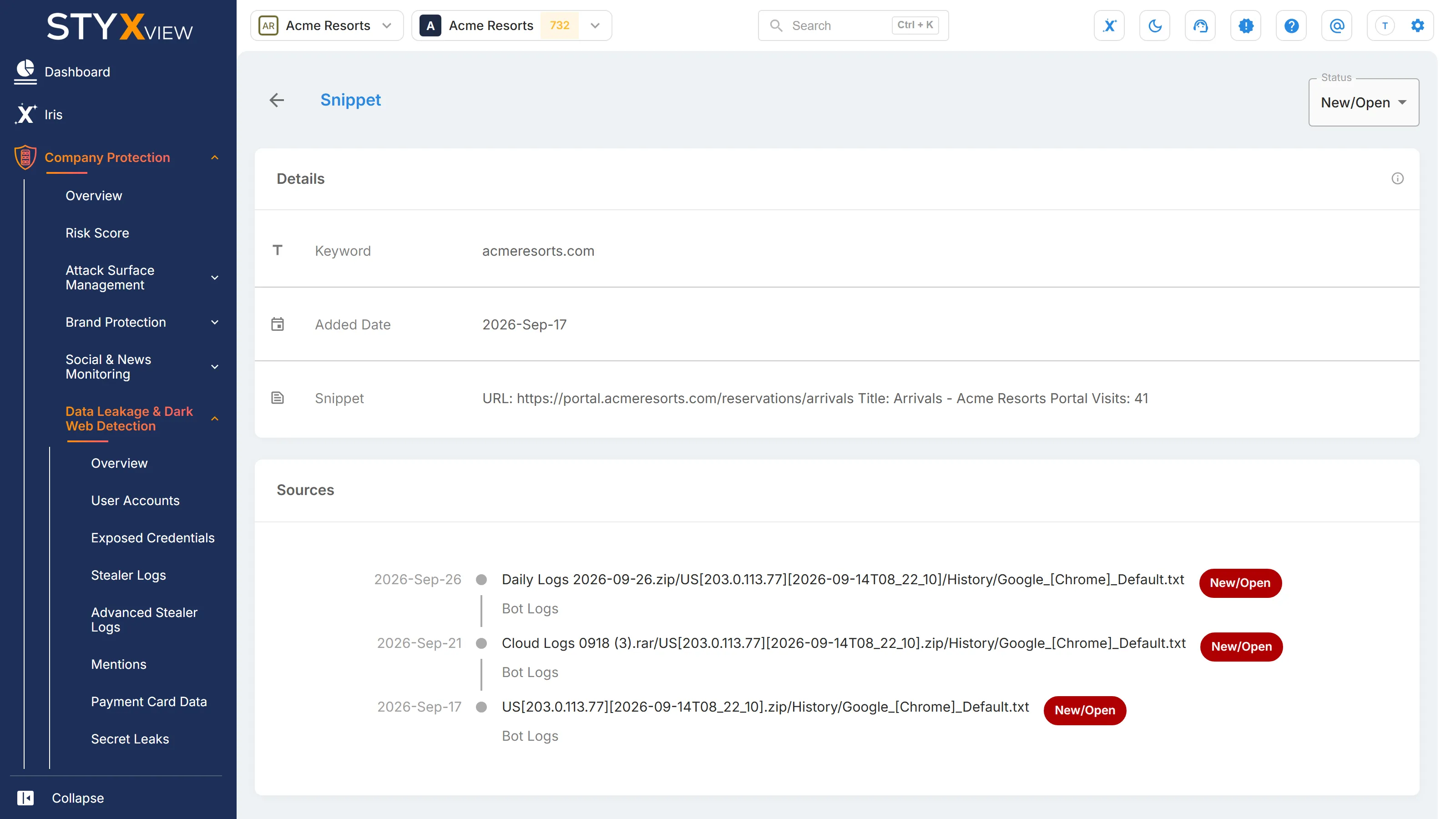
Section titled “Password”The "Password" tab of Stealer Logs lists credentials that infostealer malware took from browsers and applications on infected devices, where the record matches one of your monitored keywords, such as your domain. Each record usually holds a site address, a username, and a password. Reset the password and check the device it came from.
Where to find it
Section titled “Where to find it”Select "Company Protection" > "Data Leakage & Dark Web Detection" > "Stealer Logs", then the "Password" tab.
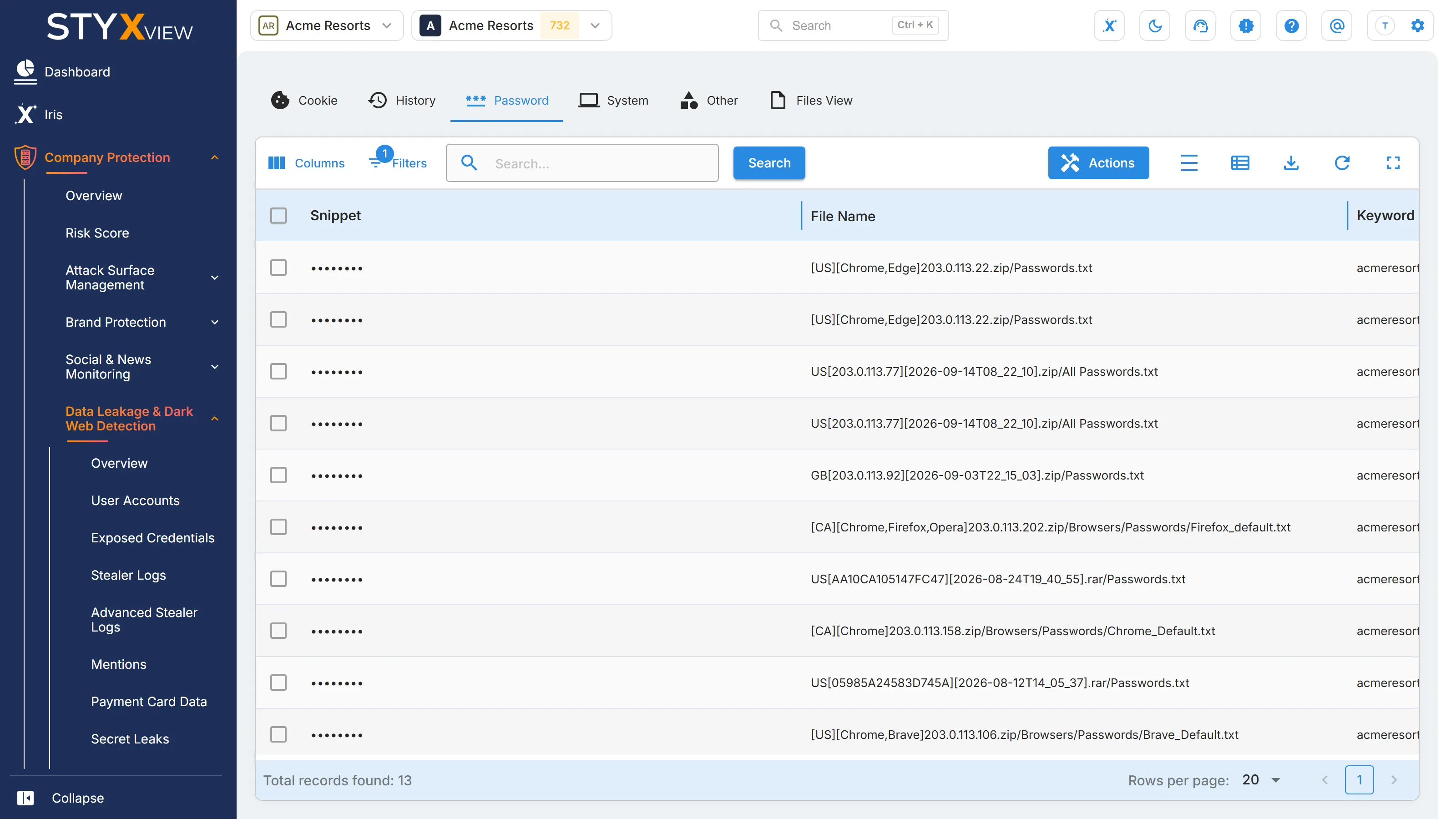
Columns
Section titled “Columns”| Column | What it shows |
|---|---|
| "Snippet" | The saved credential as found: the site address, the username, and the password. |
| "File Name" | The file in the stealer log that the credential came from, with its path. |
| "Keyword" | Your monitored keyword that the credential matched. |
| "Emails" | Email addresses in the record, if any. |
| "Domains" | Website domains in the record, if any. |
| "Status" | The review status. See Review statuses. |
"Keyword" filters by a list of your keywords. The list opens with "Closed" records filtered out.
Working with records
Section titled “Working with records”To change the status of several records, select rows that share the same status, select "Actions", then "Update Status".
Select a row to open the record's page (see The snippet page). To export the list, select the export icon, then "Download as CSV" or "Download as Excel".
System
Section titled “System”The "System" tab of Stealer Logs lists records from the system information files that infostealer malware writes about an infected device, where the record matches one of your monitored keywords. These files describe the device, with details such as its host name, operating system, hardware identifiers, and IP addresses.
Where to find it
Section titled “Where to find it”Select "Company Protection" > "Data Leakage & Dark Web Detection" > "Stealer Logs", then the "System" tab.
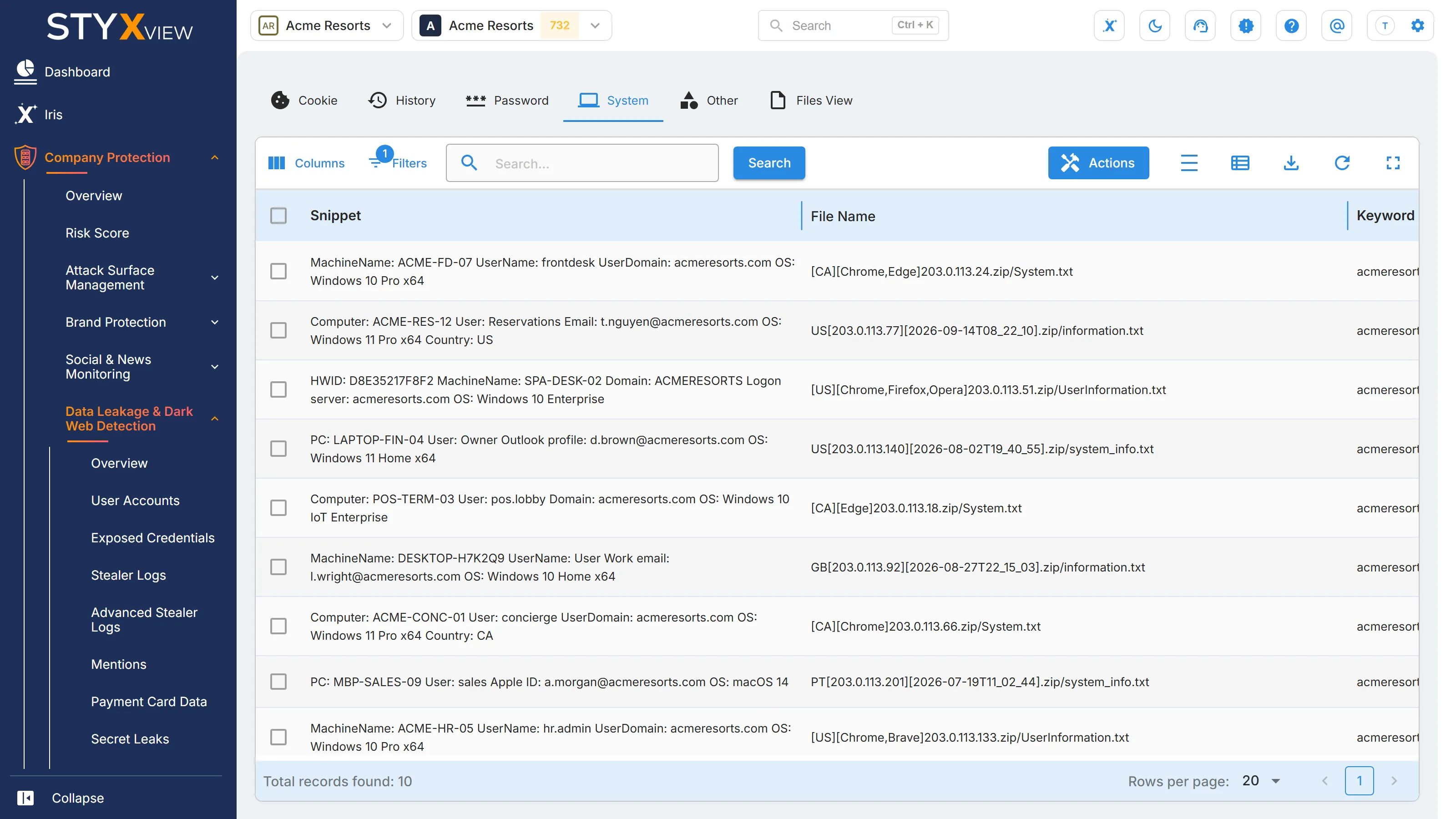
Columns
Section titled “Columns”| Column | What it shows |
|---|---|
| "Snippet" | The record as found in the system information file. |
| "File Name" | The file in the stealer log that the record came from, with its path. |
| "Keyword" | Your monitored keyword that the record matched. |
| "Emails" | Email addresses in the record, if any, such as the signed-in user. |
| "Domains" | Domains in the record, if any. |
| "Status" | The review status. See Review statuses. |
"Keyword" filters by a list of your keywords. The list opens with "Closed" records filtered out.
Working with records
Section titled “Working with records”To change the status of several records, select rows that share the same status, select "Actions", then "Update Status".
Select a row to open the record's page (see The snippet page). To export the list, select the export icon, then "Download as CSV" or "Download as Excel".
The "Other" tab of Stealer Logs lists records from infostealer malware logs that do not belong on the "Cookie", "History", "Password", or "System" tabs, where the record matches one of your monitored keywords. Typical sources are browser autofill data, lists of visited or stored URLs, and files copied from the infected device.
Where to find it
Section titled “Where to find it”Select "Company Protection" > "Data Leakage & Dark Web Detection" > "Stealer Logs", then the "Other" tab.
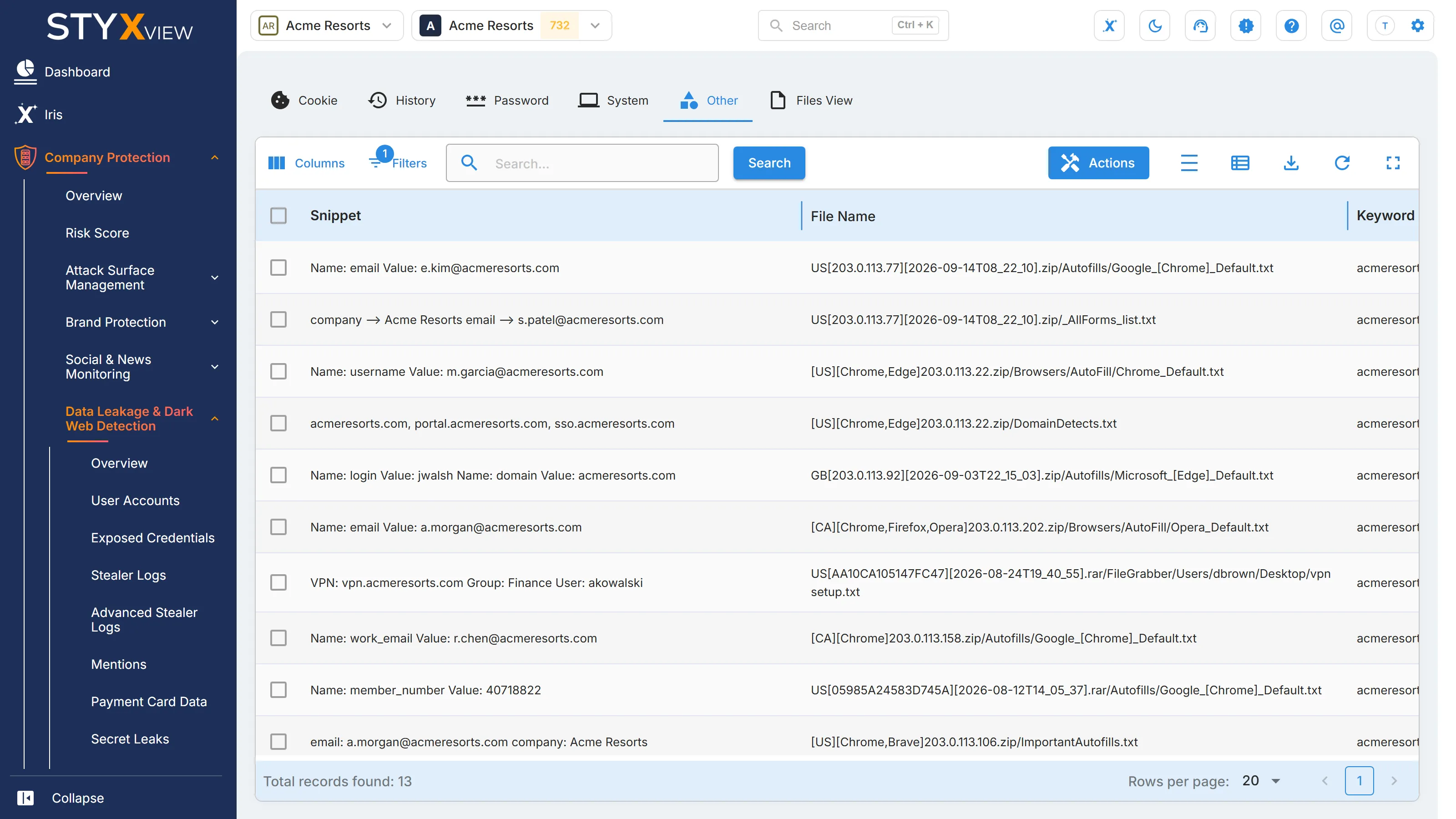
Columns
Section titled “Columns”| Column | What it shows |
|---|---|
| "Snippet" | The record as found. |
| "File Name" | The file in the stealer log that the record came from, with its path. |
| "Keyword" | Your monitored keyword that the record matched. |
| "Emails" | Email addresses in the record, if any. |
| "Domains" | Website domains in the record, if any. |
| "Status" | The review status. See Review statuses. |
"Keyword" filters by a list of your keywords. The list opens with "Closed" records filtered out.
Working with records
Section titled “Working with records”To change the status of several records, select rows that share the same status, select "Actions", then "Update Status".
Select a row to open the record's page (see The snippet page). To export the list, select the export icon, then "Download as CSV" or "Download as Excel".
Files View
Section titled “Files View”This tab is described in Exposed Credentials → Files View.