

Users
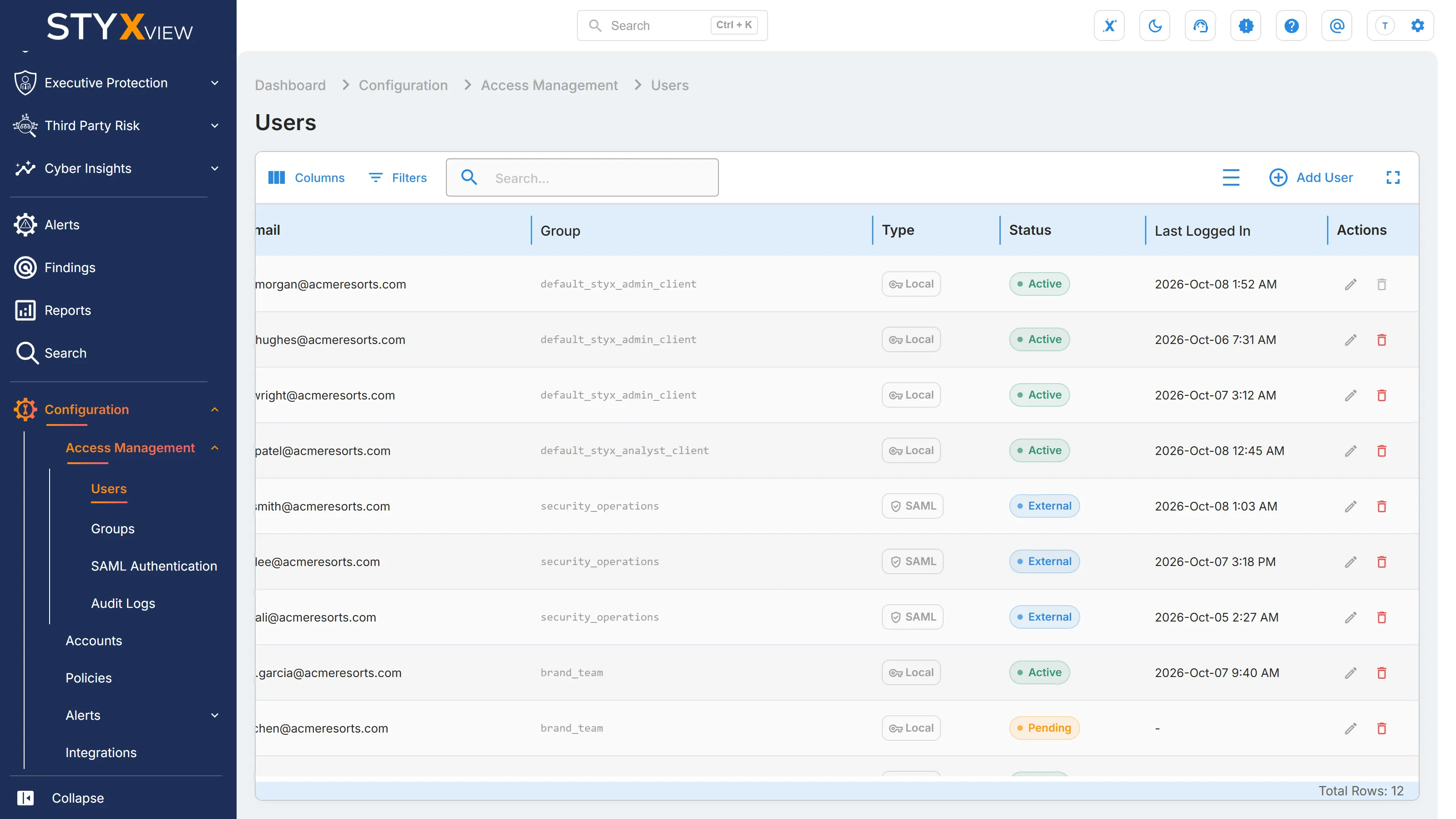
The Users page lists everyone in your organisation who can sign in to StyxView. Use it to invite people, change their details or group, and remove them. Only Admins can open it.
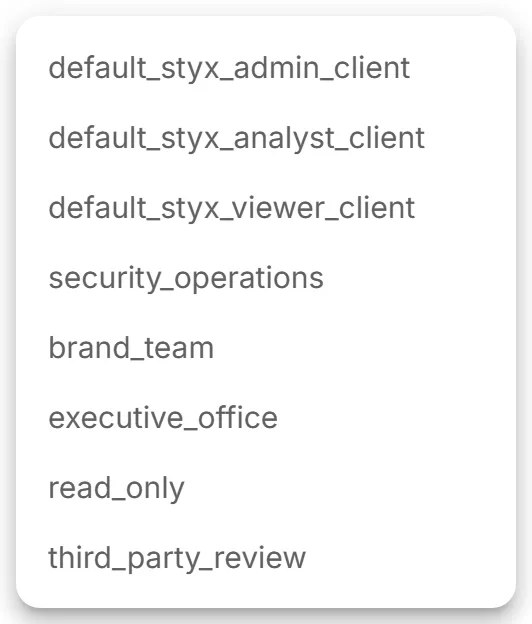
Every user belongs to one group. The group sets the user's role (Admin, Analyst, or Viewer) and which accounts and solutions the user can see. To change what someone can do, move them to another group or change the group itself. See Groups and Login and User Roles.
Navigation Path
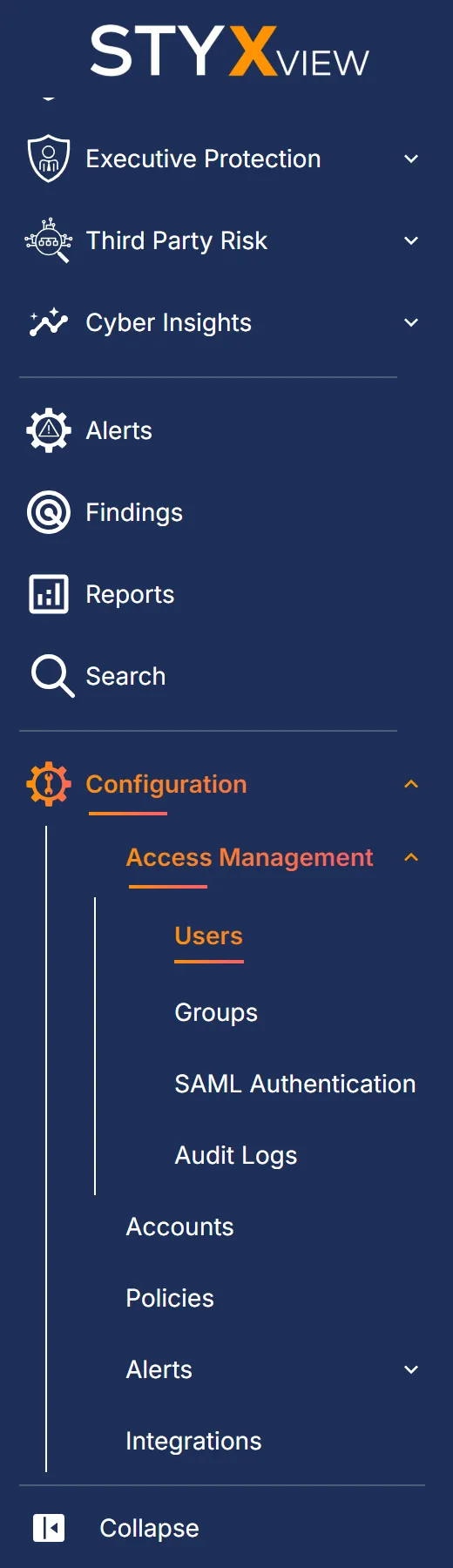
Section titled “Navigation Path”In the sidebar, select "Configuration" > "Access Management" > "Users".
The Users List
Section titled “The Users List”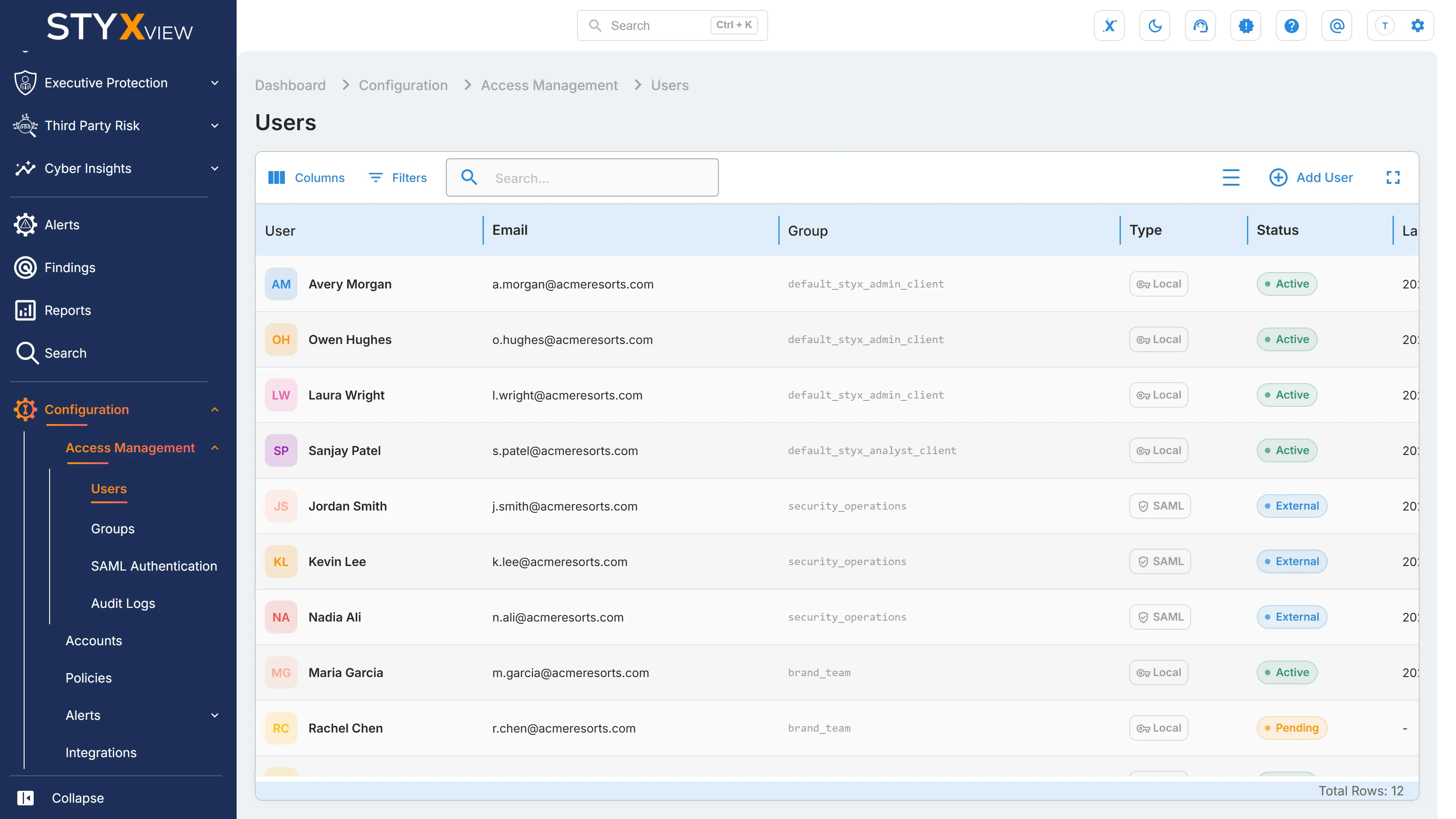
| Control | What it does |
|---|---|
| "Columns" | Shows or hides columns. |
| "Filters" | Filters the list on any column. |
| "Search..." | Shows only the users whose details contain the text you type. |
| "Add User" | Opens the "Create User" page. |
| Column | What it shows |
|---|---|
| "User" | The user's first and last name. |
| "Email" | The address the user signs in with. |
| "Group" | The group that sets the user's role and access. |
| "Type" | "Local" for a user added on this page, who signs in with a StyxView password. "SAML" for a user who signs in through your identity provider. |
| "Status" | Where the user is in the sign-in lifecycle. See the next table. |
| "Last Logged In" | When the user last signed in. |
| "Actions" | "Edit user" (pencil icon) and "Delete user" (bin icon). |
| Status | Meaning |
|---|---|
| "Active" | The user accepted the invitation, set a password, and can sign in. |
| "Pending" | The user was invited but has not yet signed in and replaced the temporary password. |
| "External" | The user signs in through SAML single sign-on. The filter lists this status as "External Provider". |
| "Invalid" | StyxView cannot find the user's sign-in record. Contact the StyxView Support Team. |
Adding a New User
Section titled “Adding a New User”-
Select "Add User".

-
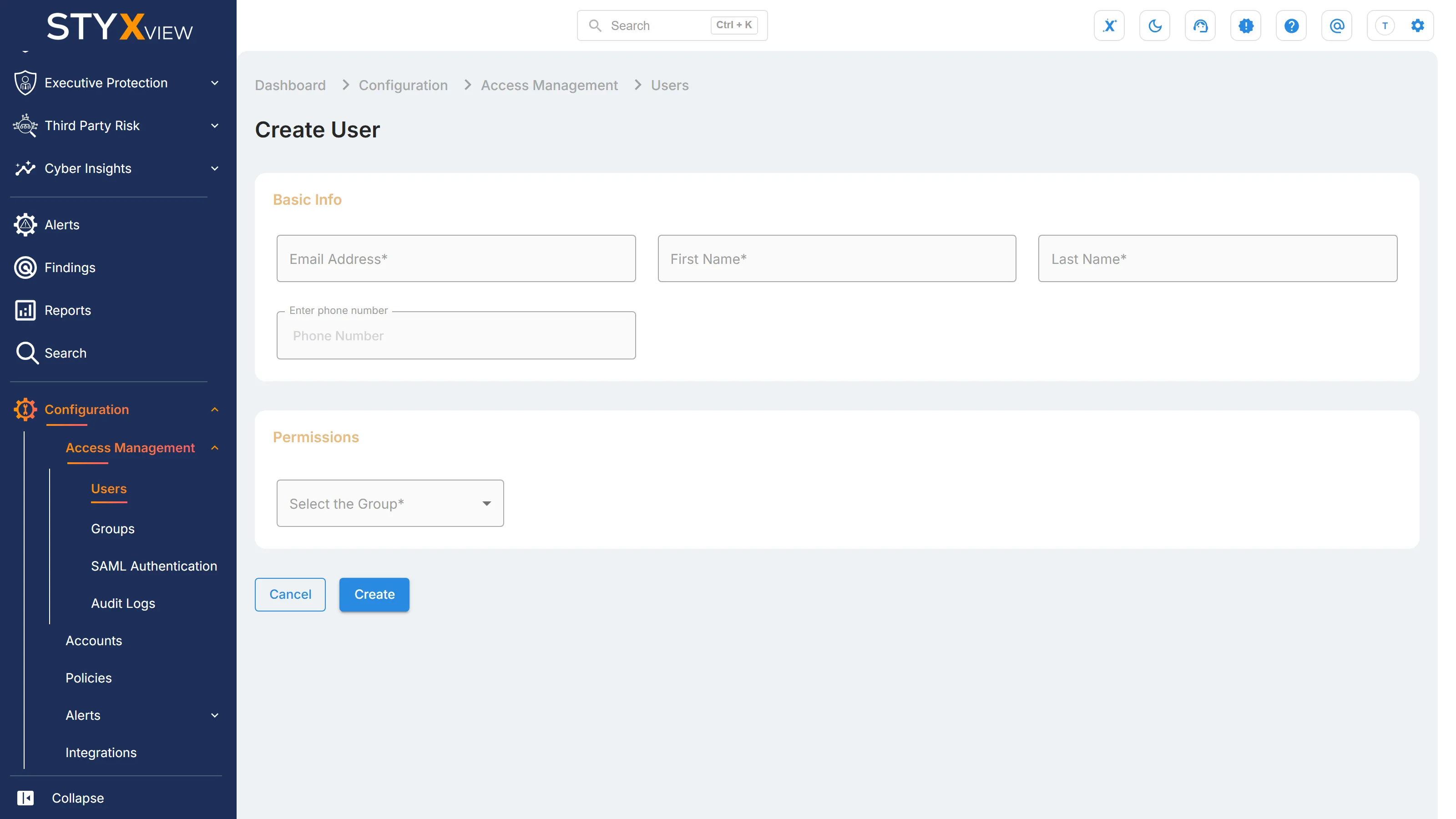
On the "Create User" page, under "Basic Info", enter:
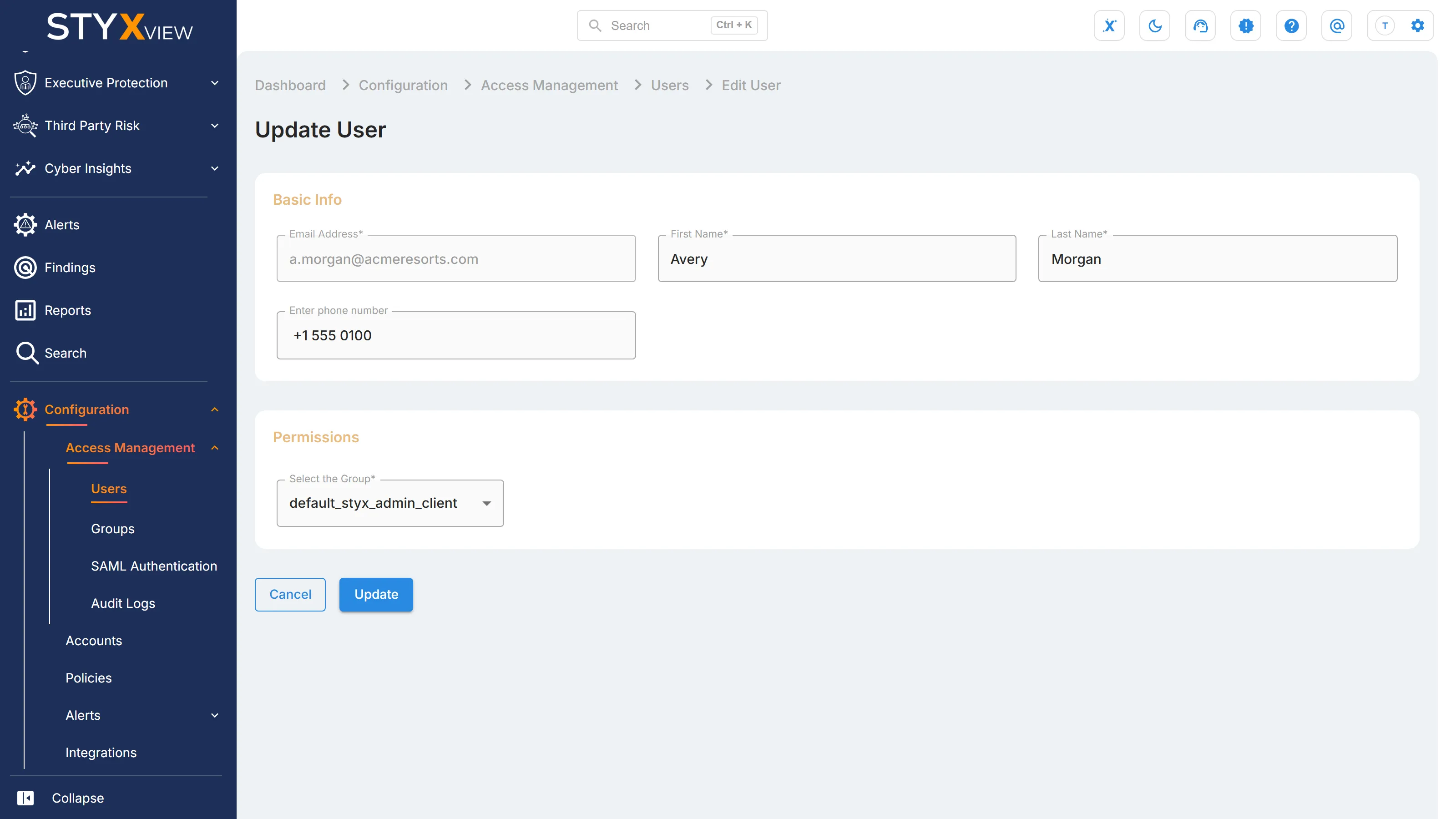
- "Email Address": the address the user signs in with. It cannot already belong to a StyxView user, and it cannot be changed later.
- "First Name" and "Last Name".
- "Enter phone number": optional. Include the country code.
-
Under "Permissions", choose the user's group in "Select the Group".
-
Select "Create". To leave without adding the user, select "Cancel".
StyxView emails the new user a temporary password with the subject "Your temporary password for your new StyxView account". The temporary password is valid for 7 days. The user appears in the list as "Pending" until they sign in, choose their own password, and set up two-factor authentication. See Login and User Roles.
Each user counts toward the user allowance shown on Subscriptions.
Editing a User
Section titled “Editing a User”-
In the user's row, select the pencil icon ("Edit user").
-
On the "Update User" page, change "First Name", "Last Name", "Enter phone number", or the group under "Permissions". "Email Address" cannot be changed.
-
Select "Update".
Changing a user's group signs that user out of StyxView everywhere. Their new access applies when they sign in again.
You cannot edit a SAML user. Their name, phone number, and group come from your identity provider each time they sign in, so make the change there.
Deleting a User
Section titled “Deleting a User”-
In the user's row, select the bin icon ("Delete user").
-
In the "Delete user" dialog, select "Delete". To keep the user, select "Cancel".
The user can no longer sign in and is removed from the list.
- You cannot delete yourself. The bin icon is disabled in your own row.
- You cannot delete a SAML user in StyxView. To remove their access, remove them from the group in your identity provider.