

Unauthorized Job Postings
Unauthorised job postings
Section titled “Unauthorised job postings”This grid lists job postings that use your organization's name. Fraudulent postings are used to collect personal information or money from applicants, which harms both the applicants and your reputation as an employer. Review each posting to tell your own advertised roles from scams.
To open it, select "Company Protection" in the left menu, then "Brand Protection", then "Unauthorized Job Postings".
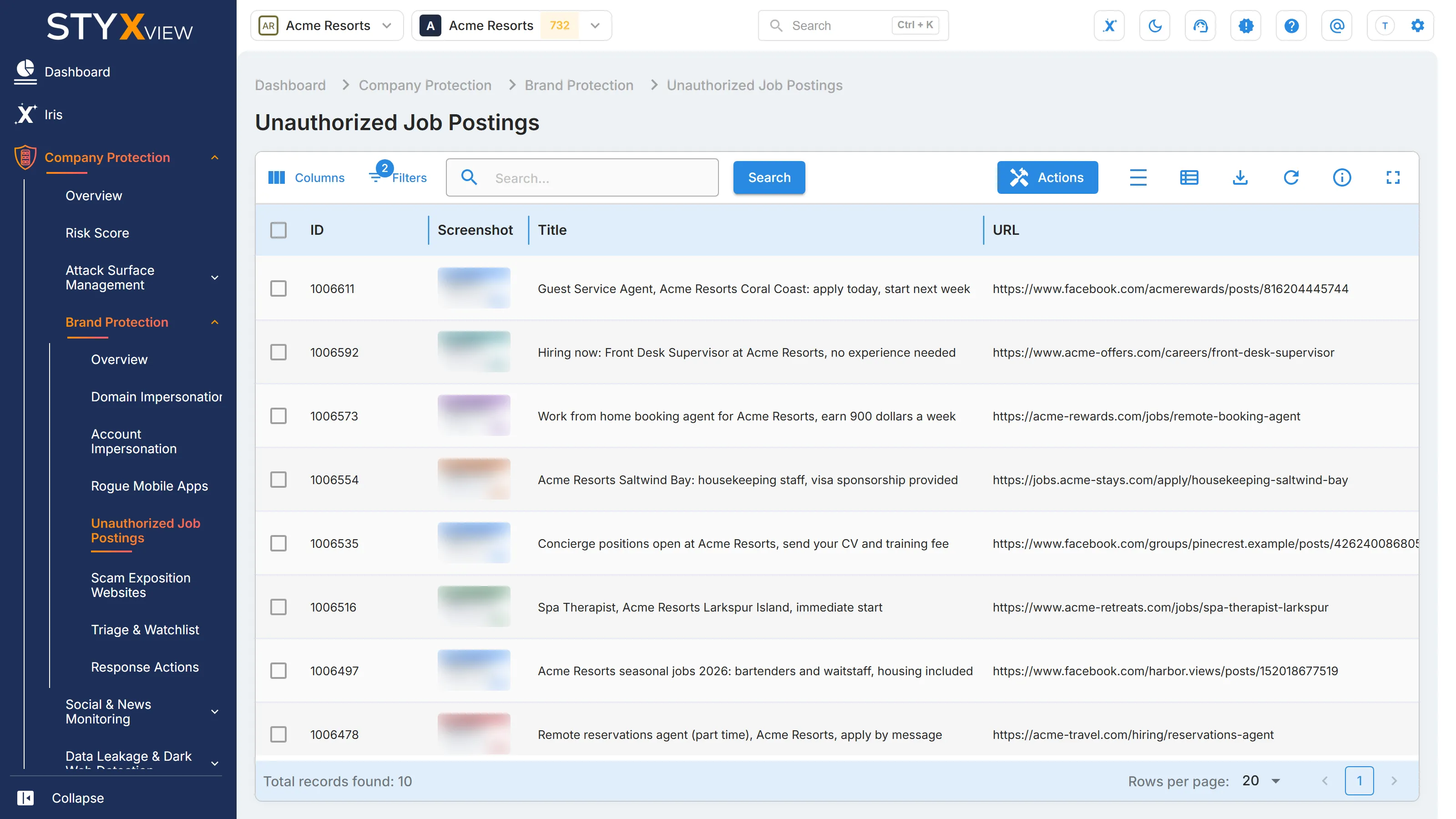
The grid opens sorted by "First Seen", newest first, and filtered to open findings. See Working with brand findings.
Columns
Section titled “Columns”| Column | What it shows |
|---|---|
| "ID" | The finding's permanent identifier. |
| "Screenshot" | A capture of the posting. Hover over it for a larger view. |
| "Title" | The title of the job posting. |
| "URL" | The address of the posting, with icons to copy it or open it. |
| "Status" | Where the finding is in your triage workflow. See Finding statuses. |
| "First Seen" | When StyxView first detected the posting. |
| "Severity Rating" | How serious the finding is. |
| "Assigned User" | The user the finding is assigned to. |
| "Latest Comment" | The most recent comment on the finding. |
"Potential Attacks" and "Detection Keywords" are available under "Columns".
Actions
Section titled “Actions”Select one or more rows, then "Actions". This grid offers "Update Status", "Assign To", "Comment", "Mark as False Positive", "Mark as Brand Infringement/Impersonation/Leak Detected", "Add to Watchlist", "Request Takedown", and "Mark as Legitimate", with the matching "Unmark" and "Remove" actions. Each is described in Acting on findings.
- "Request Takedown" raises a takedown request for one posting at a time.
- Use "Mark as Legitimate" only for postings your organization published.
Select a row to open the posting's detail page, described in Findings. It shows the "Title", "URL", "Timestamp", "Potential Attacks", "Detection Keywords", and a "Screenshot".