
Brand Protection Overview
Brand Protection overview
Section titled “Brand Protection overview”The overview summarises Brand Protection on one page: what needs a response action, how severe your open findings are, where they come from, and every signal behind them. Use it to decide where to start, then open the module's lists to act.
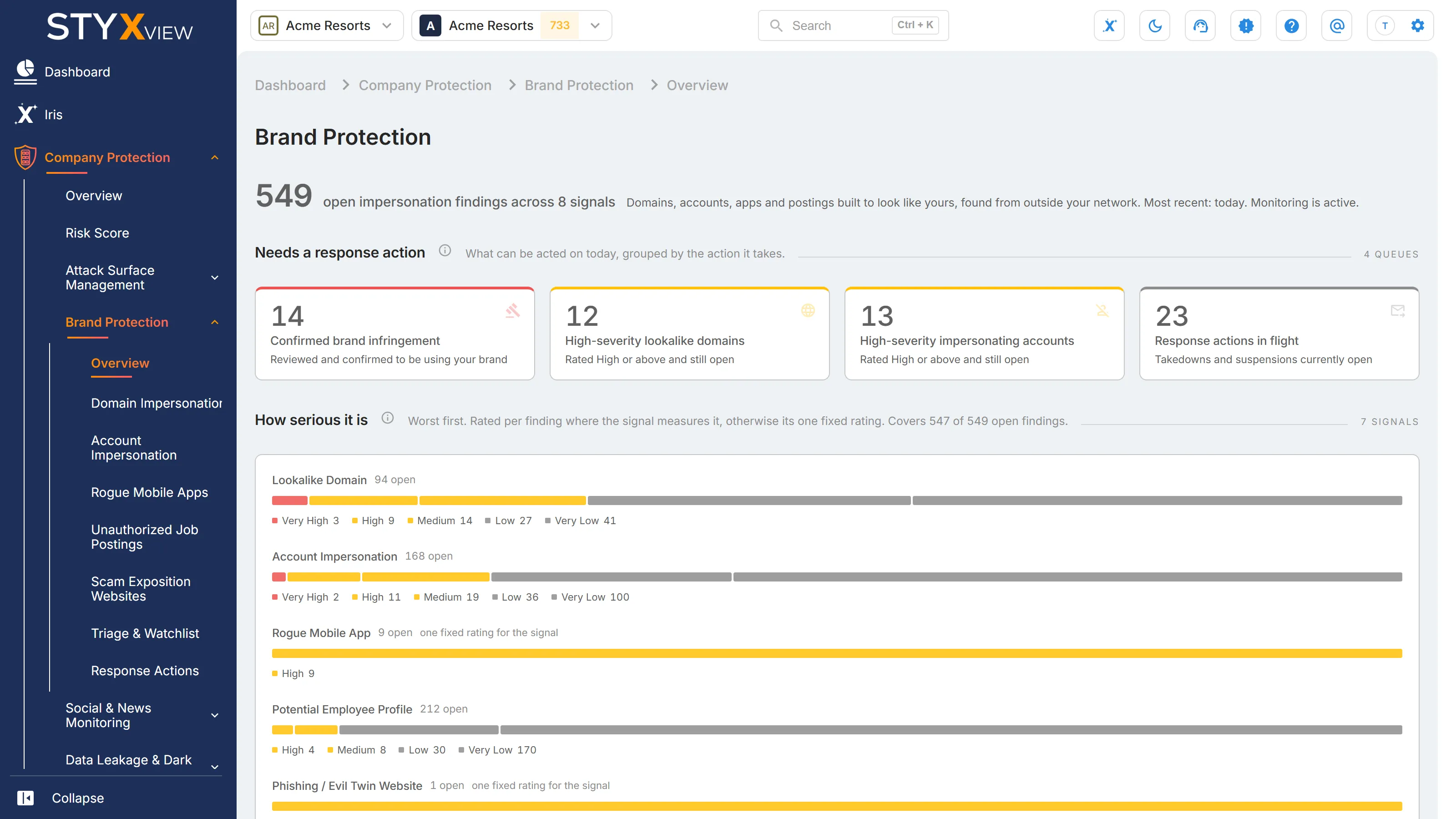
To open it, select "Company Protection" in the left menu, then "Brand Protection", then "Overview".
At the top, a large number counts your open impersonation findings, followed by "open impersonation findings across" and the number of signals that have at least one. A signal is one kind of finding, such as "Lookalike Domain" or "Rogue Mobile App". Open means not marked as a false positive and not "Resolved", "Closed Without Action", or "No Longer Seen". The line beside it says when the most recent finding was found, and ends with "Monitoring is active." while monitoring is switched on for your organisation. The headline does not open a list.
The figures are calculated once a day, so a change you make in a list can take up to a day to show here.
Each section heading has an info icon. Hover over it to see what the section counts and how to read it.
Needs a response action
Section titled “Needs a response action”Four queues of work you can act on today. They are deliberately not a count of every finding: most of what Brand Protection finds is still waiting for review, so each queue is defined by what makes it actionable. Select a queue to open its list, filtered to what it counted.
| Queue | What it counts | Opens |
|---|---|---|
| "Confirmed brand infringement" | Open Brand Protection findings that were reviewed and confirmed to be using your brand. | Findings, filtered to Brand Protection findings with brand infringement confirmed. |
| "High-severity lookalike domains" | Open lookalike domains rated "High" or above. | Lookalike Domains, filtered to those ratings. |
| "High-severity impersonating accounts" | Open impersonating social media accounts rated "High" or above. Potential employee profiles are not included. | Impersonating Social Media Accounts, filtered to those ratings. |
| "Response actions in flight" | Takedowns and suspensions on your account that are still open: "Draft", "New", "In Progress", or "Re-opened". | Response Actions, filtered to those statuses. |
The counts do not go down as you work through a queue until the next daily update.

How serious it is
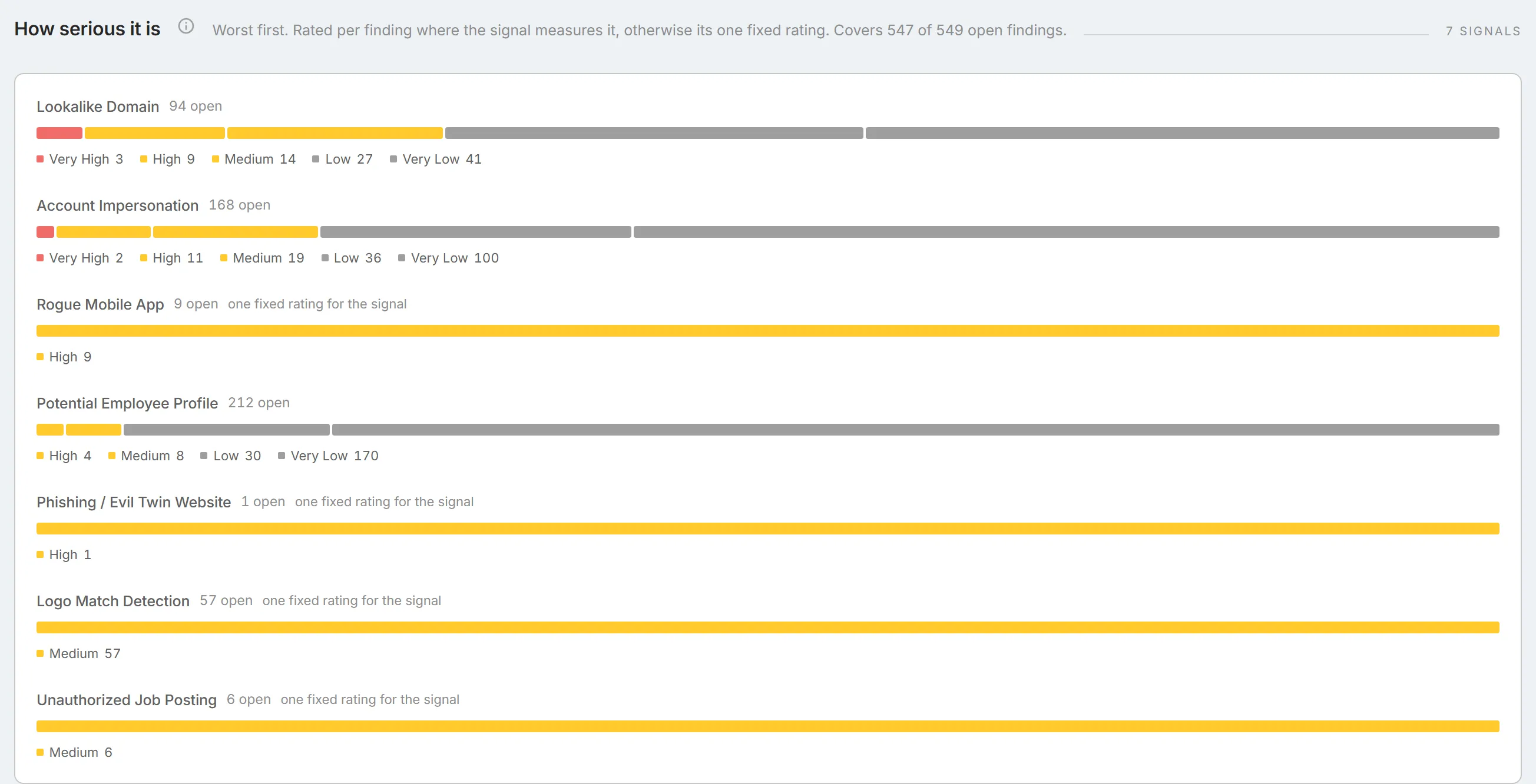
Section titled “How serious it is”One bar for each signal with open findings, split by severity with the worst on the left. The legend below each bar gives the count at each level. Bars are ordered by how many findings each signal holds at its highest level rather than by size, so the signal with the most severe findings comes first even when another has more.
Only some signals rate each finding individually: "Lookalike Domain", "Account Impersonation", and "Potential Employee Profile". The others carry one fixed rating for everything they find, and their bar reads "one fixed rating for the signal": "High" for "Rogue Mobile App" and "Phishing / Evil Twin Website", and "Medium" for "Logo Match Detection" and "Unauthorized Job Posting". A fixed rating is not an assessment of the individual finding.
- Select a signal's name to open its list.
- On a bar rated per finding, select a part of the bar, or a level in its legend, to open the list filtered to that severity. Hover over a part to see its count out of the total.
- Some signals carry no rating at all and are not drawn. When that leaves findings out, the note under the heading adds "Covers" with the number drawn out of the total.
Where it comes from
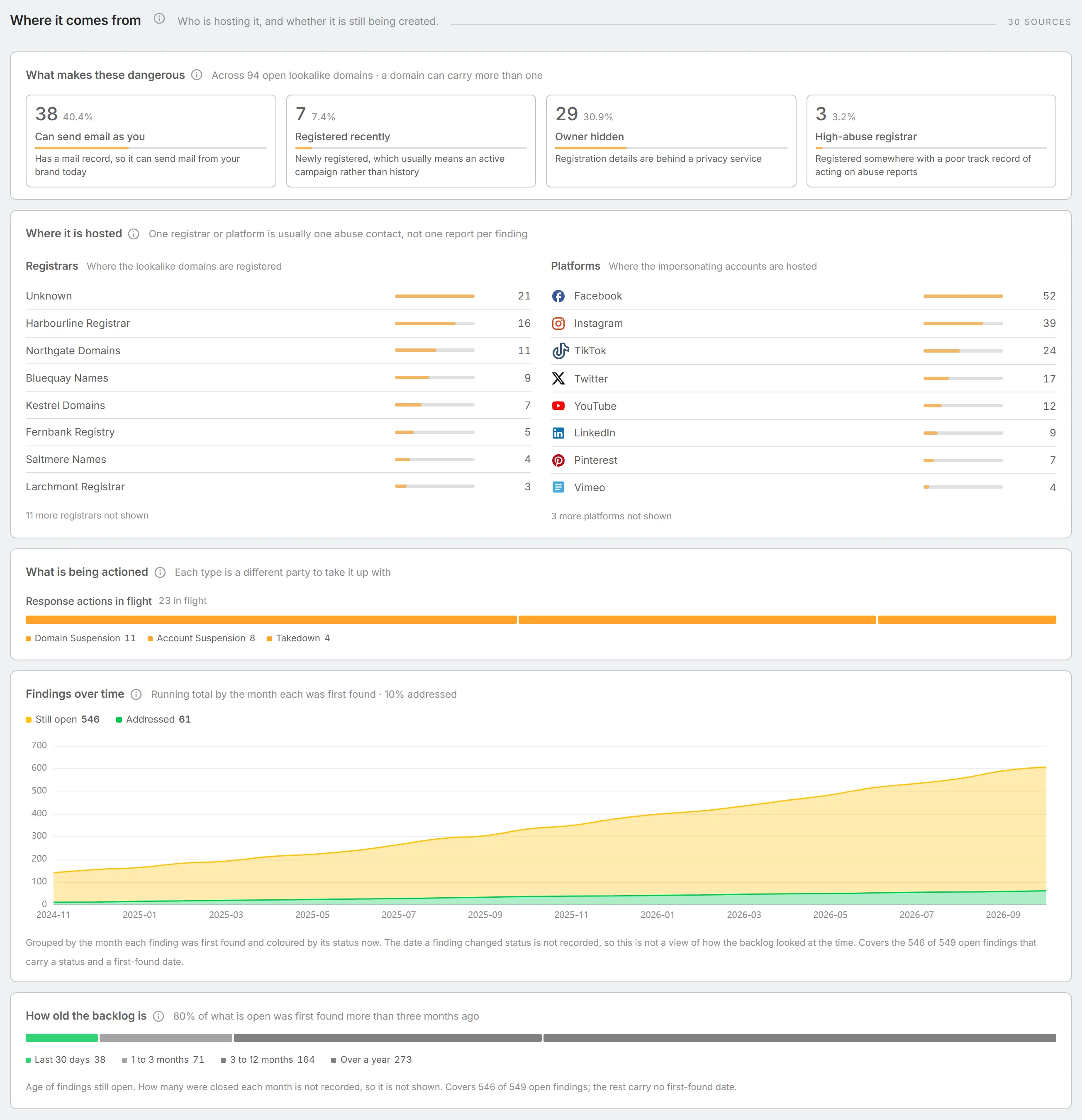
Section titled “Where it comes from”What makes your findings dangerous, who is hosting them, and whether they are still arriving. The section is grouped around what you can act on outside StyxView: one registrar or one platform is one abuse contact, not one report per finding. The count beside the heading is the number of registrars and platforms involved. Each card appears only when it has something to show.
What makes these dangerous
Section titled “What makes these dangerous”Facts about how your open lookalike domains are set up, beyond the fact that they exist. Each tile gives a count and its share of all open lookalike domains. One domain can count in several tiles, so the tiles do not add up to the total. A tile with nothing to count is left out.
| Tile | What it counts |
|---|---|
| "Can send email as you" | Domains with a mail record, so they can send mail in your brand's name today. |
| "Registered recently" | Newly registered domains, which usually means an active campaign rather than an old one. |
| "Owner hidden" | Domains whose registration details are behind a privacy service. |
| "High-abuse registrar" | Domains registered with a registrar that has a poor record of acting on abuse reports. |
Select a tile to open Lookalike Domains filtered to those domains.
Where it is hosted
Section titled “Where it is hosted”Two ranked lists of up to eight rows each. "Registrars" counts your open lookalike domains by the registrar they are registered with; "Unknown" means the registrar was not identified. "Platforms" counts your open impersonating accounts by the social media platform they are on. When there are more, a line below says how many are not shown.
Read it as a work list: a registrar holding many of your lookalike domains is one abuse contact. The same company can appear twice when it was recorded under two spellings.
- Select a registrar to open Lookalike Domains filtered to that registrar.
- Select a platform to open Impersonating Social Media Accounts filtered to that platform.
What is being actioned
Section titled “What is being actioned”Your open response actions split by type, such as "Domain Suspension", "Account Suspension", and "Takedown". Each type is taken up with a different party: a takedown with a host, a domain suspension with a registrar, and an account suspension with a platform. The card appears only while your account has open response actions. Select the bar to open the open actions in Response Actions.
Findings over time
Section titled “Findings over time”A running total of everything found over the last 24 months, by the month each finding was first found. The amber area is what is "Still open" today and the green area is what has been "Addressed", meaning "Resolved", "Closed Without Action", or "No Longer Seen". The totals of both sit above the chart, and the line beside the title gives the share addressed.
Each finding is coloured by its status today, because StyxView does not record the date a finding changed status. So the chart shows how much of what was found up to each month is still open now, not how the backlog looked at the time. Signals without a first-found date are not included, and the note below the chart then says how many of your open findings it covers.
Hover over a month to see the total found to date, how many are still open and addressed, and how many were new that month. The chart does not open a list.
How old the backlog is
Section titled “How old the backlog is”How long your open findings have been open, measured from when each was first found, in four bands: "Last 30 days", "1 to 3 months", "3 to 12 months", and "Over a year". The line beside the title gives the share first found more than three months ago. Hover over a band to see its count out of the total. The bar does not open a list.
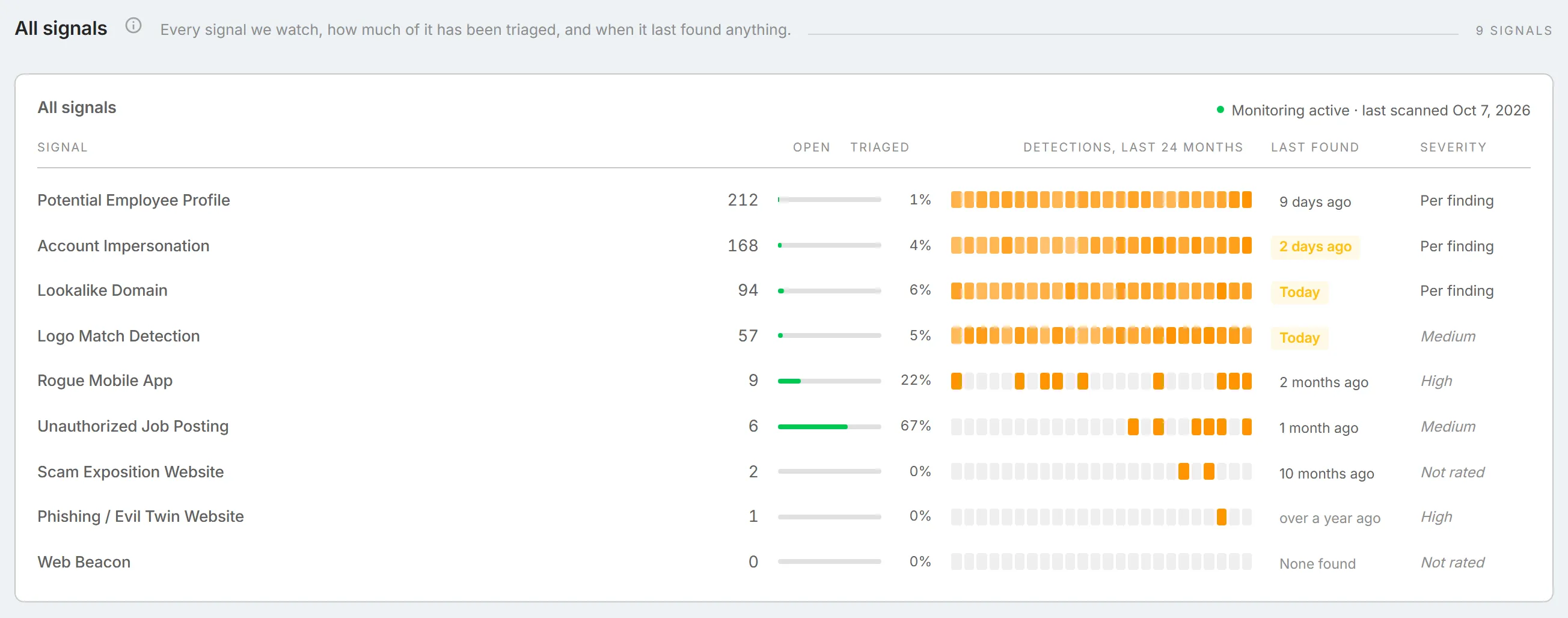
All signals
Section titled “All signals”Every Brand Protection signal that has found something on your organisation, with the most open first. A signal that has never found anything is left out. The card's title line reads "Monitoring active · last scanned" and the date of the last scan, so you can tell a quiet signal from one that has not run.
| Column | What it shows |
|---|---|
| "Signal" | The kind of finding. |
| "Open" | Open findings of that kind. |
| "Triaged" | The share of the open findings that have moved past "New". |
| "Detections, last 24 months" | One cell per month, shaded by how many of the open findings were first found that month. Hover over a cell to see the month and its count. |
| "Last found" | How long ago the newest finding was found, highlighted when it was within the last seven days. "None found" means nothing has been found. |
| "Severity" | "Per finding" when each finding is rated individually, the one fixed rating in italics, or "Not rated" for a signal without severity ratings. |
For "Lookalike Domain", "Account Impersonation", "Potential Employee Profile", "Logo Match Detection", and "Unauthorized Job Posting", select a month with detections to open that list filtered to the findings first found in that month.
Select a row to open that signal's list, such as Lookalike Domains, Potential Employee Profiles, Rogue Mobile Apps, or Unauthorized Job Postings.