
Mentions
Other Mentions
Section titled “Other Mentions”Other Mentions lists posts, listings, and messages that mention one of your monitored keywords, such as your organization's name or domain, on dark web forums, marketplaces, chat channels, paste sites, ransomware groups' sites, and similar sources. Each row is a finding of the type "Other Mention". Use it to see where your organization is discussed and where its data is offered.
Where to find it
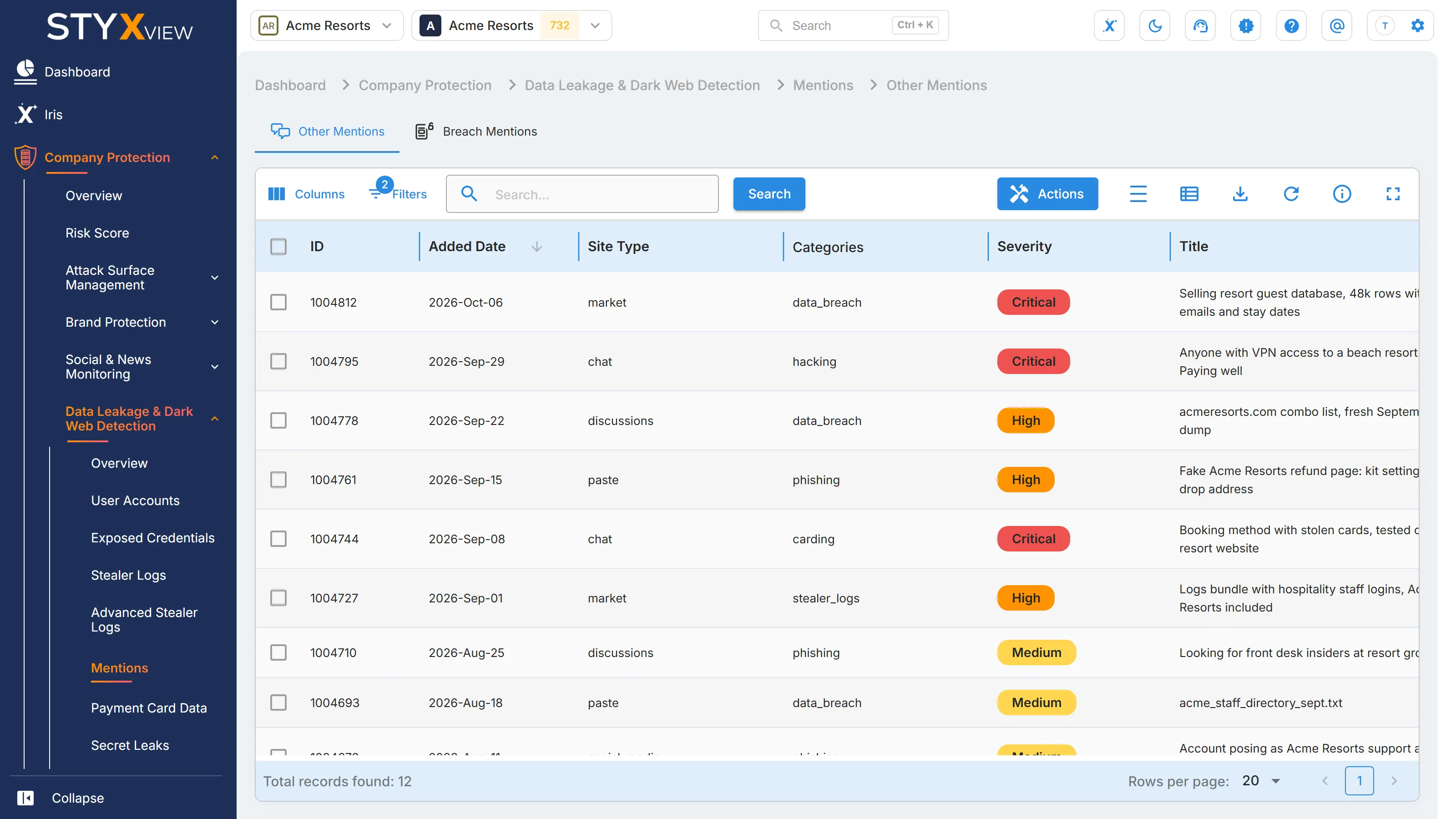
Section titled “Where to find it”Select "Company Protection" > "Data Leakage & Dark Web Detection" > "Mentions". The "Other Mentions" tab opens first, beside Breach Mentions.
Columns
Section titled “Columns”| Column | What it shows |
|---|---|
| "ID" | The finding ID. |
| "Added Date" | When StyxView recorded the mention. |
| "Site Type" | The kind of site, such as a forum, a marketplace, a chat channel, a paste site, or a ransomware group's site. |
| "Categories" | The topics of the content, such as hacking, data breach, carding, phishing, malware, ransomware, or stealer logs. |
| "Severity" | "Info", "Low", "Medium", "High", or "Critical". See below. |
| "Title" | The title of the post, thread, or channel. |
| "Keywords" | Your monitored keywords found in the content. |
| "Status" | The finding status. See Finding statuses. |
| "Assigned User" | The user the finding is assigned to. |
| "Latest Comment" | The most recent comment on the finding. |
"Severity" groups a score from 0 to 10: "Info" is 0 to 2, "Low" 3 to 4, "Medium" 5 to 6, "High" 7 to 8, and "Critical" 9 to 10.
"Site Type", "Categories", and "Severity" filter by a list of values. The list opens sorted by "Added Date", newest first, and filtered to open finding statuses.
Working with findings
Section titled “Working with findings”Select one or more rows, then select "Actions" for "Update Status", "Assign To", "Comment", or "Mark as False Positive". See Finding statuses and User Actions.
Select a row to open the finding's page, which shows the mention's text and source (see Findings). To export the list, select the export icon, then "Download as CSV" or "Download as Excel".
In Executive Protection
Section titled “In Executive Protection”-
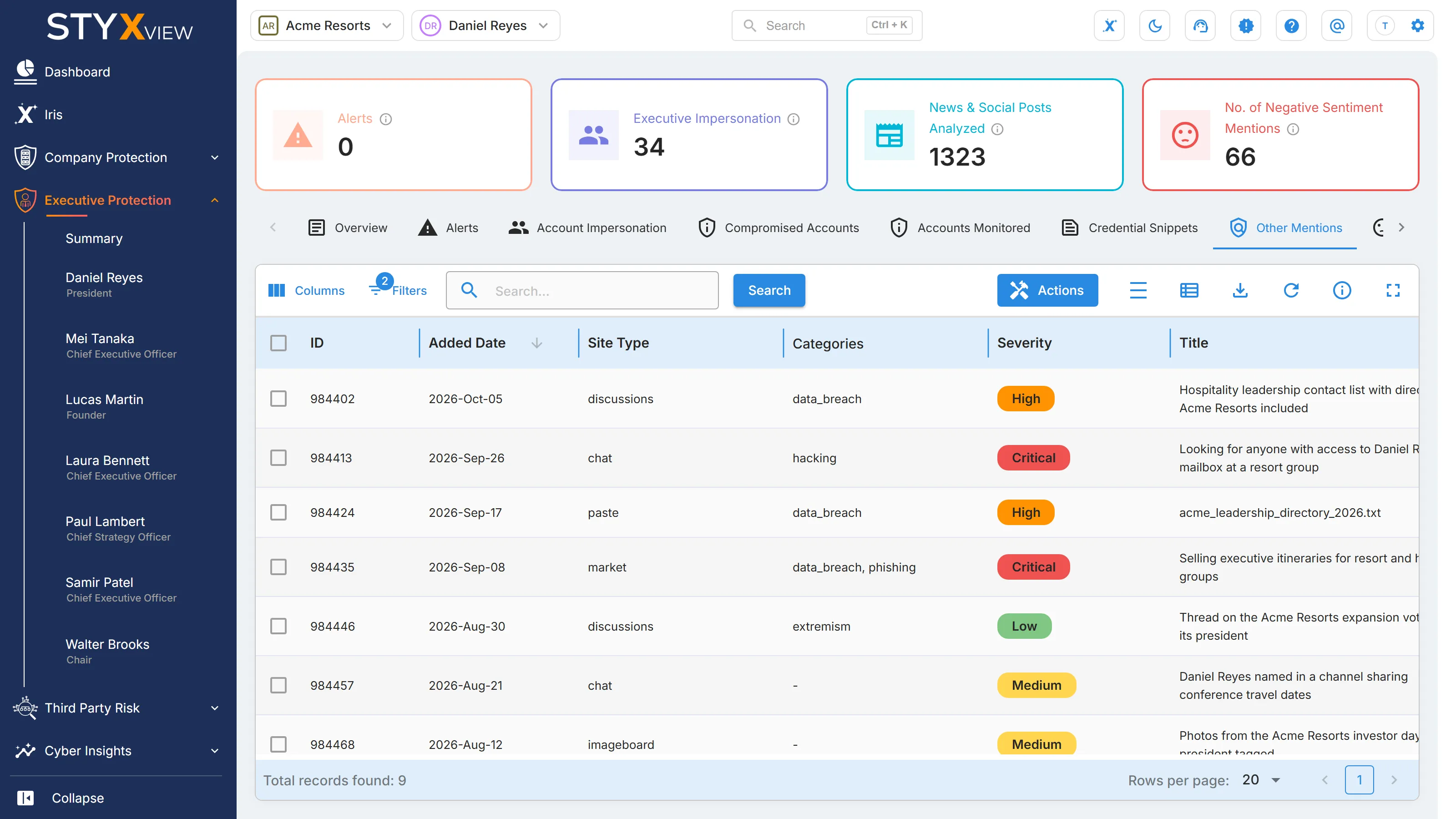
For one executive, select "Executive Protection", the executive's name, then the "Other Mentions" tab. The list is the one described above, limited to that executive's keywords.
-
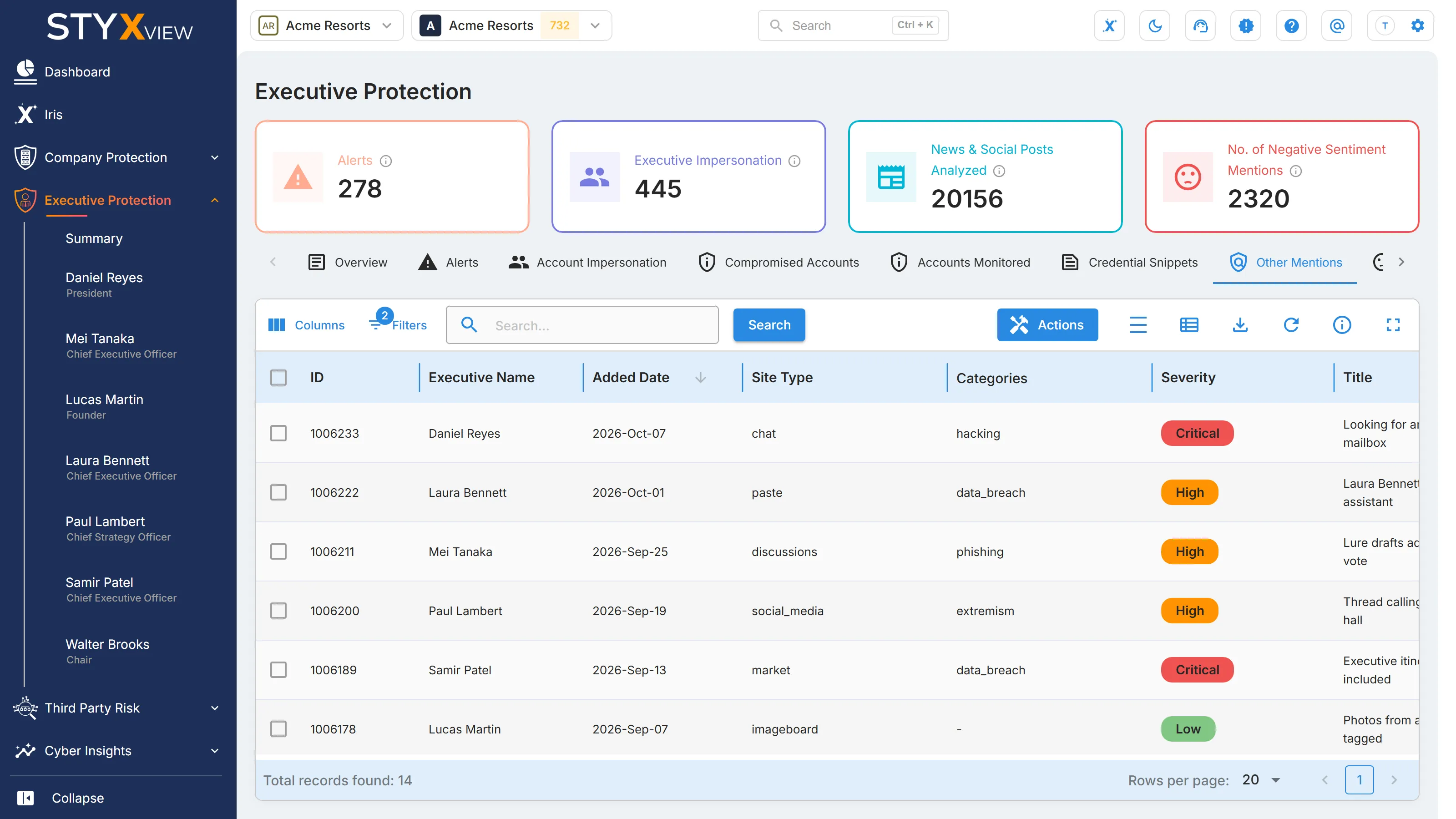
For all executives, select "Executive Protection" > "Summary", then the "Other Mentions" tab. This list adds an "Executive Name" column and an "Executive" filter.
Breach Mentions
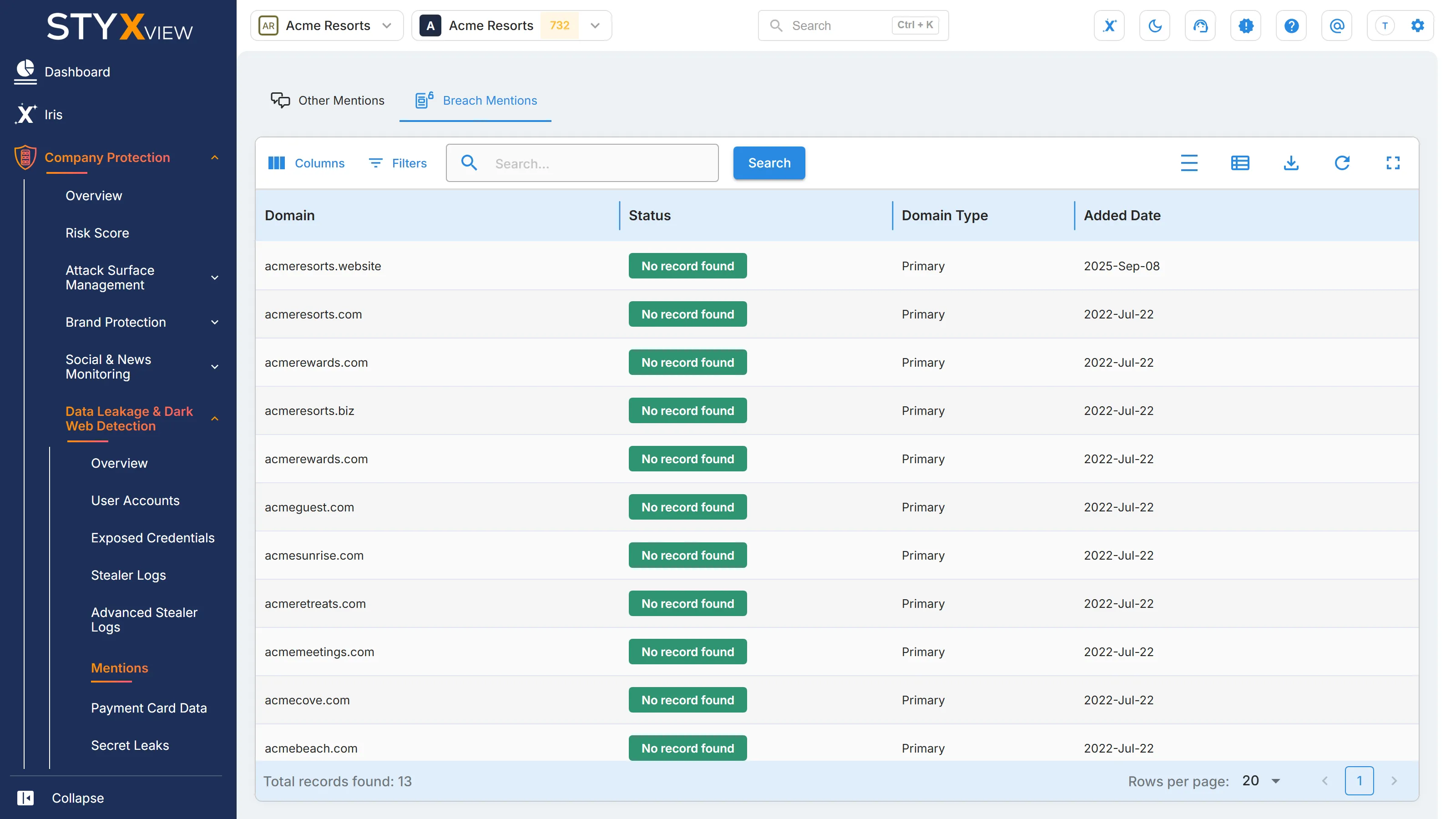
Section titled “Breach Mentions”Breach Mentions lists all your monitored domains and shows whether each one appears in the breach collection that StyxView tracks, the same collection as Cyber Insights Breaches. A "Breached" domain means your organization itself is listed as the victim of a breach. For your email addresses found in other organizations' breaches, see Compromised Accounts.
Where to find it
Section titled “Where to find it”Select "Company Protection" > "Data Leakage & Dark Web Detection" > "Mentions", then the "Breach Mentions" tab. The "Data Breaches" card on the overview also opens it.
Columns
Section titled “Columns”| Column | What it shows |
|---|---|
| "Domain" | Your monitored domain. |
| "Status" | "Breached" (red) when the domain appears in at least one known breach. "No record found" (green) when it appears in none so far. |
| "Domain Type" | "Primary", "Secondary", or "Parked". |
| "Added Date" | When the domain was added to monitoring. |
Domains have no workflow status and no "Actions" menu. To export the list, select the export icon, then "Download as CSV" or "Download as Excel".
The breach record
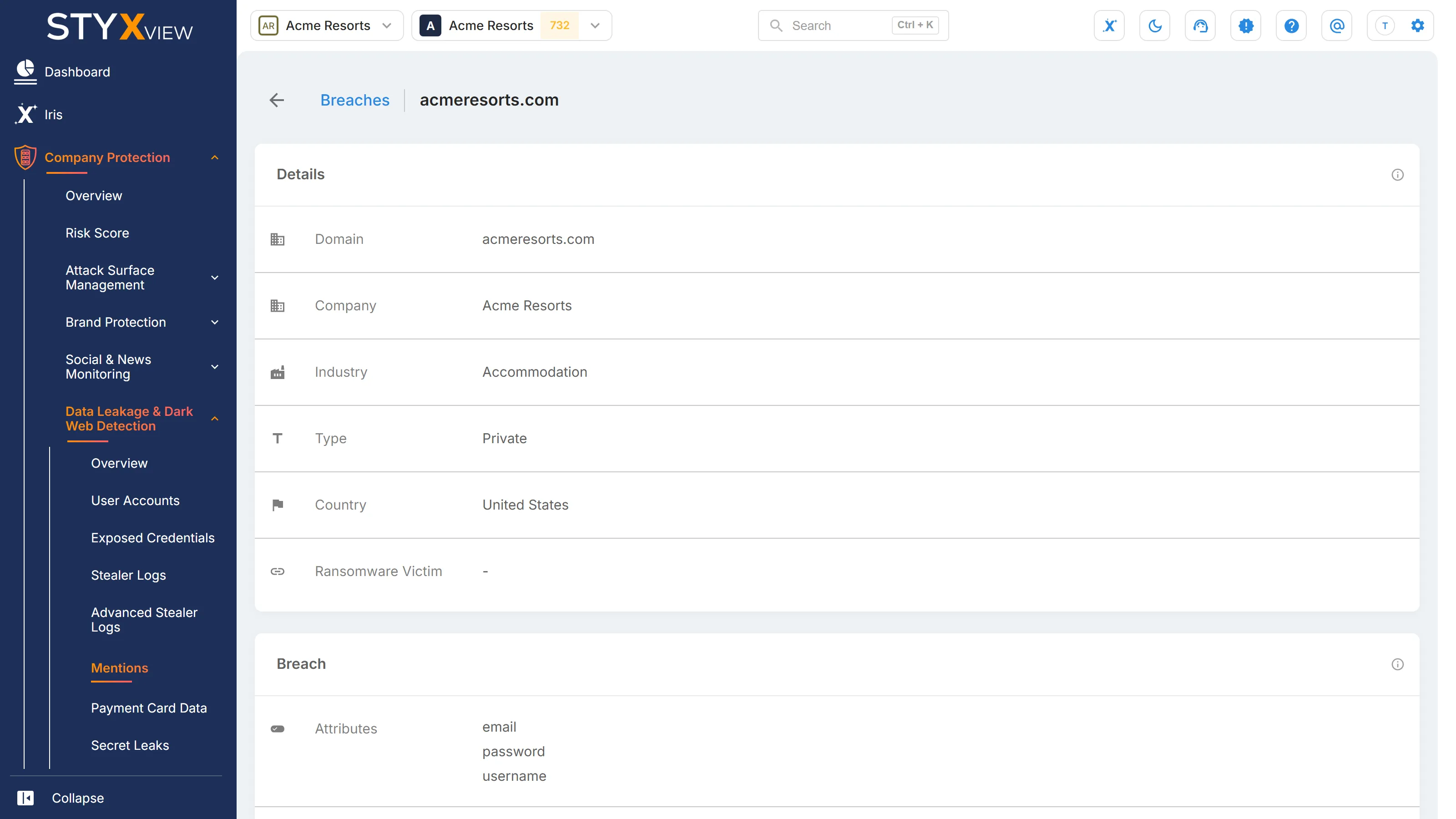
Section titled “The breach record”Select a "Breached" row to open the breach record for the domain, titled "Breaches". Rows with "No record found" do not open. The record shows:
- "Details": "Domain", "Company", "Industry", "Type", "Country", and "Ransomware Victim".
- "Breach": "Attributes", "Records", "Size", "Breach Date", and "Added Date".
- "Breach - Verified": details of each verified breach, when available.
In a third party
Section titled “In a third party”Select "Third Party Risk", the third party, then "Risks" > "Data Leakage & Dark Web Detection" > "Mentions". The page, titled "Breach Mentions", lists the third party's domains with the same columns.