

User Accounts
Compromised Accounts
Section titled “Compromised Accounts”Compromised Accounts lists each of your monitored email addresses that appears in a known data breach, with one row for each address and breach. Each row is a finding of the type "Client Email in a Third Party Breach". Use it to see which accounts are exposed, what data the breach exposed, and how severe it is.
Where to find it
Section titled “Where to find it”Select "Company Protection" > "Data Leakage & Dark Web Detection" > "User Accounts". The "Compromised Accounts" tab opens first, beside Accounts Monitored and Breach Source Summary. The tab bar also shows "AD Sync Enabled" or "AD Sync Disabled" (see Account Type).
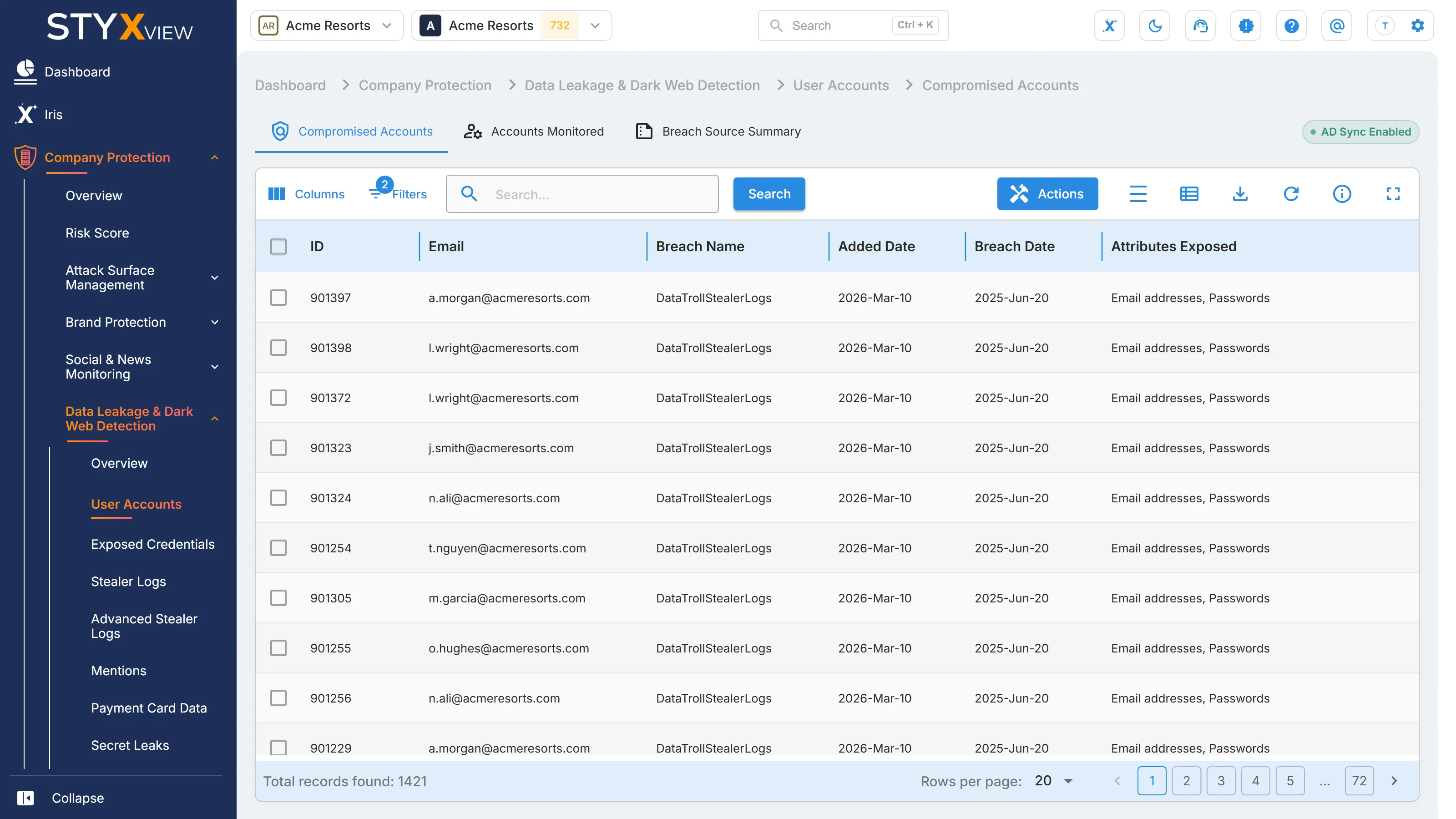
Columns
Section titled “Columns”| Column | What it shows |
|---|---|
| "ID" | The finding ID. |
| "Email" | The compromised email address. |
| "Breach Name" | The breach the address was found in, usually the breached website or service. |
| "Added Date" | When StyxView recorded the address in this breach. |
| "Breach Date" | When the breach took place. |
| "Attributes Exposed" | The types of data the breach exposed, such as email addresses, passwords, and usernames. |
| "Severity Rating" | "Low", "Medium", "High", or "Critical". See Severity Rating. |
| "Status" | The finding status. See Finding statuses. |
| "Assigned User" | The user the finding is assigned to. |
| "Latest Comment" | The most recent comment on the finding. |
The list opens sorted by "Added Date", newest first, and filtered to open finding statuses.
Severity Rating
Section titled “Severity Rating”The rating belongs to the breach, so every address found in the same breach has the same rating. It is the highest level among the types of data the breach exposed.
| Rating | Types of data that set it, for example |
|---|---|
| "Critical" | Bank account numbers, biometric data, credit cards, driver's licences, passport numbers, phone numbers, and social security numbers |
| "High" | Passwords, dates of birth, government-issued IDs, auth tokens, health insurance information, and partial credit card data |
| "Medium" | Chat logs, private messages, browsing histories, IP addresses, security questions and answers, and personal health data |
| "Low" | Email addresses, names, usernames, physical addresses, and avatars |
A type of data that StyxView has not yet classified counts as "Low".
Working with findings
Section titled “Working with findings”Select one or more rows, then select "Actions":
- "Update Status" changes the finding status. A comment is required.
- "Assign To" assigns the findings to a user.
- "Comment" adds a comment.
- "Mark as False Positive" records that a finding is not a real issue and takes it out of the open count.
Right-click a row for the same actions and two more:
- "Investigate" with the address opens the address's page, which lists every breach it appears in (see Accounts Monitored).
- "Investigate" with the breach name opens the breach's finding in Breach Source Summary.
Select a row to open the finding's page (see Findings). To export the list now or on a schedule, select the export icon (see Export Functionality).
In Executive Protection
Section titled “In Executive Protection”Executive Protection uses the same list for executives' email addresses:
-
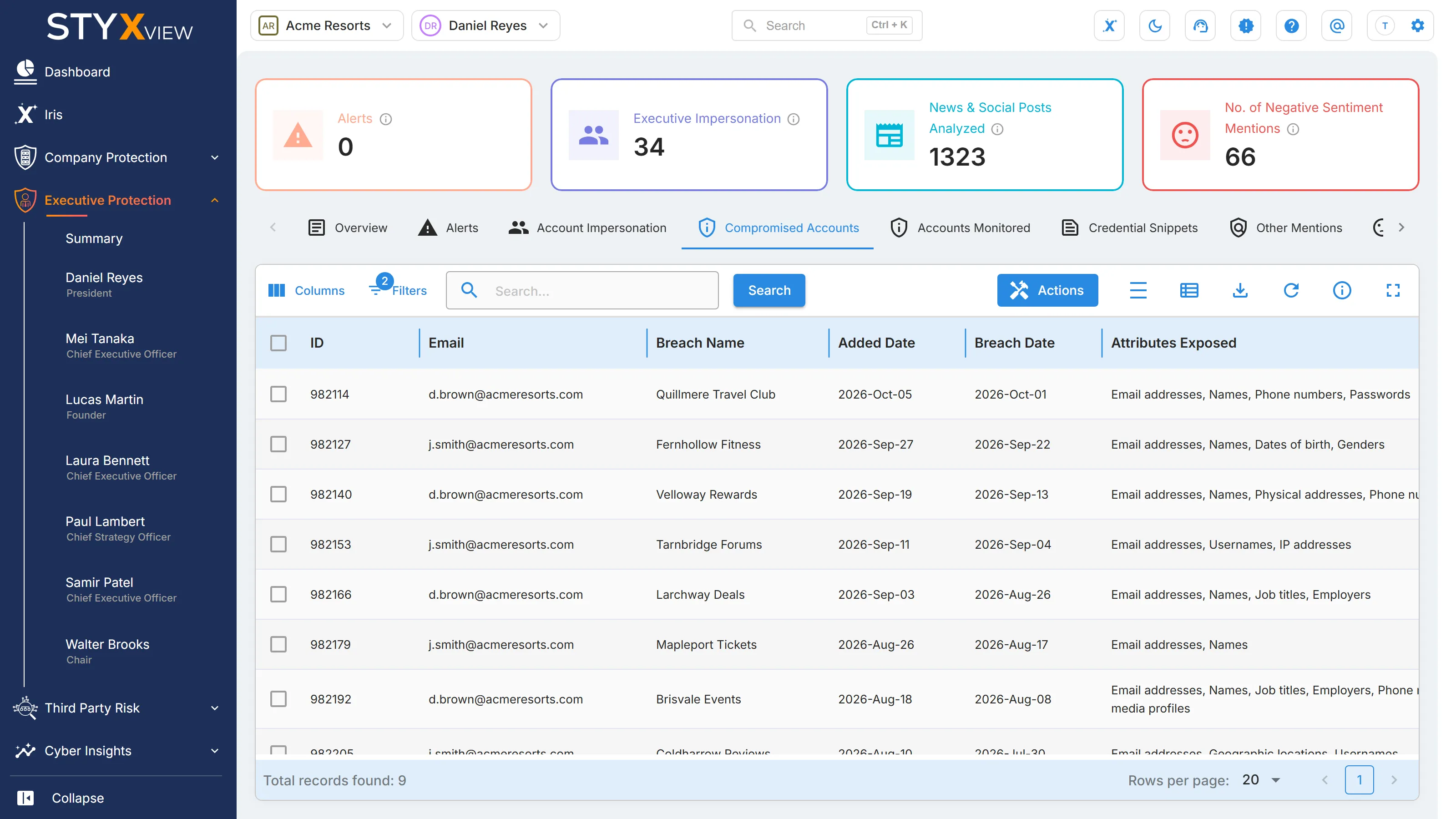
For one executive, select "Executive Protection", the executive's name, then the "Compromised Accounts" tab. The list is the one described above, limited to that executive.
-
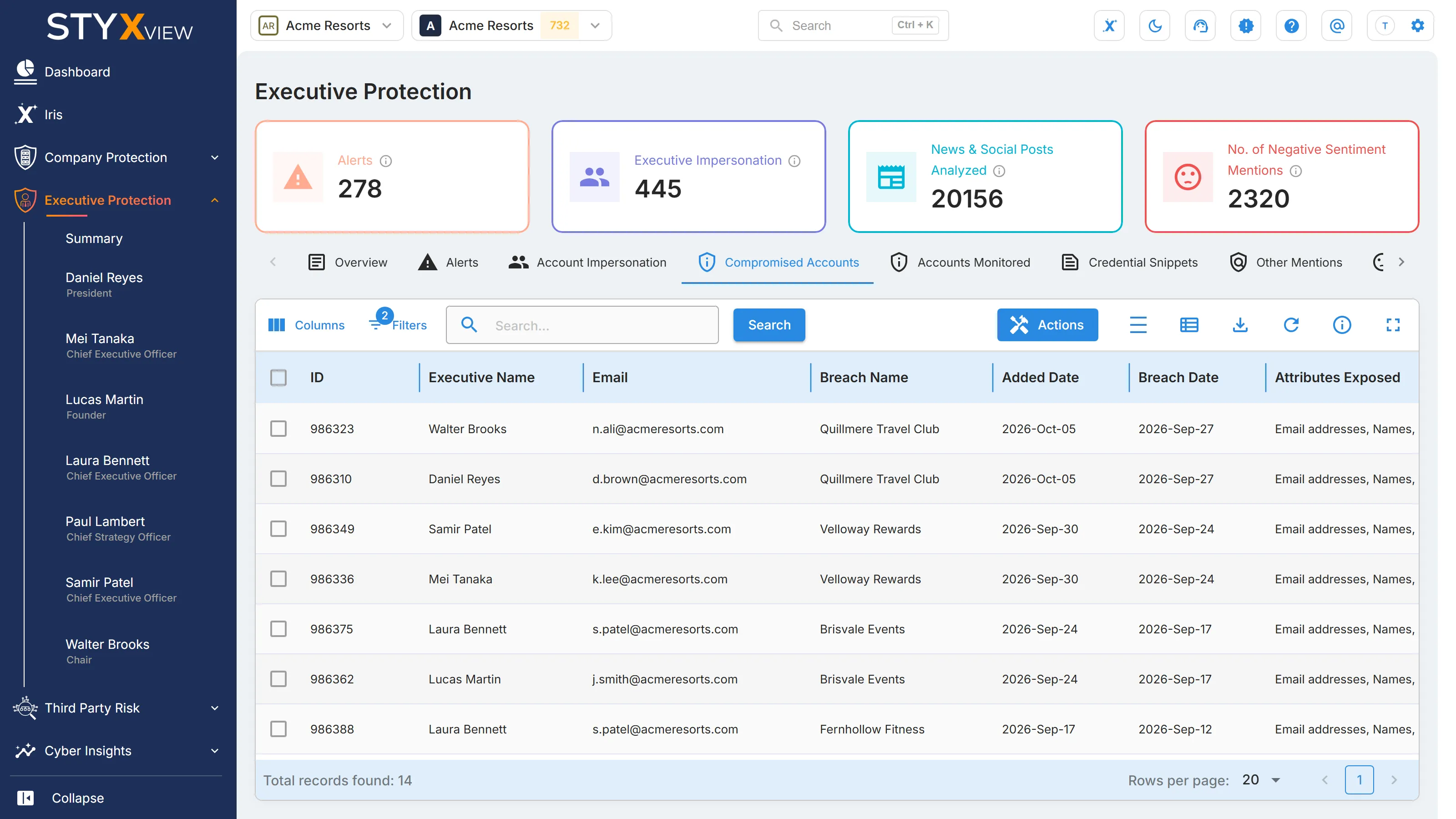
For all executives, select "Executive Protection" > "Summary", then the "Compromised Accounts" tab. This list adds an "Executive Name" column and an "Executive" filter.
In a third party
Section titled “In a third party”Select "Third Party Risk", the third party, then "Risks" > "Data Leakage & Dark Web Detection" > "User Accounts". The list covers the third party's email addresses, and its tab carries a "Beta" label. The tab bar does not show the AD Sync status. "Actions" offers only "Create Risk", which adds the selected findings to the third party's Risk Register.
Accounts Monitored
Section titled “Accounts Monitored”Accounts Monitored lists the email addresses StyxView monitors for your organization, whether or not they have been found in a breach. StyxView finds these addresses itself and, when AD Sync is enabled, also takes them from your directory. Use the list to see which addresses are exposed and to keep each account's type current.
Where to find it
Section titled “Where to find it”Select "Company Protection" > "Data Leakage & Dark Web Detection" > "User Accounts", then the "Accounts Monitored" tab.
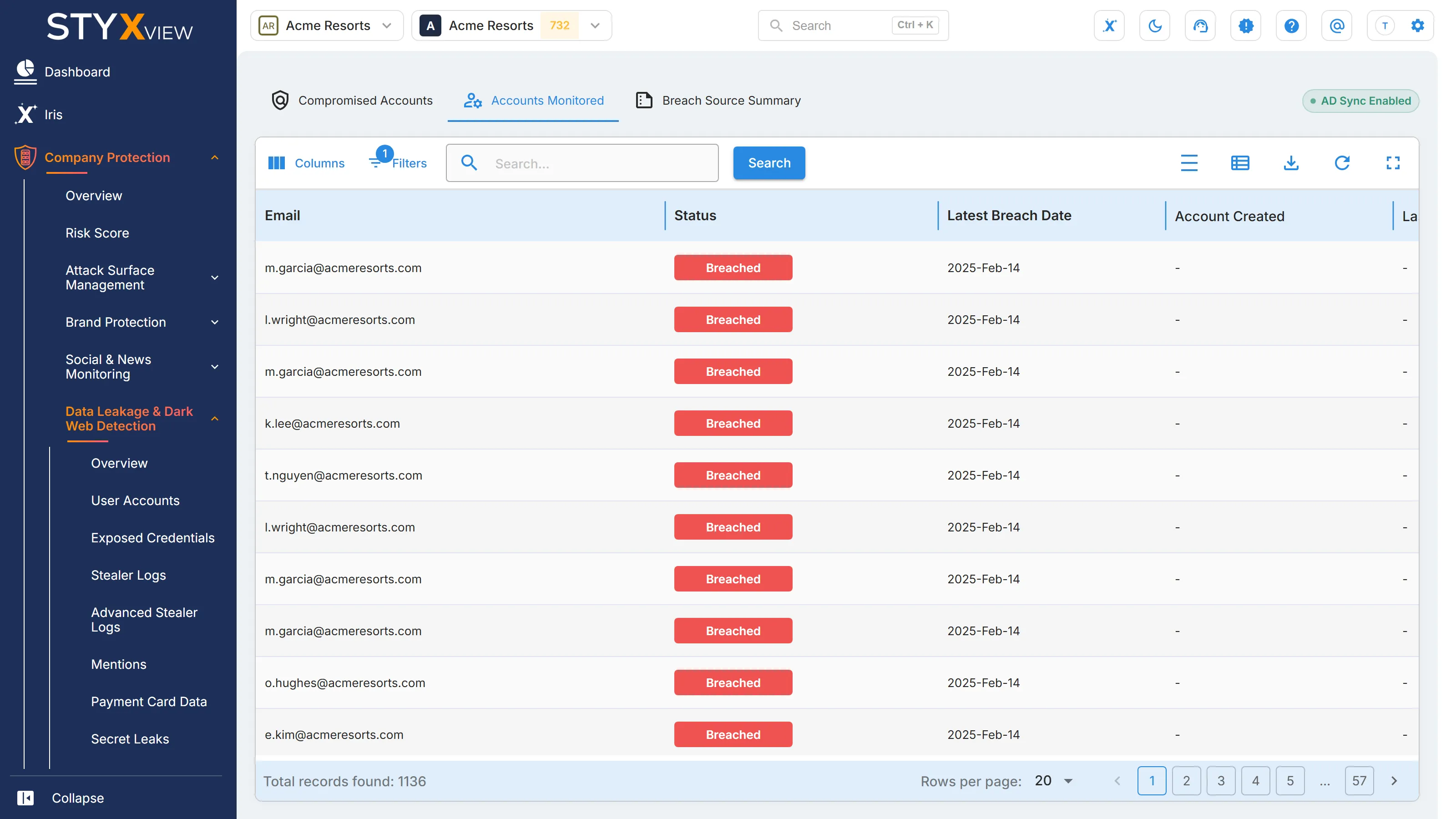
Columns
Section titled “Columns”| Column | What it shows |
|---|---|
| "Email" | The monitored email address. |
| "Status" | "Breached" (red) when the address appears in at least one known breach. "No record found" (green) when it appears in none so far, which does not mean the account is safe. |
| "Latest Breach Date" | The date of the most recent breach that contains the address. |
| "Account Type" | "Active", "Inactive", or "System/Service". A dash means the account is not categorised. |
Besides the columns, you can filter by "Domain" and by "Type": "Exposed PII" (personally identifiable information) or "Compromised Credentials". The list opens with "Inactive" accounts filtered out. The list has no "Actions" menu.
Account Type
Section titled “Account Type”- "Active": a current account that StyxView monitors.
- "System/Service": a shared, system, or service account that StyxView monitors.
- "Inactive": an account that is no longer in use. StyxView stops monitoring it.
"AD Sync Enabled" in the tab bar means your organization's directory (Microsoft Entra ID) is connected to StyxView. StyxView then keeps "Account Type" in step with the directory: an account removed from the directory becomes "Inactive". "AD Sync Disabled" means no directory is connected.
To change an account's type yourself, open its page and use "Actions" (see below).
The address page
Section titled “The address page”Select a "Breached" row to open the address's page, titled "Data Breached". Rows with "No record found" do not open. The page shows:
- "Details": "Breaches" (the highest severity rating among the address's breaches), "Total Breaches Suffered", "Attributes Exposed", "Create Date", and, when AD Sync is enabled, "Last Password Reset".
- "Breach Source": each breach, with its "Added Date", "Breach Date", "Risk Rating", and "Status".
- Where they exist: "Pastes", "Identified Breached Files" (credential snippets that contain the address), and "Advanced Stealer Logs" sessions.
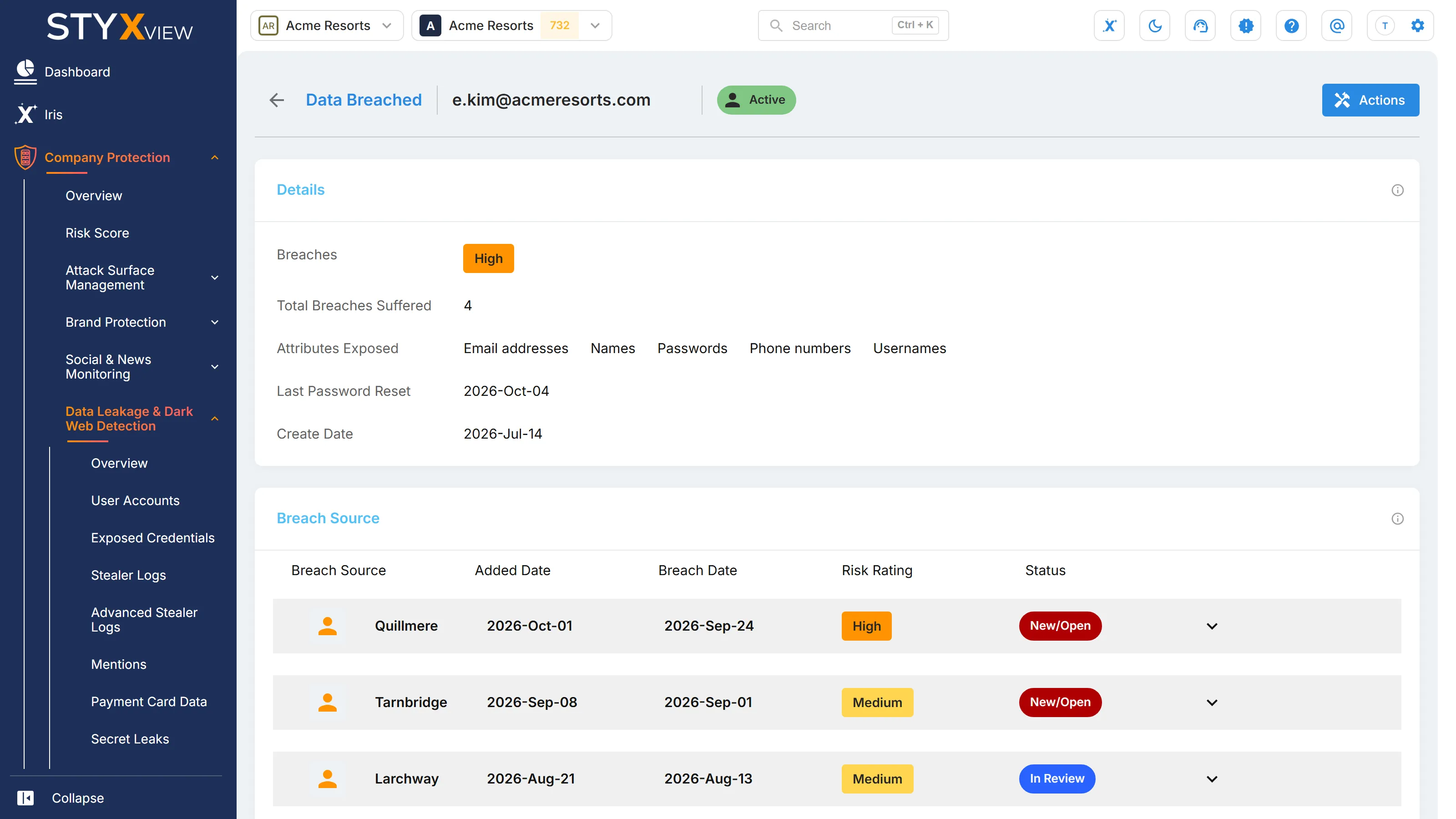
"Actions" on this page, for Admin and Analyst roles, offers:
- "Mark as Active Account", "Mark as Inactive Account", and "Mark as System/Service Account" set the account's type.
- "Close Associated Findings" closes every record that holds the address: its credential snippets and stealer log records, its breach records, and its Advanced Stealer Logs sessions. Its findings in Compromised Accounts become "Resolved". It cannot be undone.
To export the list, select the export icon, then "Download as CSV" or "Download as Excel".
In Executive Protection
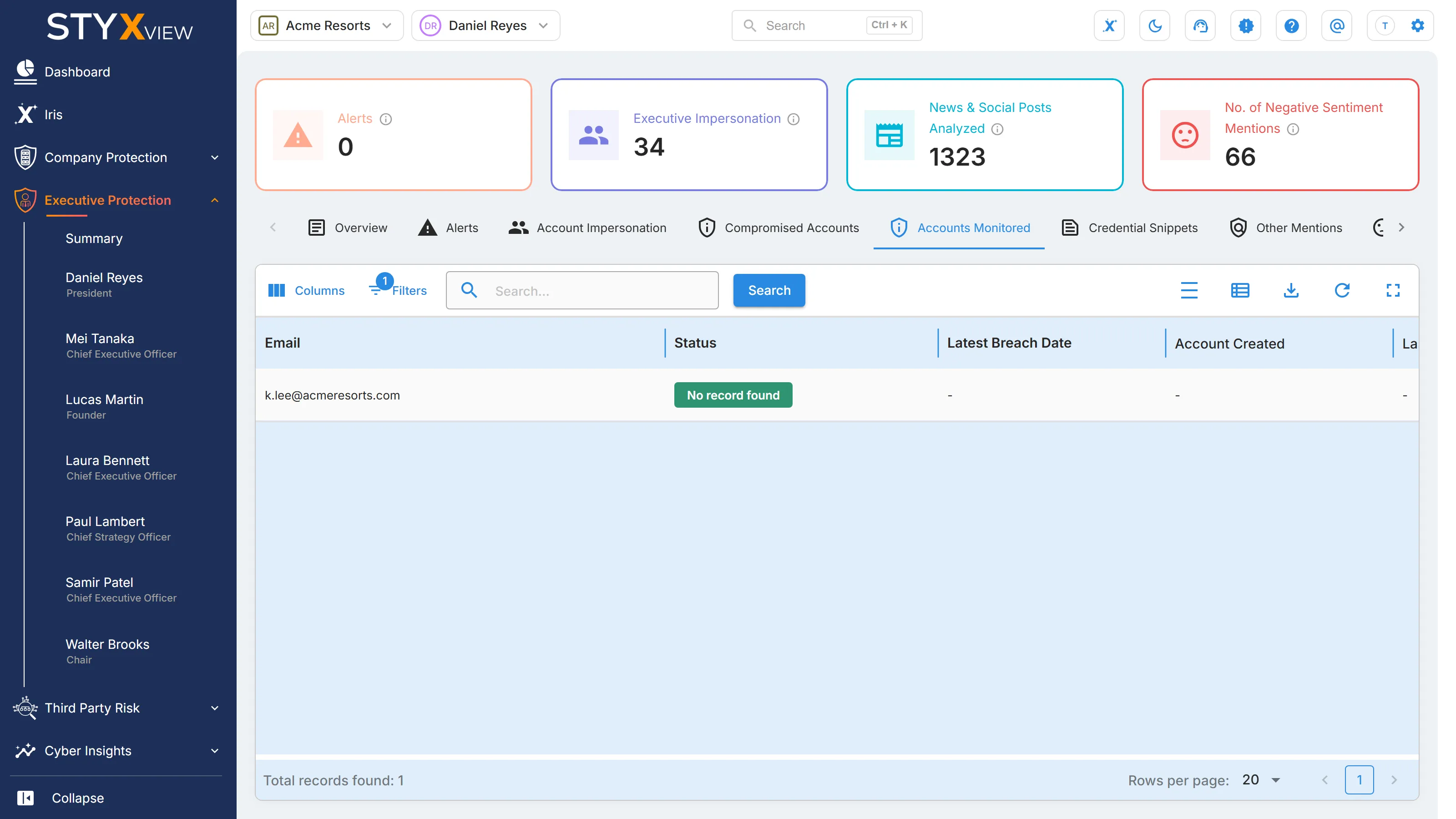
Section titled “In Executive Protection”-
For one executive, select "Executive Protection", the executive's name, then the "Accounts Monitored" tab. The list is the one described above, limited to that executive's addresses.
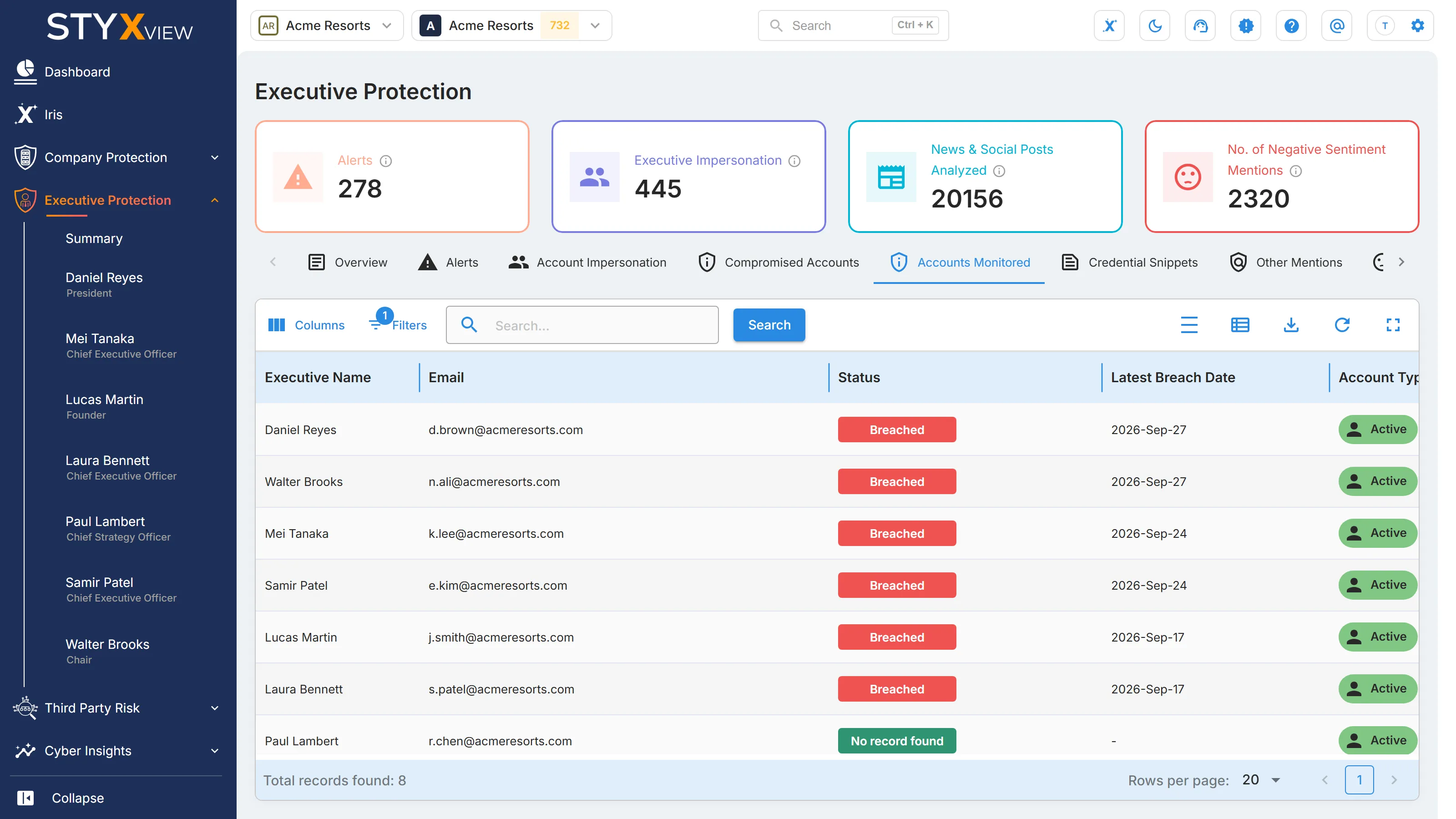
-
For all executives, select "Executive Protection" > "Summary", then the "Accounts Monitored" tab. This list adds an "Executive Name" column and an "Executive" filter.
In a third party
Section titled “In a third party”Select "Third Party Risk", the third party, then "Risks" > "Data Leakage & Dark Web Detection" > "User Accounts", then the "Accounts Monitored" tab. The list covers the third party's email addresses. The address page has no "Actions" for a third party.
Breach Source Summary
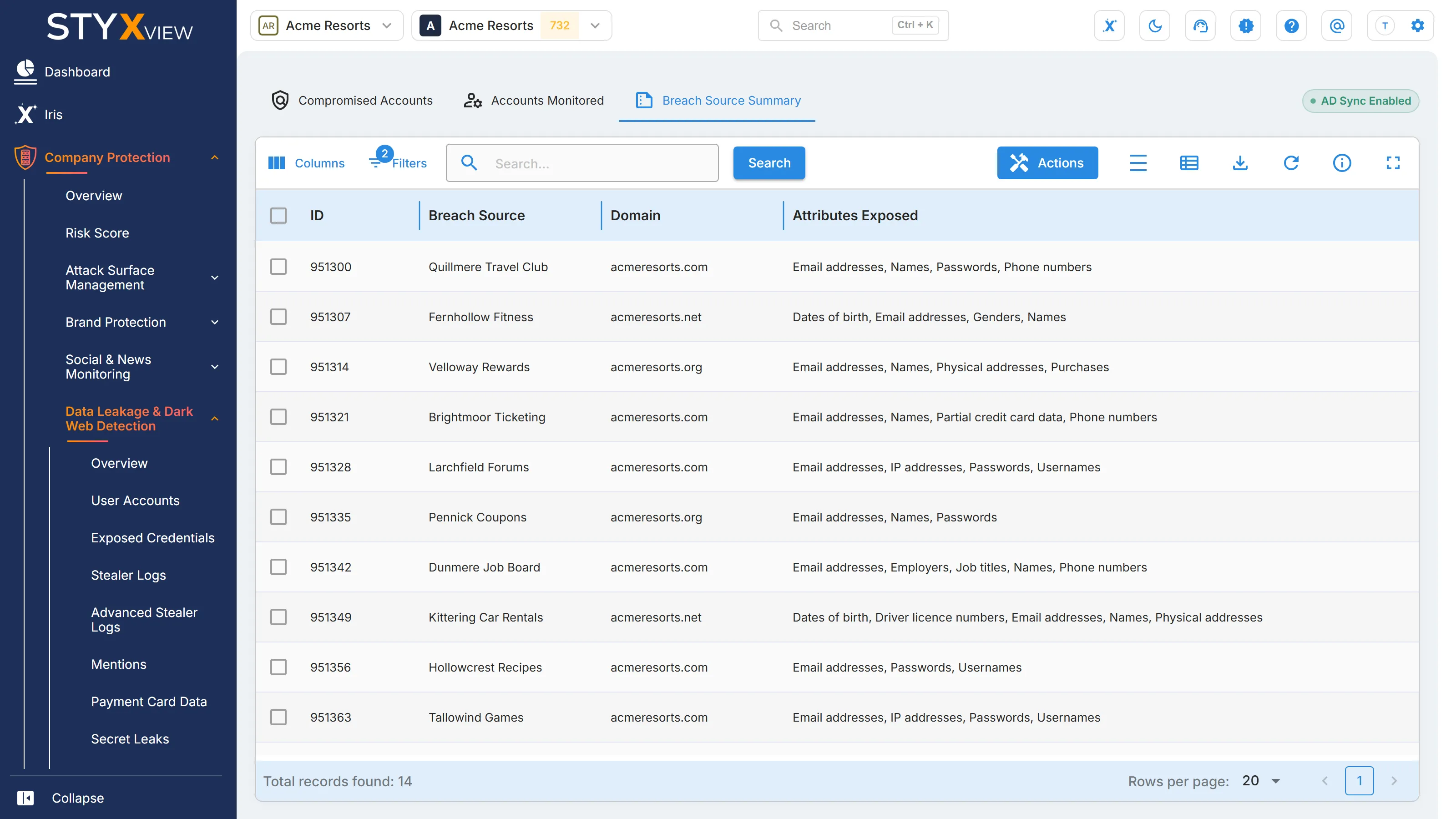
Section titled “Breach Source Summary”Breach Source Summary lists each known data breach that exposed email addresses on one of your monitored domains, with one row for each breach and domain. Each row is a finding of the type "Client Domain in a Third Party Breach". Use it to see which breaches account for your exposure, rather than going address by address in Compromised Accounts.
Where to find it
Section titled “Where to find it”Select "Company Protection" > "Data Leakage & Dark Web Detection" > "User Accounts", then the "Breach Source Summary" tab.
Columns
Section titled “Columns”| Column | What it shows |
|---|---|
| "ID" | The finding ID. |
| "Breach Source" | The breached website, service, or data set. |
| "Domain" | Your domain whose addresses the breach exposed. |
| "Attributes Exposed" | The types of data the breach exposed. |
| "Breach Date" | When the breach took place. |
| "Added Date" | When StyxView recorded the breach for this domain. |
| "Severity Rating" | "Low", "Medium", "High", or "Critical", set by the most sensitive type of data the breach exposed. See Severity Rating. |
| "Breach Categories" | The categories of data the breach exposed. See below. |
| "Status" | The finding status. See Finding statuses. |
| "Assigned User" | The user the finding is assigned to. |
| "Latest Comment" | The most recent comment on the finding. |
The list opens filtered to open finding statuses.
Breach Categories
Section titled “Breach Categories”| Category | Types of data, for example |
|---|---|
| "Pwd" | Passwords, PINs, auth tokens, and security questions and answers |
| "PII" | Personally identifiable information: names, email addresses, phone numbers, physical addresses, dates of birth, and passport and social security numbers |
| "PIHI" | Personal health information: medical records, health insurance information, and other health data |
| "PIFI" | Personal financial information: credit cards, bank account numbers, payment histories, and financial transactions |
| "PISI" | Personal sensitive information: private messages, chat logs, political views, sexual orientation, and personal habits |
To filter by category, open "Filters" and choose "Pwd", "PII", "PIHI", "PIFI", or "PISI".
Working with findings
Section titled “Working with findings”Select one or more rows, then select "Actions" for "Update Status", "Assign To", "Comment", or "Mark as False Positive". See Finding statuses and User Actions.
Select a row to open the finding's page, which lists the exposed email addresses on the domain (see Findings). To export the list, select the export icon, then "Download as CSV" or "Download as Excel".
In a third party
Section titled “In a third party”Select "Third Party Risk", the third party, then "Risks" > "Data Leakage & Dark Web Detection" > "User Accounts", then the "Breach Source Summary" tab. The list covers the third party's domains. "Actions" offers only "Create Risk", which adds the selected findings to the third party's Risk Register.