
Data Leakage & Dark Web Detection
Data Leakage & Dark Web Detection finds your organization's data where it should not be: in data breaches, in logs stolen by infostealer malware, on dark web forums, marketplaces, and chat channels, in public code repositories, and in publicly readable cloud storage. StyxView matches each record to something your organization monitors, such as a domain, an email address, a keyword, or a payment card Bank Identification Number (BIN). These are set in your Company Protection policy (see Policies).
Where to find it
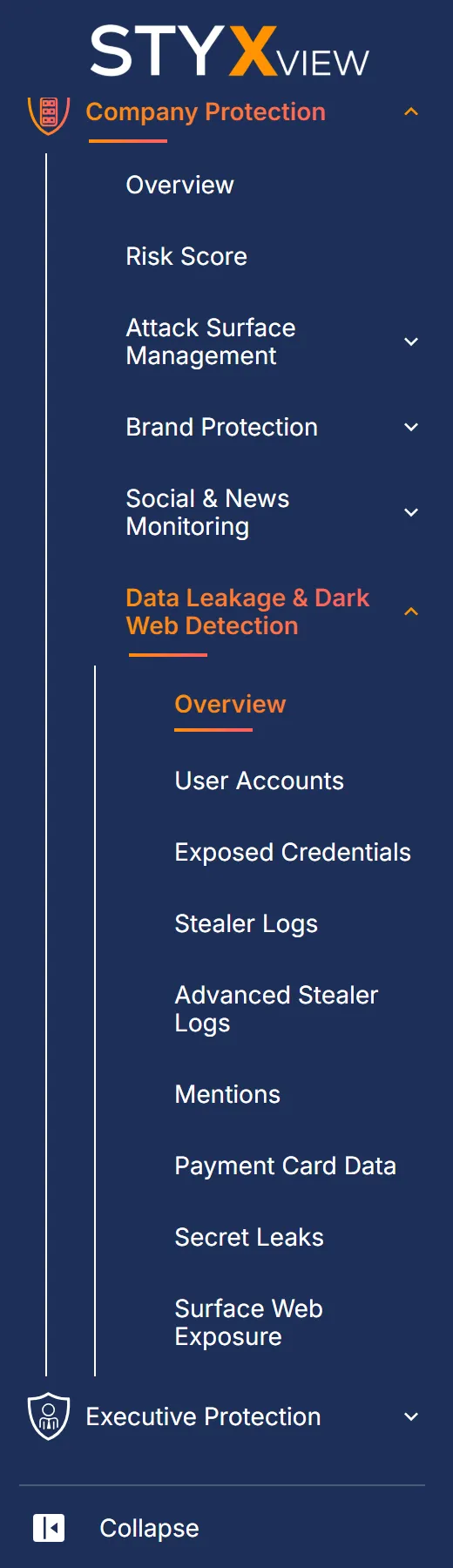
Section titled “Where to find it”In the menu, select "Company Protection", then "Data Leakage & Dark Web Detection". The menu shows the module when your Company Protection project includes it.
Parts of the module also appear in two other places:
- Executive Protection: the "Compromised Accounts", "Accounts Monitored", "Credential Snippets", and "Other Mentions" tabs, for each executive and in "Summary".
- Third Party Risk: for each third party, "Risks" > "Data Leakage & Dark Web Detection".
What the module covers
Section titled “What the module covers”| Menu item | What it lists |
|---|---|
| "Overview" | A count for each type of exposure, with a link to each list. See Overview. |
| "User Accounts" | Your email addresses and the data breaches they appear in. See Compromised Accounts, Accounts Monitored, and Breach Source Summary. |
| "Exposed Credentials" | Credentials and other text found in leaks, paste sites, and dark web sources. See Snippets and File View. |
| "Stealer Logs" | Records taken from devices infected with infostealer malware. See Cookies, History, Password, System, Other, and File View. |
| "Advanced Stealer Logs" | Sessions from infected devices, with the credentials and cookies taken in each. Available when your subscription includes it; otherwise the page says so. See Advanced Stealer Logs. |
| "Mentions" | Mentions of your organization on the dark web and other sources, and your domains listed in known breaches. See Other Mentions and Breach Mentions. |
| "Payment Card Data" | Payment cards that match your BINs. See Payment Card Data. |
| "Secret Leaks" | API keys, tokens, passwords, and other secrets exposed in public sources. See Secret Leaks. |
| "Surface Web Exposure" | Public documents, code repositories, and cloud resources that match your keywords. See Documents, Code Repositories, and Cloud Resources. |
Every list has the same toolbar: "Columns", "Filters", search, saved views, and export. See Action & Filter Bar, Saved Views & Bookmarks, and Export Functionality.
Statuses
Section titled “Statuses”Each list tracks its records with one of two sets of statuses.
Finding statuses
Section titled “Finding statuses”Used by Compromised Accounts, Breach Source Summary, Other Mentions, Payment Card Data, Secret Leaks, Documents, Code Repositories, and Cloud Resources. Each row in these lists is a finding: selecting it opens the finding's page, and it also appears in Findings.
| Status | Meaning |
|---|---|
| "New" | Detected and not yet reviewed. |
| "Analyzing" | Under review. |
| "On Watchlist" | Kept under observation, with no action yet. |
| "Response In Progress" | Remediation is under way. |
| "Resolved" | Remediated. |
| "Closed Without Action" | Closed with no remediation. |
| "No Longer Seen" | Not present in recent detections. The record is kept. |
| "Reappeared" | Detected again after it was closed. |
These lists open filtered to the open statuses: "New", "Analyzing", "On Watchlist", "Response In Progress", and "Reappeared". Change the filter to see closed findings.
To change the status of one or more findings:
- Select the rows.
- Select "Actions", then "Update Status".
- Choose the new status under "Change Status to:".
- Describe what is being done under "Add context (required):".
- Select "Confirm".
The same "Actions" menu has "Assign To", "Comment", and "Mark as False Positive". See User Actions.
Review statuses
Section titled “Review statuses”Used by Snippets, the Stealer Logs tabs, and "Credential Snippets" in Executive Protection.
| Status | Meaning |
|---|---|
| "New/Open" | Not yet reviewed. |
| "In Review" | Shortlisted for investigation. |
| "Monitor" | Confirmed and kept on a watchlist, with no action yet. |
| "Closed" | No further action. |
A review status only moves forward, in the order of the table. A record can skip a status but cannot go back, and "Closed" cannot be undone. These lists open with "Closed" records filtered out.
To change the review status of one or more records:
- Select rows that all have the same status. "Update Status" is unavailable when the selected rows have different statuses.
- Select "Actions", then "Update Status".
- Choose the new status and select "Save".
You can also change the status from the "Status" list on a record's own page.
When the module is not active
Section titled “When the module is not active”If collection for this module is switched off, for example because a subscription has ended, an amber icon appears at the end of the breadcrumb row on the module's pages. Hover over or focus the icon to read the explanation. No new findings are collected, and existing results stay available. Contact the StyxView Support Team for details.