
Add Third Party
Add a third party to start monitoring it. StyxView keeps a shared database of organisations it already monitors. If the organisation is there, it is added to your account at once. If it is not, your request goes to the StyxView team, who set it up for you.
You can add more than one third party. How many you can monitor depends on your subscription plan.
Navigation path
Section titled “Navigation path”You can add a third party from either of these places:
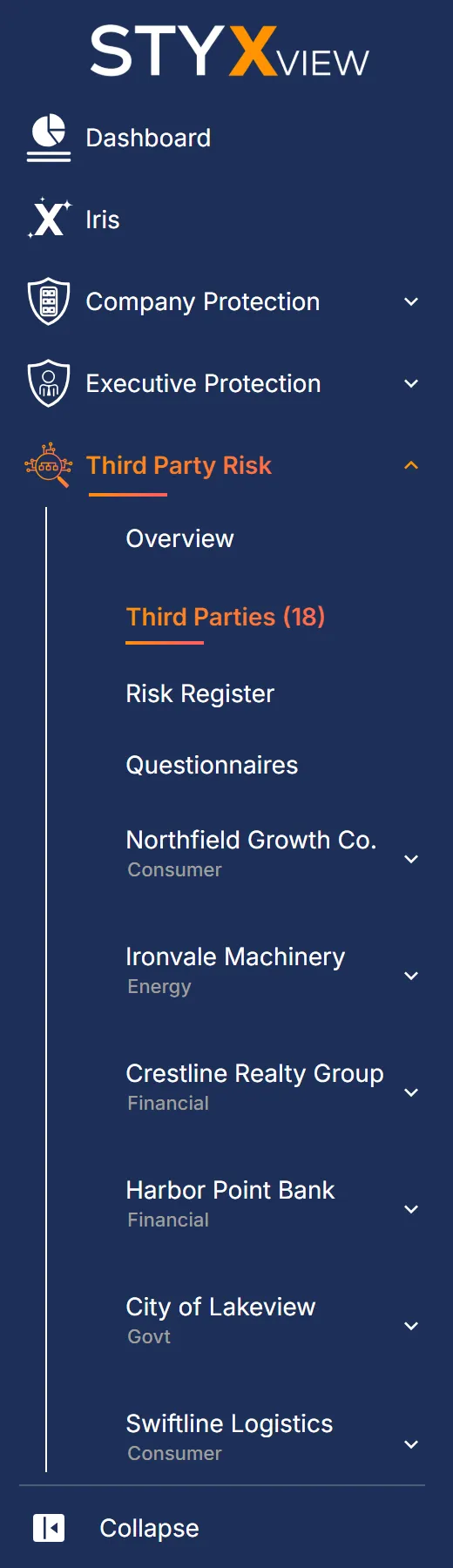
- Third Party Risk → Third Parties, then "Add Third Party". Available to every user with access to Third Party Risk.
- Configuration → Policies, then "Add Third Party" beside the account. Available to Admin users only.
Adding a third party
Section titled “Adding a third party”-
Select "Add Third Party". The "Add Third Party" dialog opens.
-
In "Search Company", type the organisation's name or domain. Matching organisations from the shared database are listed with their primary domain. Organisations you already monitor are not listed.
-
Select the organisation. If it is not listed, select the option "Add" followed by the name you typed, then enter its "Primary Domain", for example
contoso.com.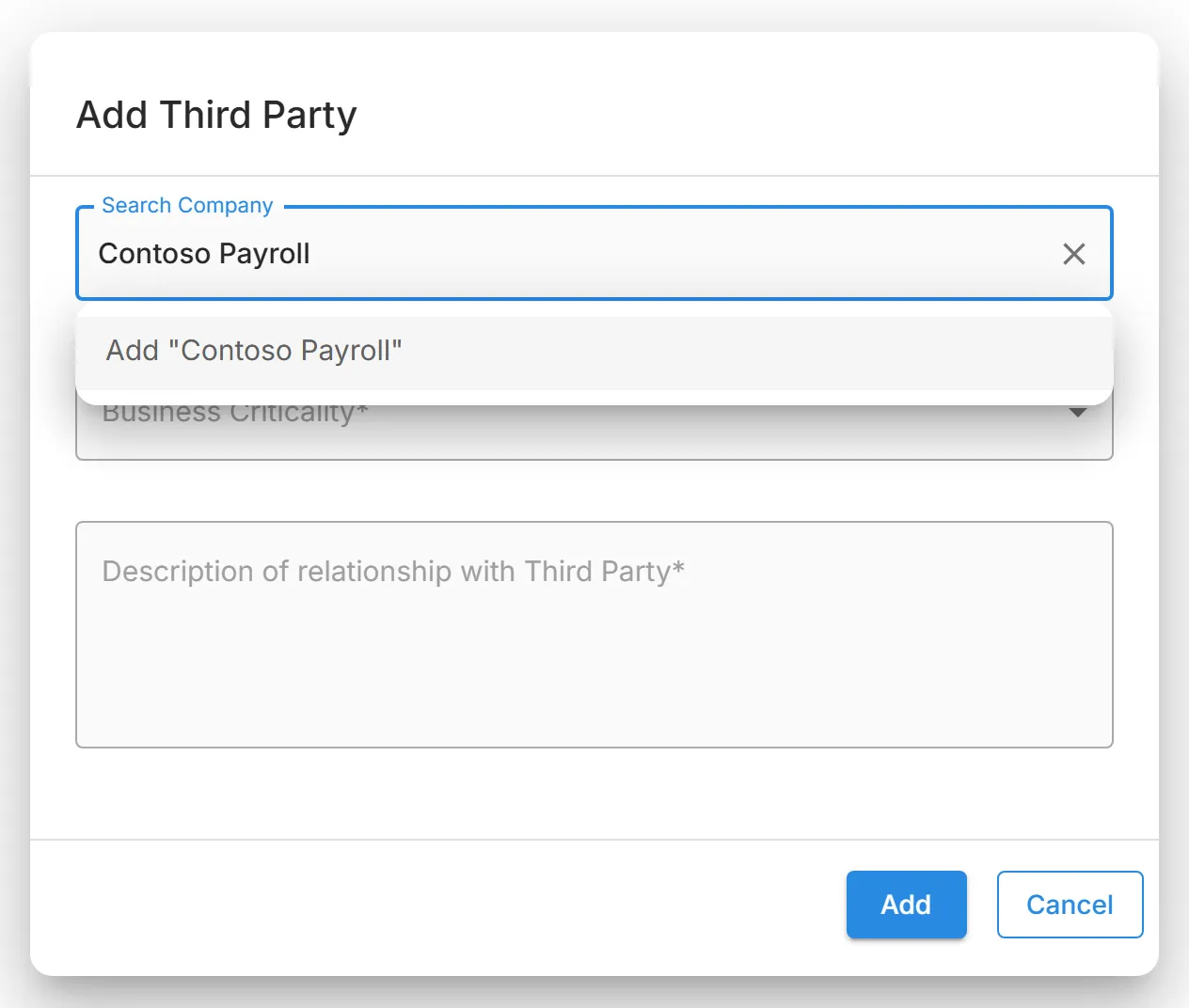
-
Select a "Business Criticality": "Very Low", "Low", "Medium", "High", or "Very High". This is your own rating of how much your business depends on the third party.
-
Enter a "Description of relationship with Third Party", for example "Payroll provider with access to employee records".
-
Select "Add".
What happens next depends on whether the organisation was already in the shared database:
| You selected | Result |
|---|---|
| An organisation from the list | It is added to your account. The confirmation says it will show on the platform within 1 hour. It then appears under "Third Party Risk" in the sidebar and on the "Third Parties" page, with the lifecycle status "Identified". |
| A new organisation | Your request is forwarded to the StyxView team. The confirmation says it may take up to 48 hours for the third party to appear in the platform. |
You can change a third party's business criticality, description, and lifecycle status later from its dashboard. See Individual Third Party Dashboard.
The third party's policy
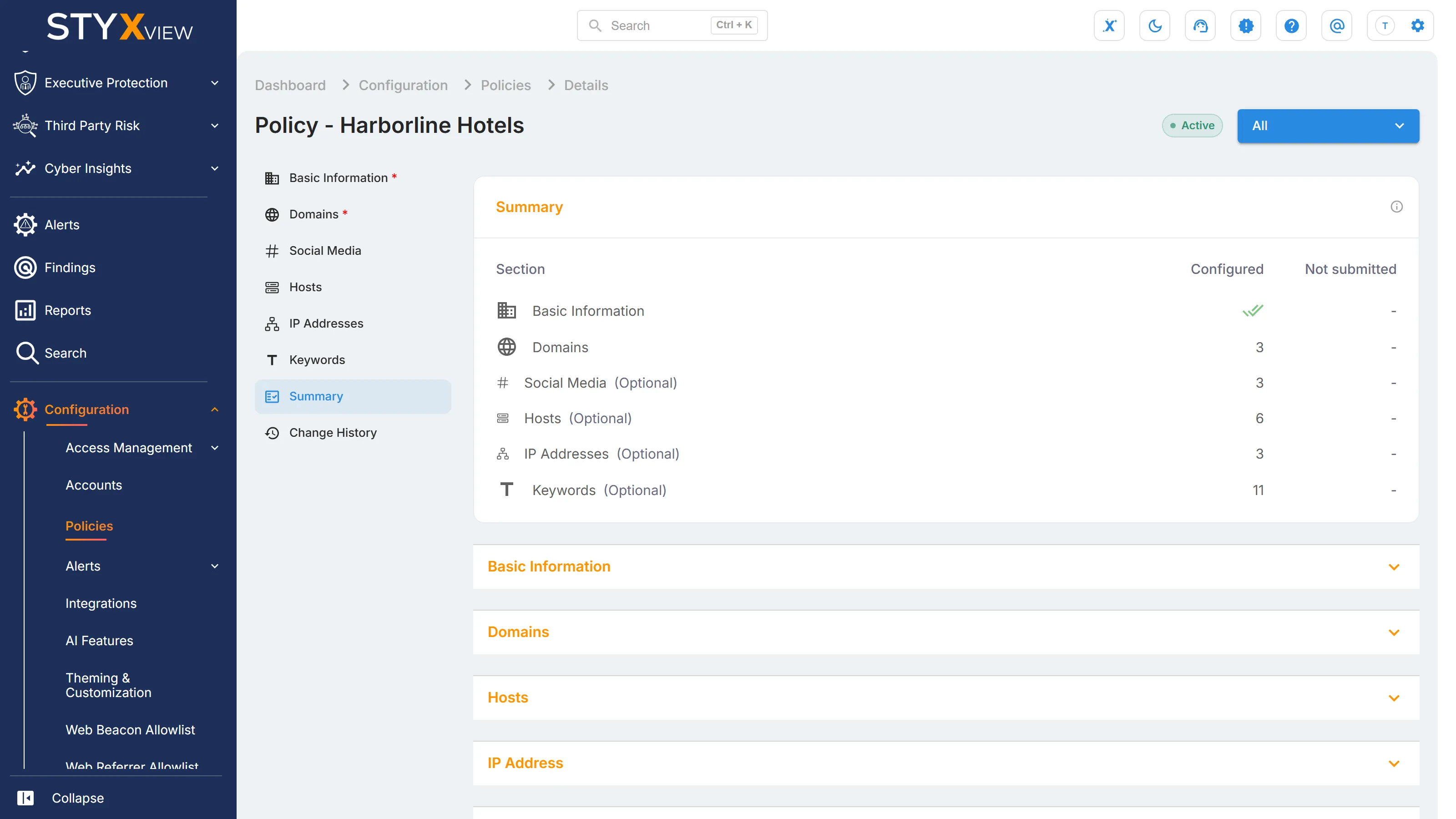
Section titled “The third party's policy”Every third party you add also has a policy. It lists the assets and terms StyxView monitors for that organisation. Open Configuration → Policies: the third party appears under your account with the solution "Third Party Risk" and a status of "Policy Configured" or "Pending".

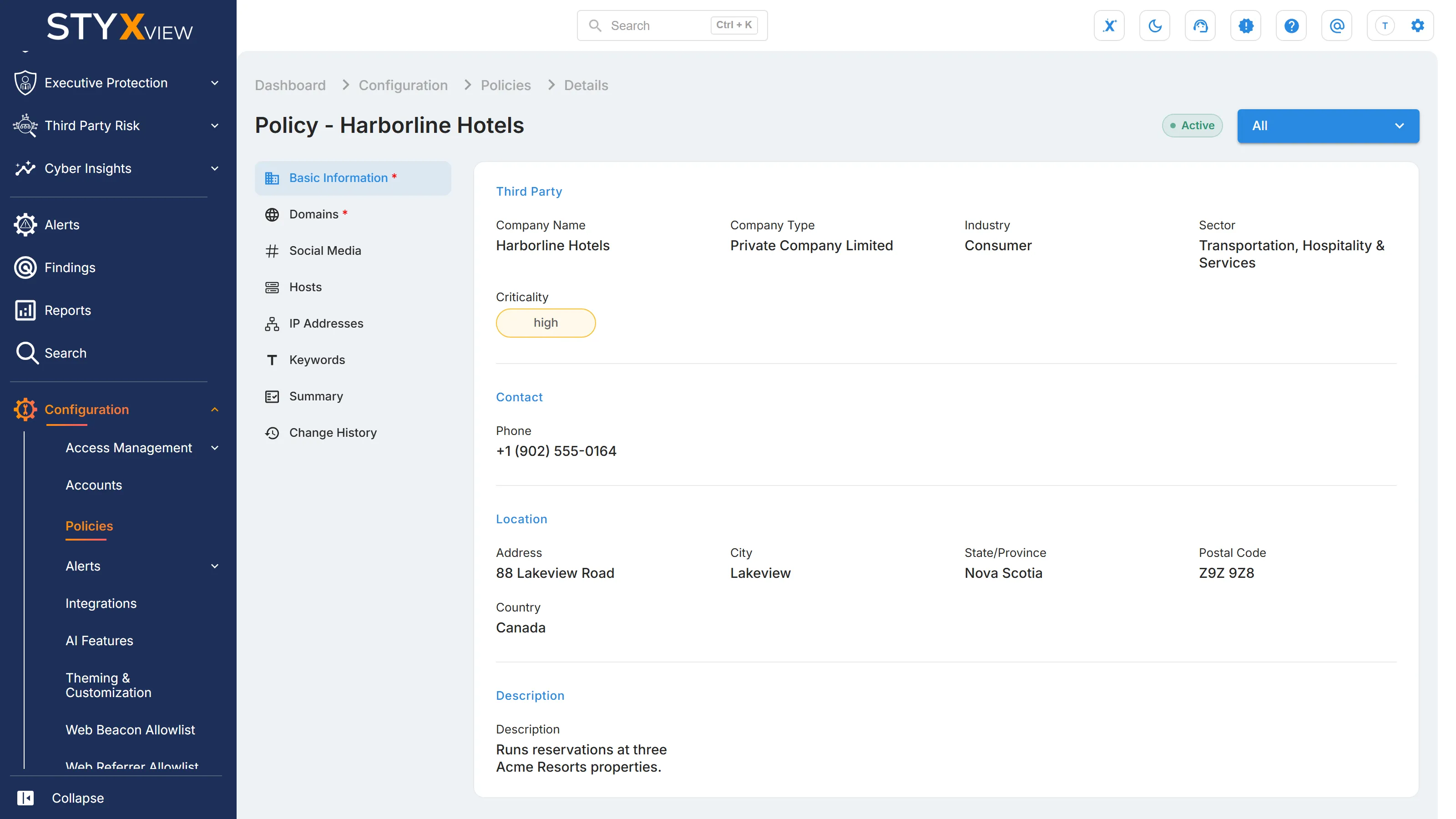
Select the view icon to open the policy, or the edit icon while the status is "Pending". Its sections are listed down the left side: "Basic Information", "Domains", "Social Media", "Hosts", "IP Addresses", "Keywords", "Summary" (named "Review" until the policy is configured), and "Change History". The menu at the top right ("All", "Third Party Risk", "Attack Surface", or "Brand Protection") shows only the sections a module uses. Sections marked with an asterisk are required.
For how to edit a policy and how changes are approved, see Policies.
Basic Information
Section titled “Basic Information”The organisation's details: "Company Name", "Industry", "Sector", "Criticality", "Company Type", "Telephone", "Address", "Country", "State/Province", "City", "Postal Code", "Description", and "Logo URL". For the address, the headquarters gives the most complete results.
Domains
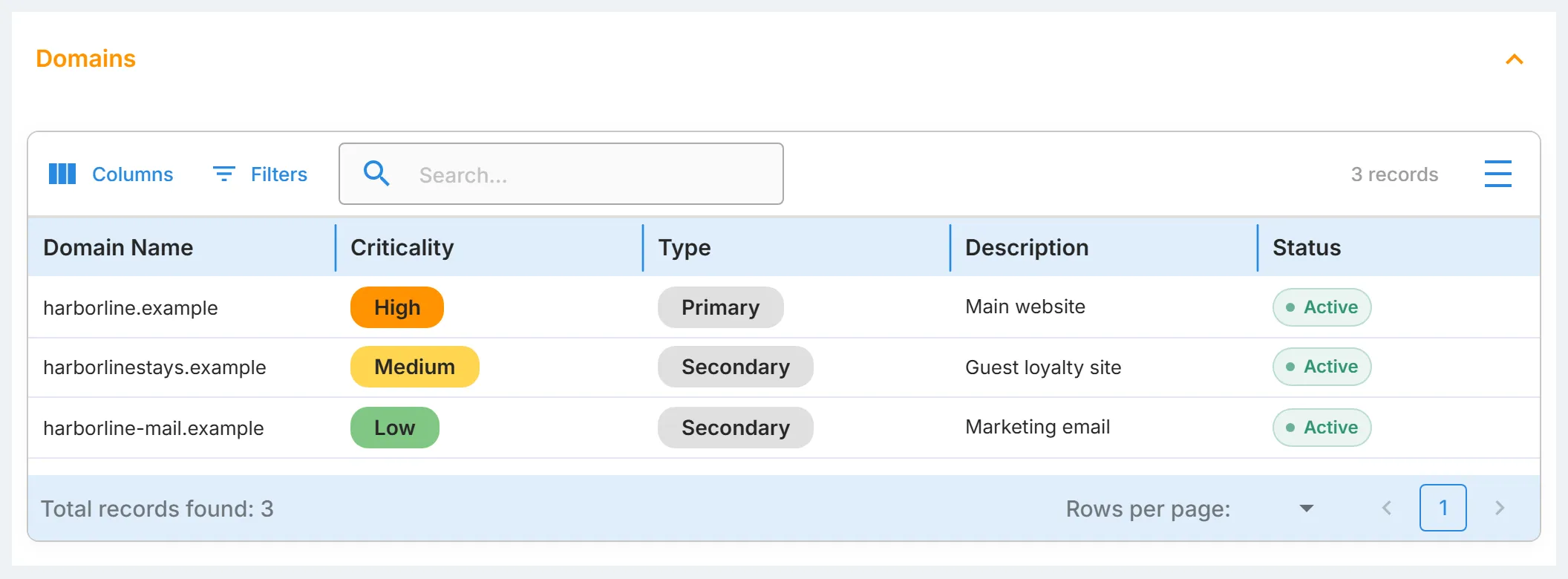
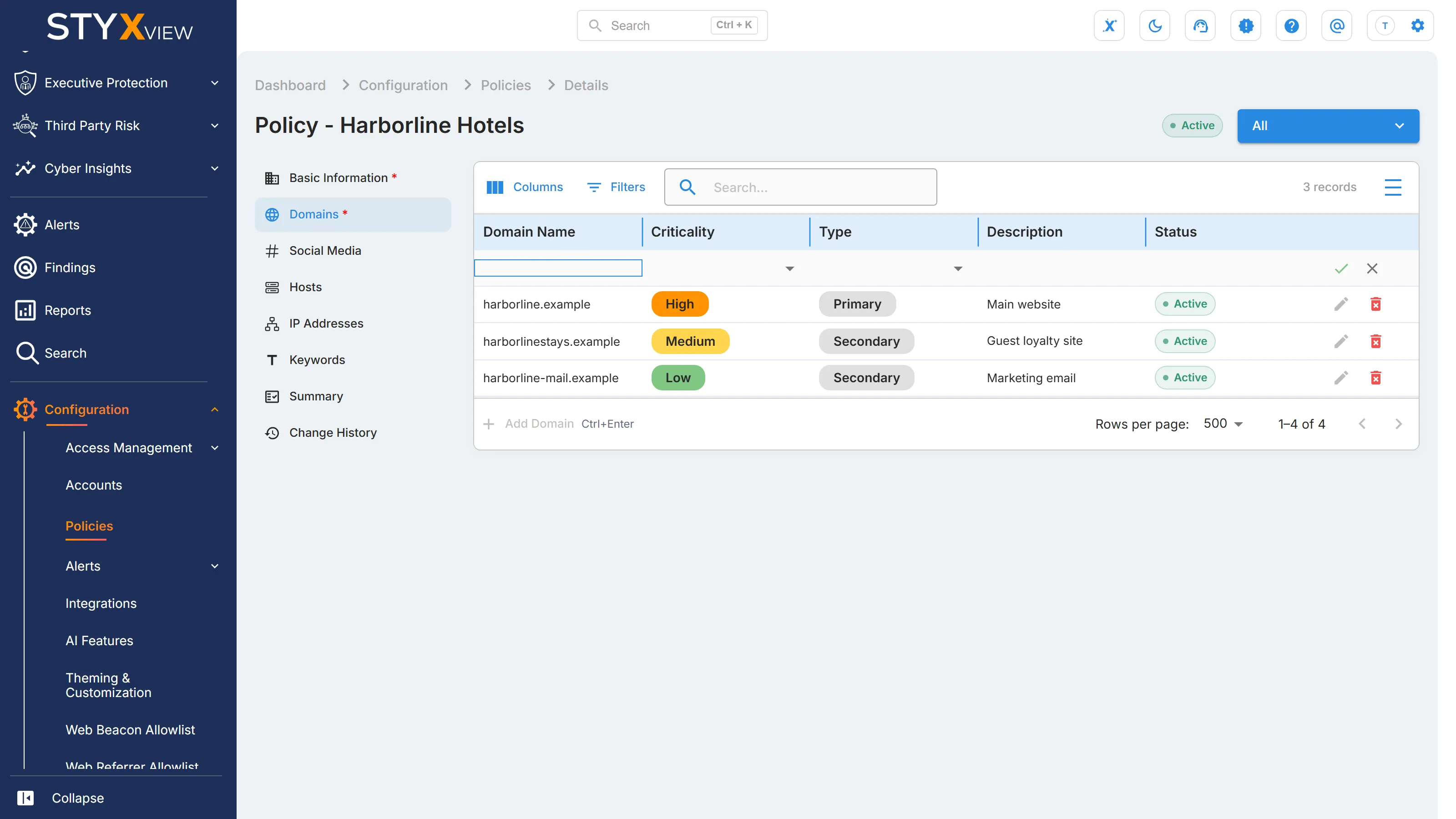
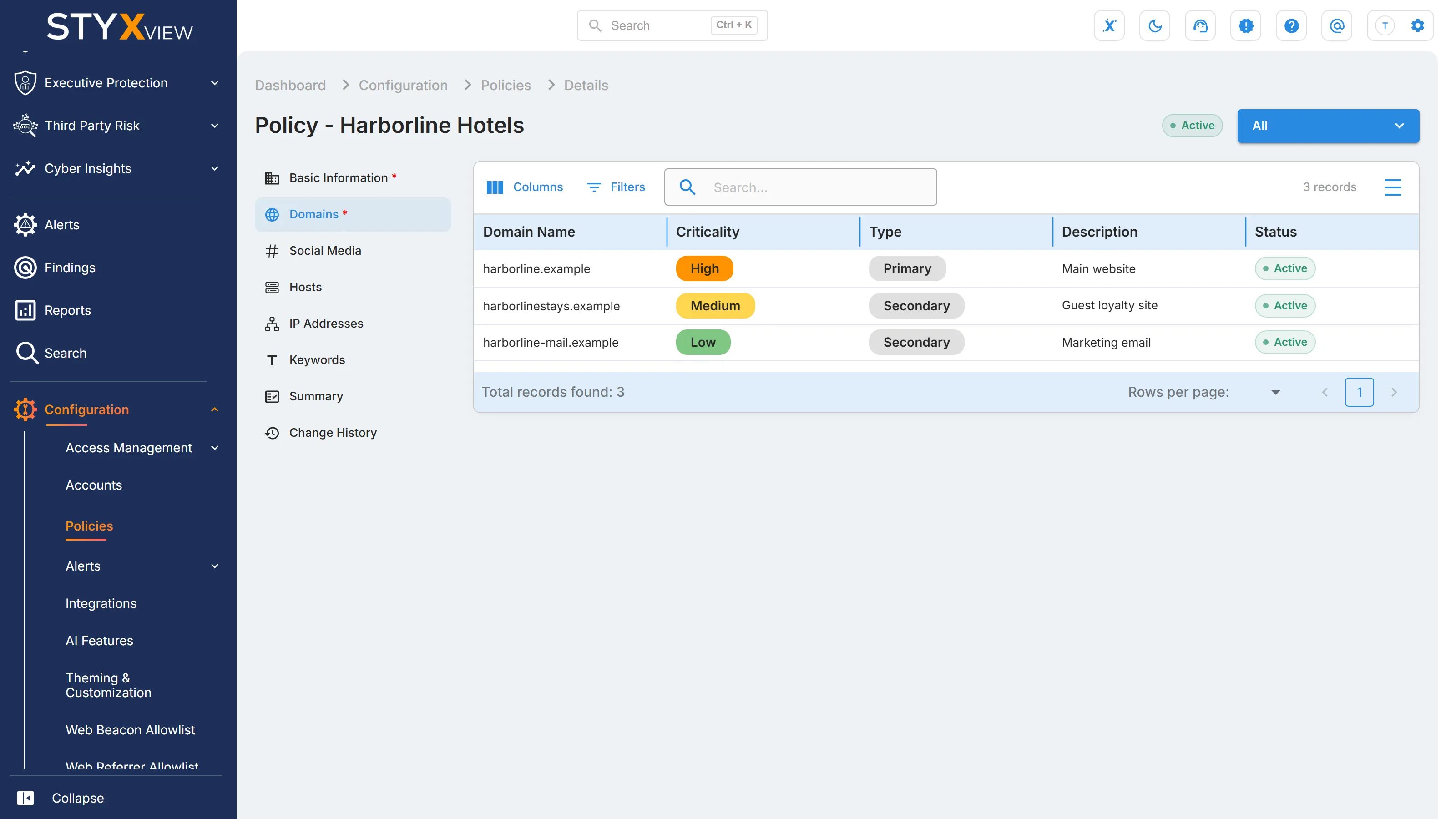
Section titled “Domains”The third party's domains, each with a "Domain Name", "Type", "Criticality", and optional "Description". Select "Add Domain" to add another.
Social Media
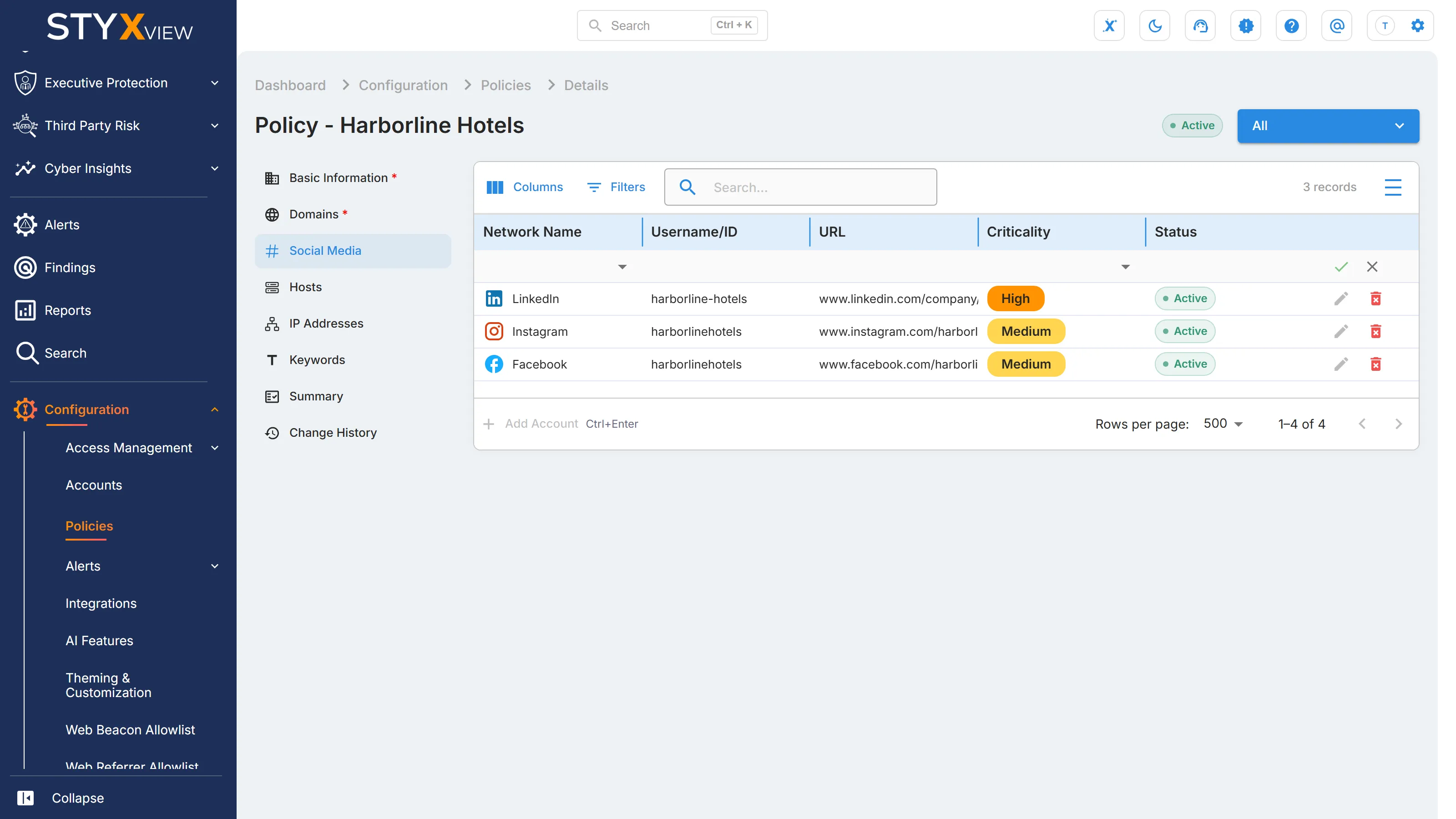
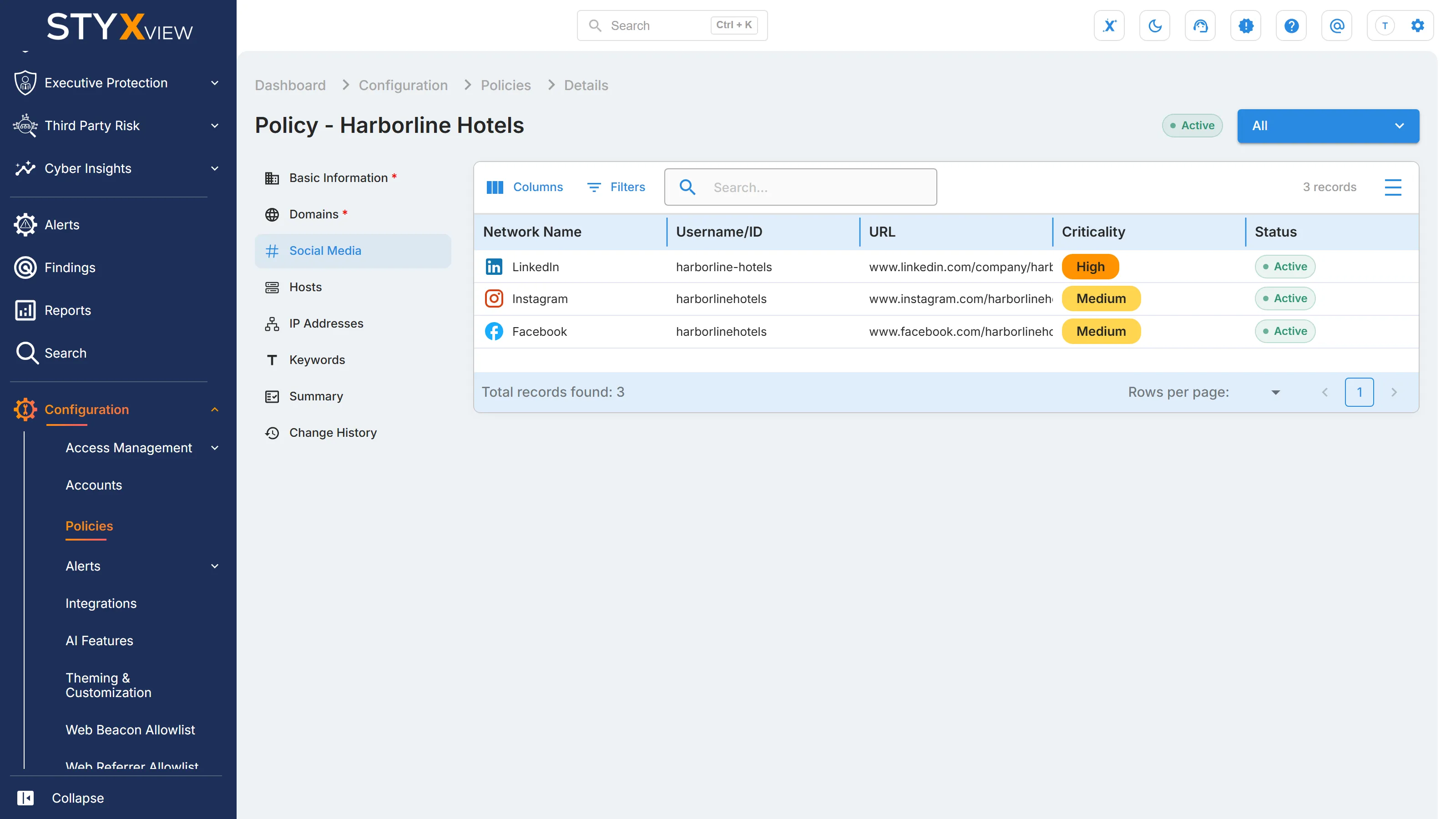
Section titled “Social Media”The third party's social media accounts, each with a "Network Name", "Username/ID", "URL", and "Criticality". Select "Add Account" to add another. This section is optional.
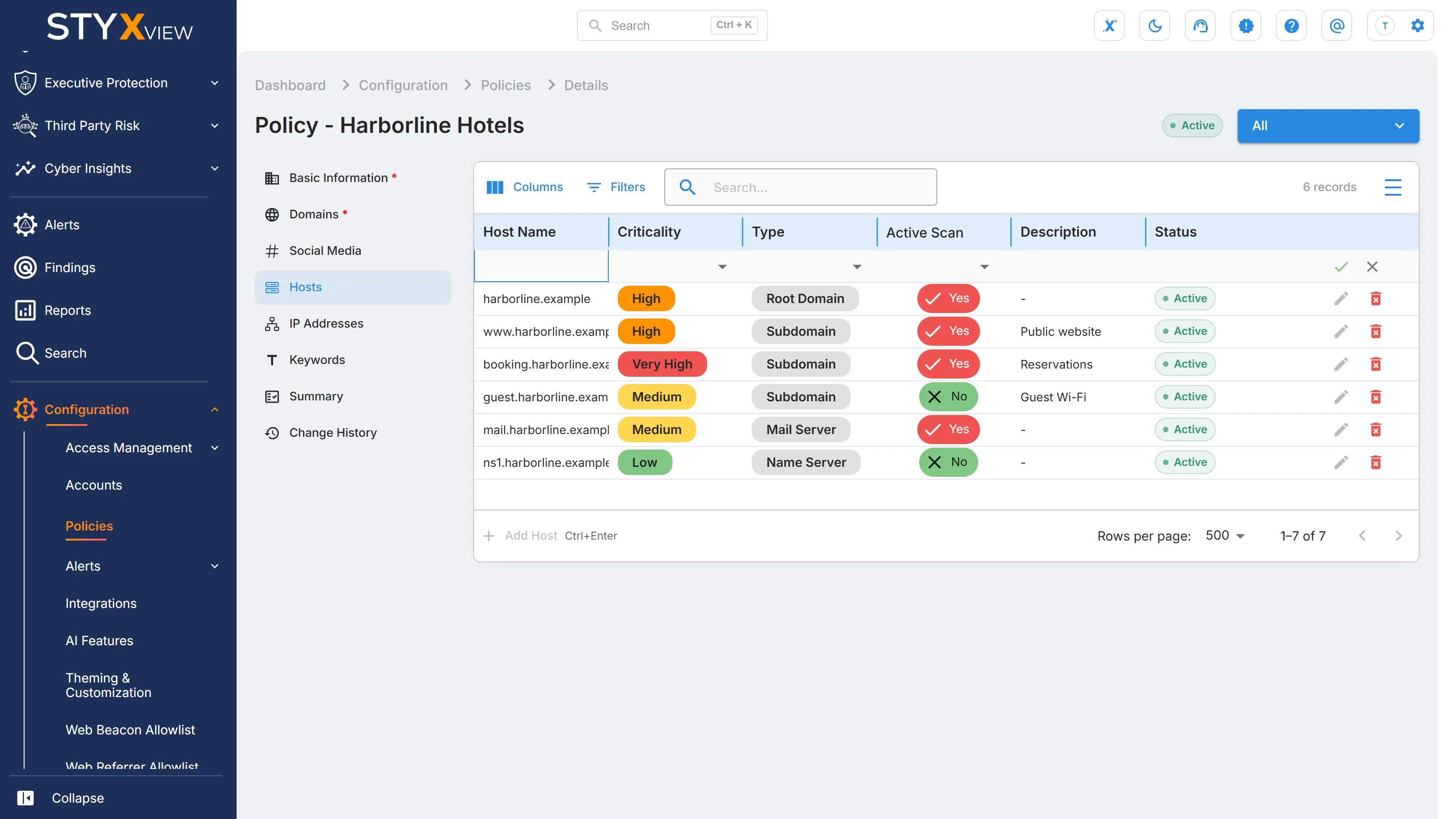
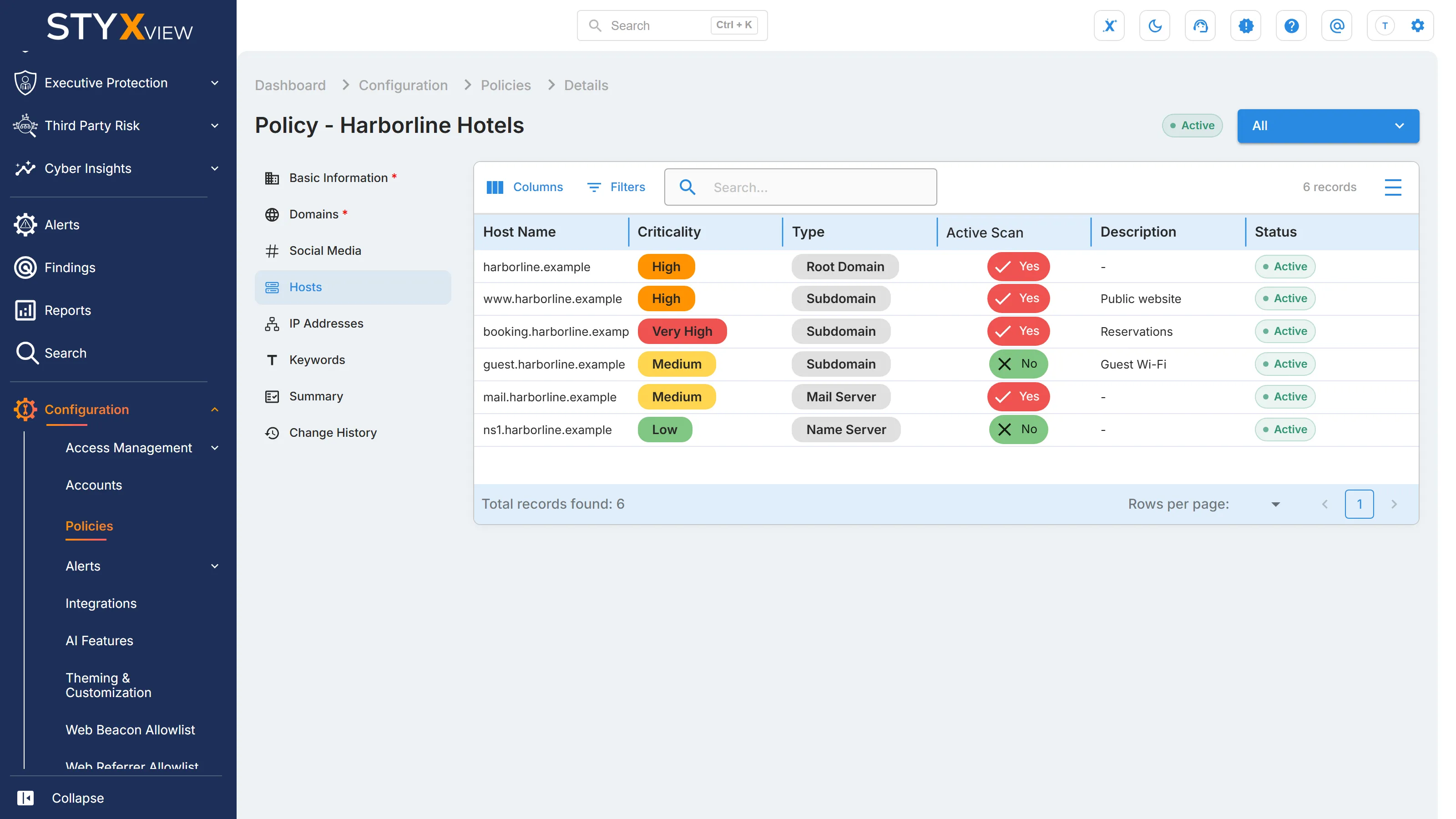
The third party's hosts, each with a "Host Name", "Type", "Criticality", "Active Scan" setting, and optional "Description". Select "Add Host" to add another. This section is optional.
IP Addresses
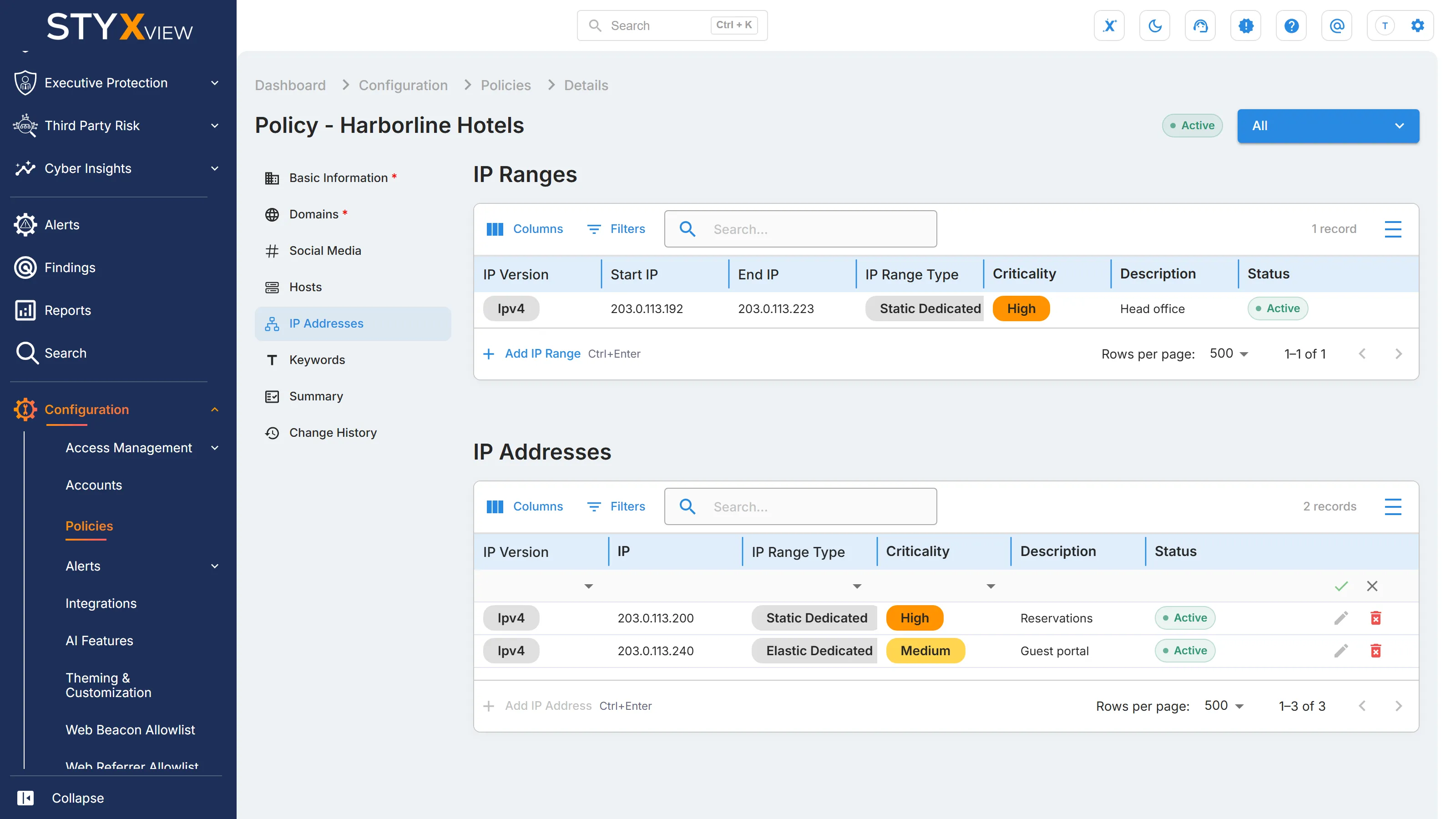
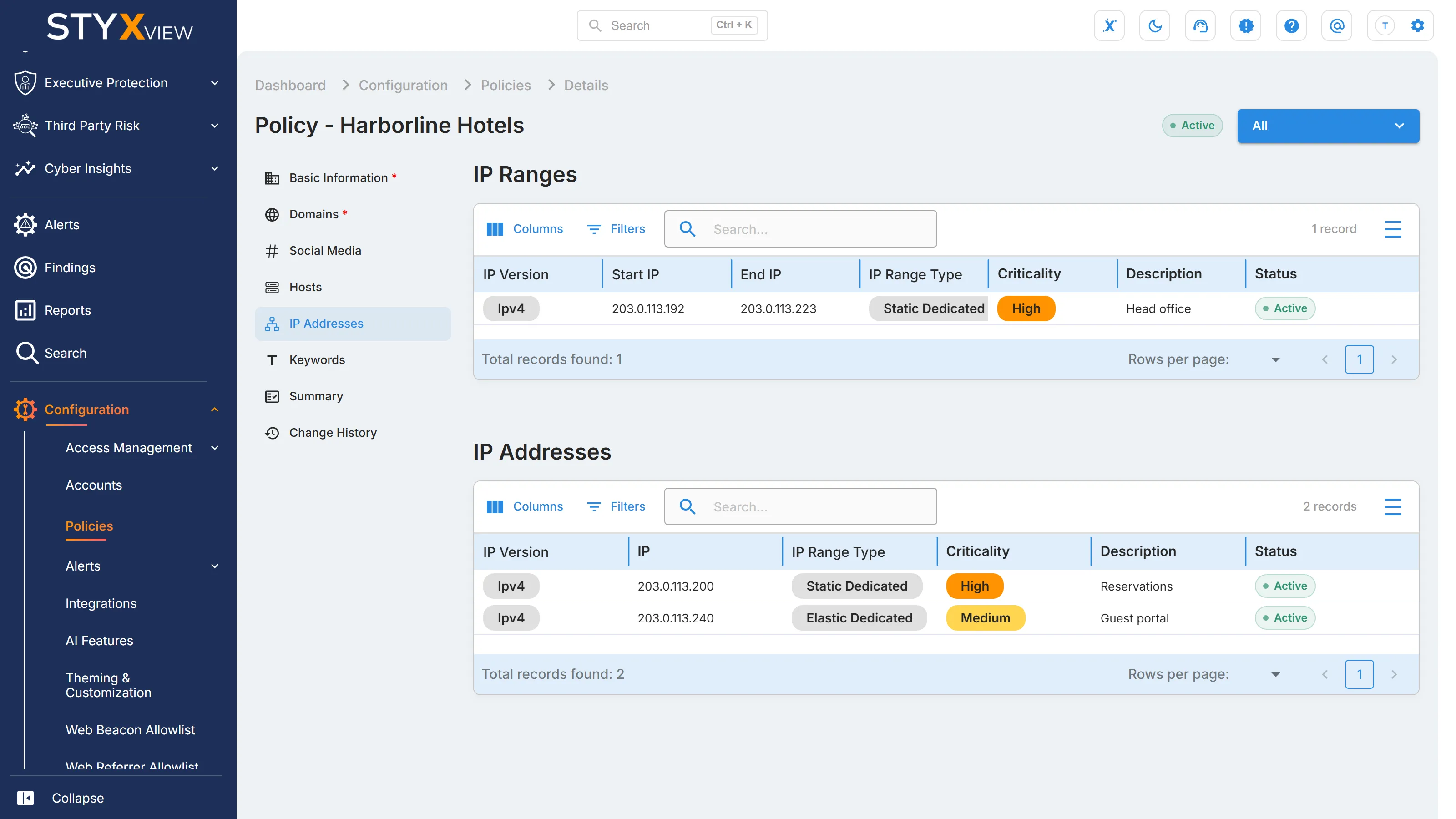
Section titled “IP Addresses”Two lists. "IP Ranges" holds ranges, each with an "IP Version", "Start IP", "End IP", "IP Range Type", "Criticality", and optional "Description". "IP Addresses" holds single addresses, each with an "IP Version", "IP", "IP Range Type", "Criticality", and optional "Description". Use "Add IP Range" or "Add IP Address" to add more. This section is optional.
Keywords
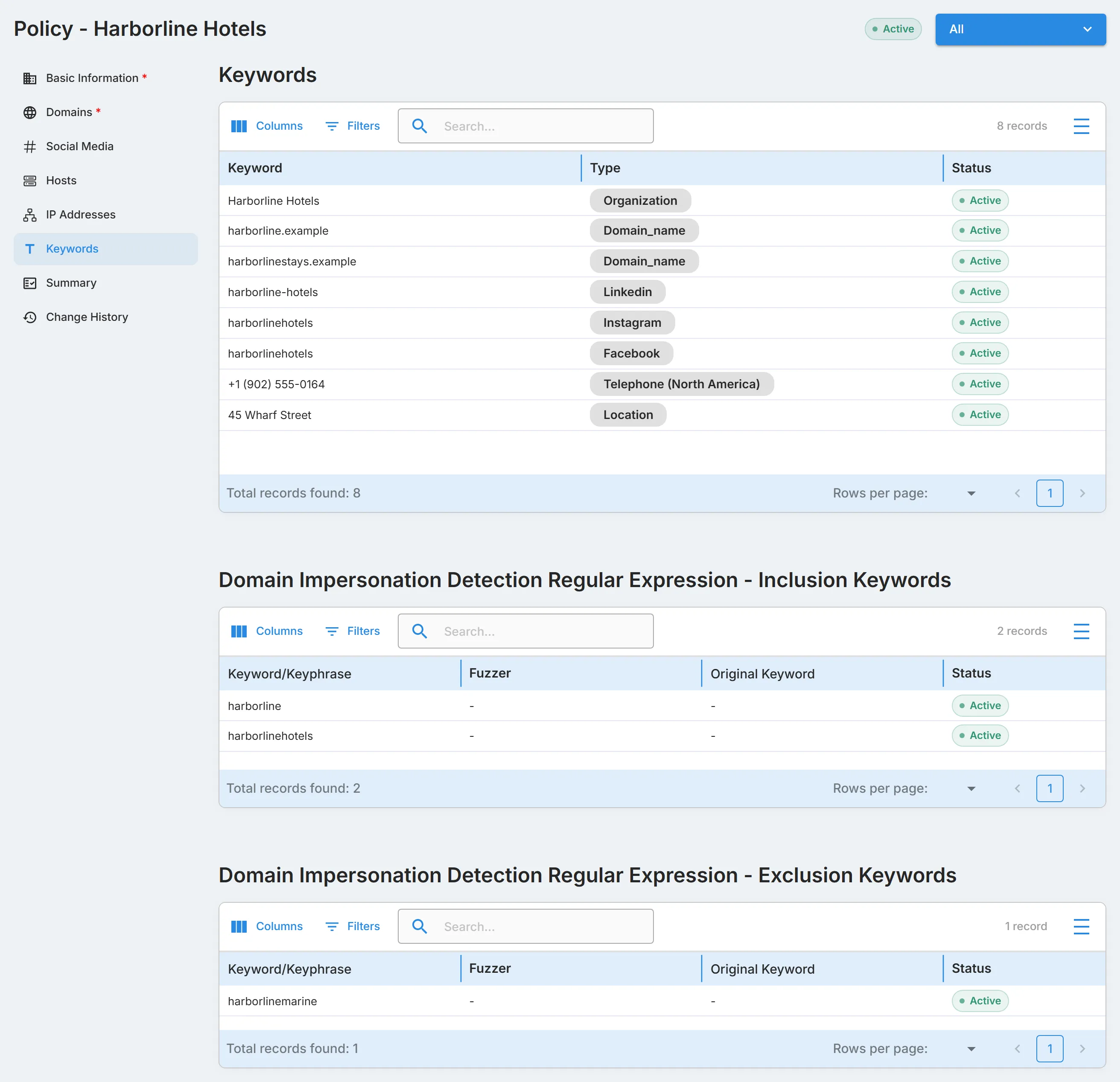
Section titled “Keywords”Keywords and key phrases associated with the third party, each with a "Keyword" and a "Type". Select "Add Keyword" to add another. This section is optional.
Summary
Section titled “Summary”"Summary" lists each section with its configuration status: a check mark for a configured section and a red cross for one that is not. Below the list, expand a section to see its saved details without leaving the page.